
The Orchestrator Management page is used to view and manage individual orchestrators (such as the Keyfactor Universal Orchestrator The Keyfactor Universal Orchestrator, one of Keyfactor's suite of orchestrators, is used to interact with servers and devices for certificate management, run SSL discovery and management tasks, and manage synchronization of certificate authorities in remote forests. With the addition of custom extensions, it can provide certificate management capabilities on a variety of platforms and devices (for example Amazon Web Services (AWS) resources, Citrix\NetScaler devices, F5 devices, IIS stores, JKS keystores, PEM stores, and PKCS #12 stores) and execute tasks outside the standard list of certificate management functions. It runs on either Windows or Linux servers or Linux containers.) that are currently, or were previously, connected to the Keyfactor Command server.
The orchestrator Keyfactor orchestrators perform a variety of functions, including managing certificate stores and SSH key stores. management grid displays all orchestrators that have communicated with the server. You can sort the grid by clicking a column header (except for the Capabilities column), rearrange columns by dragging headers, and resize columns by dragging column dividers. By default, disapproved orchestrators are hidden. Select Include Disapproved to display them.
To perform an operation, select one or more orchestrators in the grid and choose an action from the toolbar or the right-click menu. Some actions—such as approve, disapprove, apply blueprint A Blueprint in Keyfactor Command is a snapshot of the certificate stores and scheduled jobs on one orchestrator, which can be used to create matching certificate stores and jobs on another orchestrator with just a few clicks., reset, and request renewal—support multiple orchestrators. Other actions apply to a single orchestrator and are available only from the right-click menu. Additional actions may be available from the extended toolbar menu ( ).
).
For descriptions of the grid columns, see View Orchestrator Details.
Orchestrators → Management → Orchestrator Management Tab
Searching Orchestrator Management
This page supports the standard query format described in Using Search in the Management Portal and includes its own set of query parsers specific to this operation. Use the following parsers to filter and refine results for this page.
-
Orchestrator Platform matches or doesn’t match the referenced platform. Supported platforms are:
-
Java (Legacy JKS
A Java KeyStore (JKS) is a file containing security certificates with matching private keys. They are often used by Java-based applications for authentication and encryption. and PEM A PEM format certificate file is a Base64-encoded certificate. Since it's presented in ASCII, you can open it in any text editor. PEM certificates always begin and end with entries like ---- BEGIN CERTIFICATE---- and ----END CERTIFICATE----. PEM certificates can contain a single certificate or a full certificate chain and may contain a private key. In general, extensions of .cer and .crt are certificate files with no private key, .key is a separate private key file, and .pem is both a certificate and private key.) -
.NET (All Universal Orchestrator extensions)
-
Android (Custom development)
-
-
Blueprint
Complete or partial matches with the specified blueprint name.
-
Capabilities
Capability matches the specified value and comparison. Supported capabilities include any legacy types still in use in your environment and any custom types you may have created. For example:
- AWS (built-in, deprecated Amazon Web Services)
- AWS-ACM-v3 (extension, Amazon Web Services)
- CitrixAdc (extension, Citrix Netscaler)
- F5 (built-in, deprecated F5)
- F5-WS-REST (extension, F5)
- F5-SL-REST (extension, F5)
- F5-CA A certificate authority (CA) is an entity that issues digital certificates. Within Keyfactor Command, a CA may be a Microsoft CA or a Keyfactor gateway to a cloud-based or remote CA.-REST (extension, F5)
- FTP (built-in, deprecated FTP)
- IIS (built-in, deprecated IIS roots/personal/revoked)
- IISU (extension, Windows Certificate Store)
- JKS (built-in, deprecated Java KeyStore)
- LOGS (built-in, log retrieval)
- PEM (built-in, deprecated PEM file)
- RFDER (extension, Remote File)
- RFJKS (extension, Remote File)
- RFKDB (extension, Remote File)
- RFORA (extension, Remote File)
- RFPEM (extension, Remote File)
- RFPkcs12 (extension, Remote File)
- WinCert (extension, Windows Certificate Store)
- WinSQL (extension, Windows Certificate Store)
-
ClientMachine
Complete or partial matches with the orchestrator name as listed in the Client Machine field.
-
ErrorCode
Complete or partial matches with the last heartbeat or session registration error code.
Note: Heartbeat is used by older orchestrators to maintain connectivity with Keyfactor Command. Newer Universal Orchestrator versions instead re-register at regular intervals. -
ErrorMessage
Partial matches with the last heartbeat or session registration error message.
Note: Heartbeat is used by older orchestrators to maintain connectivity with Keyfactor Command. Newer Universal Orchestrator versions instead re-register at regular intervals. -
HighAvailability
Whether the orchestrator supports high availability (True or False).
Orchestrators that support high availability can be added to user-managed pools with multiple orchestrators. Orchestrators that do not support high availability are assigned to auto-generated, one-to-one pools.
-
The date and time when the orchestrator last contacted the Keyfactor Command server. For highly available orchestrators, this value is used with the orchestrator pool’s Remove Transient Orchestrators and Last Seen Threshold (minutes) settings. If removal of transient orchestrators is turned on and the orchestrator has not contacted Keyfactor Command within the configured threshold, the orchestrator is removed from the pool. The default threshold is 30 minutes.
-
OrchestratorPoolName
Complete or partial matches with the orchestrator pool name.
-
Status
Status matches the selected category:
- New
- Approved
- Disapproved
-
Username
Complete or partial matches with the user identity with which the orchestrator is connecting to Keyfactor Command.
-
Version
Orchestrator version matches the specified comparison and value.
View Orchestrator Details
The View Details dialog provides detailed information about a selected orchestrator, including its identity, platform, version, status, capabilities, and recent activity. This information is useful for verifying orchestrator configuration, troubleshooting communication issues, and confirming eligibility for specific jobs or pools.
To view details of an orchestrator, double-click an orchestrator or select the orchestrator and choose View Details from the toolbar or right-click menu. The orchestrator details dialog includes the information shown in the following sections.
Details Tab
-
Id
The GUID of the orchestrator.
-
Client Machine
The host name
The unique identifier that serves as name of a computer. It is sometimes presented as a fully qualified domain name (for example servername.keyexample.com) and sometimes just as a short name (for example servername). of the orchestrator machine, either short or fully qualified depending upon how the machine reports itself. -
Identity
The account the orchestrator is using to authenticate to Keyfactor Command, which may or may not be the same as the account under which the orchestrator is running.
For example, the Universal Orchestrator service runs as a service account on the orchestrator machine that may be a local account on the machine, the Windows built-in Network Service account, or an Active Directory domain account. If it’s an Active Directory account, it will be an account in the forest
An Active Directory forest (AD forest) is the top most logical container in an Active Directory configuration that contains domains, and objects such as users and computers. to which the orchestrator server is joined. The orchestrator’s identity to make the connection to the Keyfactor Command server will be a service account for the identity provider configured for Keyfactor Command, which may be Active Directory, Keycloak, Auth0, another OAuth 2.0 compliant identity provider, or a federated identity provider. If it’s Active Directory, it will be an identity from the forest in which Keyfactor Command is installed, which may be a different forest from the forest in which the orchestrator is installed. -
Platform
The platform of the orchestrator—Java for the Java Agent
A legacy Keyfactor orchestrator used to discover Java keystores and PEM certificate stores, inventory discovered stores, and deploy certificates to those stores. The Java Agent has been deprecated and replaced by newer orchestration solutions. New deployments should use the Keyfactor Universal Orchestrator with Remote File extension instead., .NET Core for the Universal Orchestrator, Bash for the Keyfactor Bash Orchestrator The Bash Orchestrator, one of Keyfactor's suite of orchestrators, is used to discover and manage SSH keys across an enterprise., for example. -
Version
The version number that the orchestrator has reported.
-
Status
Whether the orchestrator has been approved for operations with the Keyfactor Command server. Newly registered orchestrators show New in this column. Disapproved orchestrators show Disapproved.
-
Last Seen
The date and time when the orchestrator last contacted the Keyfactor Command server. For highly available orchestrators, this value is used with the orchestrator pool’s Remove Transient Orchestrators and Last Seen Threshold (minutes) settings. If removal of transient orchestrators is turned on and the orchestrator has not contacted Keyfactor Command within the configured threshold, the orchestrator is removed from the pool. The default threshold is 30 minutes.
-
Capabilities
The high-level certificate store capabilities supported by the orchestrator, based on the orchestrator type. These values represent the certificate store types the orchestrator can target (for example, RFJKS) and may include custom capabilities.
For a detailed breakdown of the specific job types supported for each capability—such as inventory, management, or discovery—see the Capabilities tab.
-
Orchestrator Blueprints
The last blueprint applied to the orchestrator, if any (see Orchestrator Blueprints).
-
Legacy Thumbprint
The thumbprint of the certificate previously used by the orchestrator for client certificate authentication before a certificate renewal operation took place (rotating the current thumbprint into the legacy thumbprint). The legacy thumbprint is cleared once the orchestrator successfully registers with a new thumbprint.
-
Current Thumbprint
The thumbprint of the certificate that Keyfactor Command is expecting the orchestrator to use for client certificate authentication.
-
Authentication Certificate Renewal Request Status
The last error code, if any, reported from the orchestrator when trying to register a session. This code is cleared on successful session registration.
-
Last Thumbprint Used
The thumbprint of the certificate that the orchestrator most recently used for client certificate authentication. Usually, this will match the Current Thumbprint.
-
Last Error Code
The last error code, if any, reported from the orchestrator when trying to register a session. This code is cleared on successful session registration.
-
Last Error Message
The last error code, if any, reported from the orchestrator when trying to register a session. This message is cleared on successful session registration.
-
Orchestrator Pool Id
The GUID of the orchestrator pool to which the orchestrator belongs, if applicable.
-
Orchestrator Pool Name
The name of the orchestrator pool to which the orchestrator belongs, if applicable.
-
High Availability
Whether the orchestrator supports high availability (True or False).
Orchestrators that support high availability can be added to user-managed pools with multiple orchestrators. Orchestrators that do not support high availability are assigned to auto-generated, one-to-one pools.
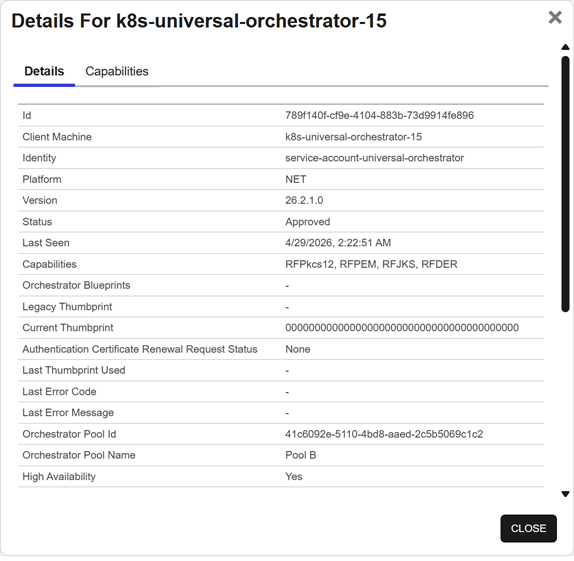
Figure 345: View Details for an Orchestrator
Capabilities Tab
The Capability tab shows a list of Job Types that are correlated to the selected orchestrator's capabilities. For Custom job types only the Name will display (Short Name and Job Type will be blank).
-
Name
The name of the job type which includes each combination of capability and the job type.
-
Short Name
The user-defined short name given to the certificate store associated with the job type.
-
Job Type
The job type:
- Inventory: Determine what is in the certificate stores and report the contents to Keyfactor Command. This capability is required for all store types.
- Management: Create certificate stores, and add or remove certificates through certificate store jobs.
- Discovery: Determine what certificate stores of this type are on the device.
- ODKG: Generate a keypair on the device and submit a certificate signing request A CSR or certificate signing request is a block of encoded text that is submitted to a CA when enrolling for a certificate. When you generate a CSR within Keyfactor Command, the matching private key for it is stored in Keyfactor Command in encrypted format and will be married with the certificate once returned from the CA. using ODKG (on-device key generation, formerly re-enrollment Certificate enrollment refers to the process by which a user requests a digital certificate. The user must submit the request to a certificate authority (CA).).
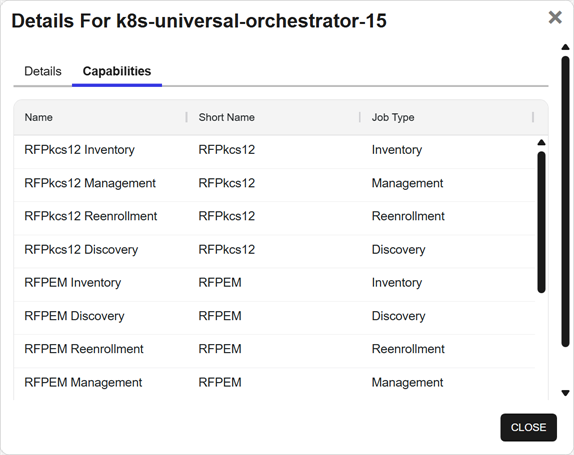
Figure 346: View Details for an Orchestrator
Approve or Disapprove Orchestrators
Orchestrators registered with Keyfactor Command have a lifecycle status that controls whether they are allowed to perform jobs. When an orchestrator registers, it is assigned a status of New. Orchestrators in this state cannot perform any jobs until they are approved.
For orchestrators earlier than version 26.2, re-registering with new capabilities resets the status to New, even if the orchestrator was previously approved. Universal Orchestrators version 26.2 or later retain their current status when re-registering with new capabilities.
Approving an orchestrator authorizes it to communicate with Keyfactor Command and begin executing assigned jobs. Disapproving an orchestrator prevents it from performing jobs and removes it from active participation in orchestration tasks.
-
Approve
To approve orchestrators, select one or more orchestrators and choose Approve from the toolbar or right-click menu. For orchestrators that support high-availability, in the Approve Orchestrators dialog, select an Orchestrator Pool and Save.
Once an orchestrator is approved, you can schedule jobs for it (Universal Orchestrator) or configure server groups and servers and begin scanning servers (Keyfactor Bash Orchestrator).
Universal Orchestrators version 26.2 or later support auto-approval with auto-registration. Auto-approval is triggered when the orchestrator specifies an Orchestrator Pool ID during initial registration. If the pool exists and is valid, the orchestrator is automatically approved and can begin executing jobs immediately.
Important: Auto-registration is successful only when all the following conditions are met:The orchestrator must be version 26.2 or later.
The orchestrator installation must specify the pool ID that the orchestrator will join. Configure this using the following parameters:
- Windows: -AutoRegistrationPoolId
- Linux: --auto-registration-pool-id
- Container: autoRegistrationPoolId
The identity presented by the orchestrator must satisfy at least one claim configured for the pool. Allowed claims are defined
Allow Auto-Registration must be turned on for the orchestrator pool. This setting is configured
-
Disapprove
To disapprove orchestrators, select one or more orchestrators and choose Disapprove from the toolbar or right-click menu. When an orchestrator is disapproved, operations with Keyfactor Command can no longer be carried out by this orchestrator.
Generate and Apply Blueprints
The Generate and Apply Blueprints features let you capture the certificate stores and scheduled jobs from one orchestrator and reuse them to configure another orchestrator. A blueprint represents a snapshot of an orchestrator’s configuration and can be applied to create matching certificate stores and jobs with minimal setup.
To generate a blueprint from an orchestrator, select an orchestrator, open the More options (…) menu from the toolbar, and select Generate Blueprint. For more information about blueprints, see Orchestrator Blueprints.
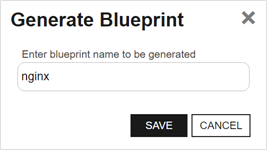
Figure 347: Generate a Blueprint from an Existing Orchestrator
To apply a blueprint to an orchestrator, select an orchestrator, open the More options (…) menu from the toolbar, and select Apply Blueprint. For more information about blueprints, see Orchestrator Blueprints.
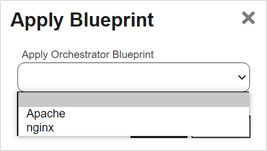
Figure 348: Apply a Blueprint from a New Orchestrator
Orchestrator Reset
The orchestrator Reset and Renewal functions are both useful for orchestrator maintenance.
The Reset function can be used when an orchestrator is in an error state or if you've made some changes on the orchestrator side that necessitate a refresh. The orchestrator reset function:
- Removes all current orchestrator jobs for the selected orchestrator.
- Deletes all associated certificate stores.
- Sets the orchestrator status to new.
- For orchestrators configured to use client certificate authentication, clears the certificate thumbprints stored for the orchestrator to allow it to be reconfigured with a new certificate.
- For highly available orchestrators, removes the orchestrator from the pool to which it is assigned.
To reset an orchestrator, select an orchestrator and choose Reset from the toolbar or right-click menu.
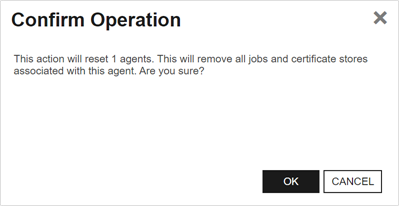
Figure 349: Reset an Orchestrator
Orchestrator Renewal
The Renewal function is used for orchestrators that authenticate using a client certificate to initiate certificate renewal before it would occur automatically based on expiration timing.
When triggered, the Renewal function causes the orchestrator to enroll for a new client authentication certificate during its next session registration. This function is used in conjunction with a custom renewal extension to force renewal earlier than the configured warning and expiry windows. For more information, see Register a Client Certificate Renewal Extension.
To request certificate renewal for an orchestrator, select an orchestrator and choose Request Renewal from the toolbar or right-click menu. In the Renewal Status dropdown, select one of the following options:
-
None
Clears the setting so the orchestrator does not attempt to enroll for a new client authentication certificate based on this control.
-
Request
The orchestrator attempts to enroll for a new client authentication certificate the next time it registers for a session. Orchestrator activity continues as usual.
-
Require
The orchestrator must enroll for a new client authentication certificate the next time it registers for a session. A new session is not granted, and orchestrator activity cannot continue until a new certificate is obtained.
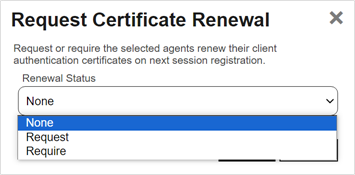
Figure 350: Request Renewal for an Orchestrator
View Active Jobs for an Orchestrator
To view all active jobs for an orchestrator, select an orchestrator and choose View Jobs from the toolbar or right-click menu. This opens the Scheduled Jobs tab of the orchestrator job status page with the query field populated for the selected orchestrator.
Jobs are assigned at the orchestrator pool level. The results show jobs for the pool that the selected orchestrator belongs to. The query is populated using the selected orchestrator, but jobs are executed by any orchestrator in the pool, not necessarily the one selected.
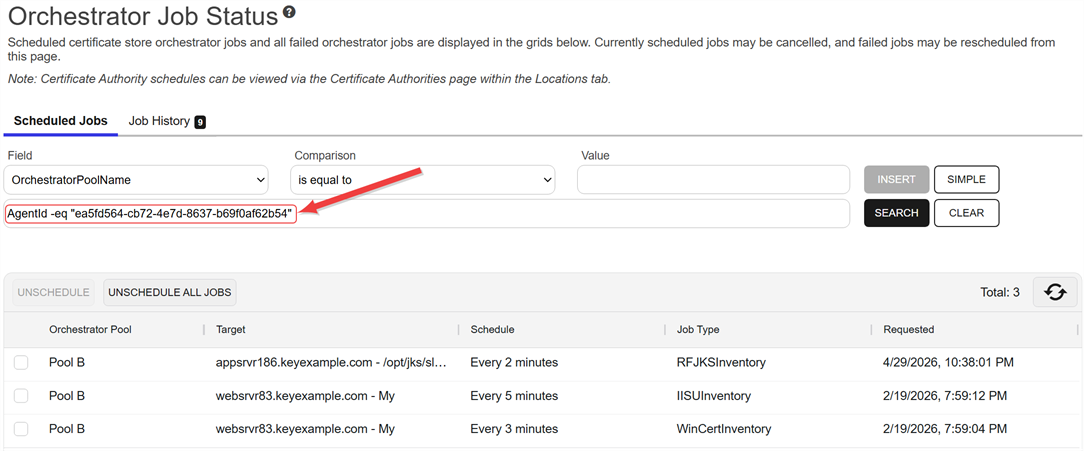
Figure 351: View Active Jobs for an Orchestrator
View Job History for an Orchestrator
To view job history for an orchestrator, select an orchestrator and choose View Job Histories from the toolbar or right-click menu. This opens the Job History tab of the orchestrator job status page with the query field populated for the selected orchestrator.
Jobs are scheduled at the orchestrator pool level, but job history is shown per orchestrator, reflecting the specific orchestrator that executed each job.
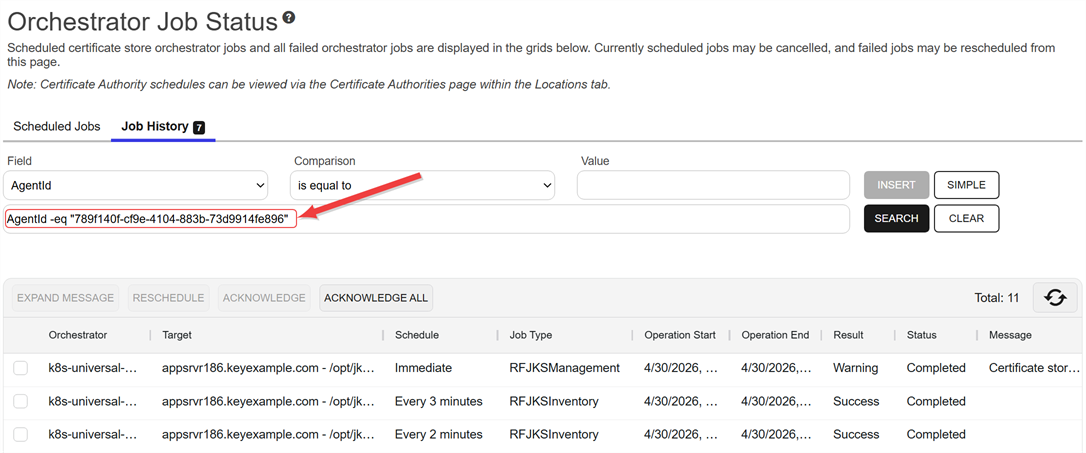
Figure 352: View Job History for an Orchestrator
View Certificate Stores Associated with an Orchestrator
To view the certificate stores associated with an orchestrator, select a row in the orchestrator management grid and choose View Certificate Stores from the toolbar or right-click menu. This will take you to the certificate stores page with the query field populated by the orchestrator pool for the selected orchestrator.
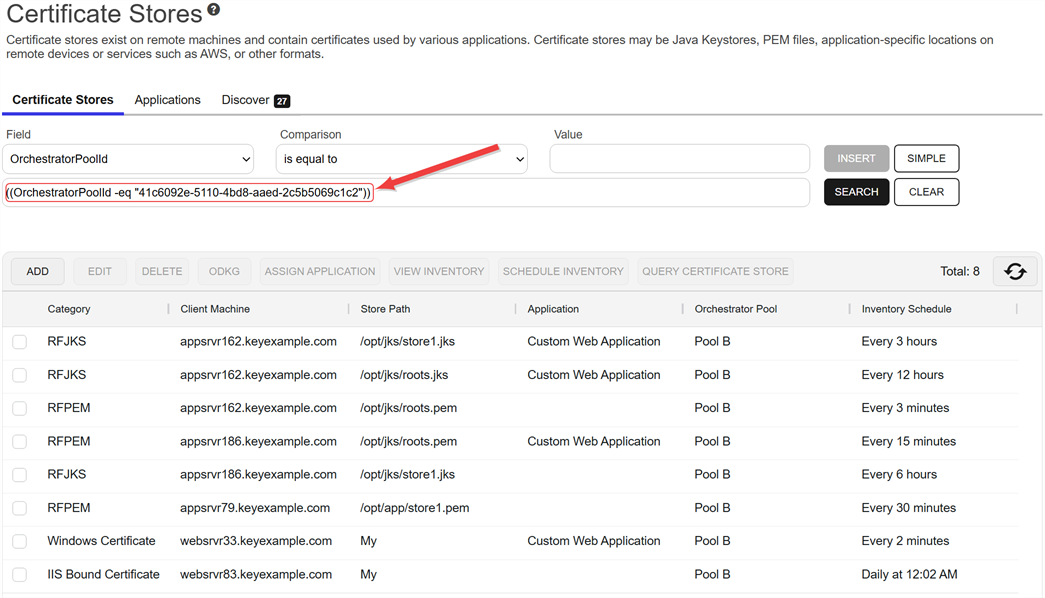
Figure 353: View Certificate Stores for an Orchestrator
TLS (Transport Layer Security) and its predecessor SSL (Secure Sockets Layer) are protocols for establishing authenticated and encrypted links between networked computers. or SSH.Fetch Logs
The fetch logs function is designed to retrieve a portion of the tail end of the orchestrator log for easy review. It is supported for both the Keyfactor Universal Orchestrator and the Native Agent.
To schedule a job to fetch the logs, select an orchestrator, open the More options (…) menu from the toolbar, and select Fetch Logs. The job will be scheduled to run immediately, which means it should complete within a few minutes depending on other activity occurring at the same time. The fetch logs job will appear in Scheduled Jobs under Orchestrator Job Status with a job type of Fetch Logs and when complete will appear in Job History (see Job History).
For Native Agent fetch log jobs, when the job is complete, locate the completed job on the Job History tab and double-click or click Expand Message from the toolbar or right-click menu. The job status message details show 4000 characters of the tail end of the log.
To review the log data for logs fetched from a Universal Orchestrator, use the GET /OrchestratorJobs/JobStatus/Data Keyfactor API An API is a set of functions to allow creation of applications. Keyfactor offers the Keyfactor API, which allows third-party software to integrate with the advanced certificate enrollment and management features of Keyfactor Command. method. See GET Orchestrator Jobs Job Status Data for more information.
The orchestrator must be approved and have the LOGS capability in order for the Fetch Logs function to be available.
To set up logging on the Native Agent, see the Native Agent configuration instructions to configure logging and start the orchestrator with the appropriate logging level to allow for the use of the Fetch Logs feature:
This indicates that the amount of data being returned for the job is larger than the Keyfactor Command server path is configured to accept.
Delete an Orchestrator
The Delete function is used to fully remove an orchestrator from Keyfactor Command along with any associated jobs, certificate stores, and configured SSH servers.
If you only want to remove an orchestrator from view without this impact, you can mark it Disapproved instead. It will then be hidden from view unless you select Include Disapproved.
To go forward with deletion, first disapprove the orchestrator. The Delete function can only be used on orchestrators that have been disapproved. Select the orchestrator and choose Delete from the toolbar or right-click menu. You will be prompted to confirm that you want to delete this orchestrator and understand the consequences of this action. Type the orchestrator name and click Submit to complete the deletion.
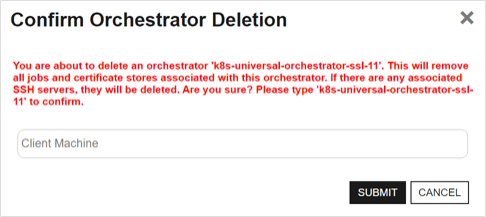
Figure 354: Deletion Confirmation for an Orchestrator