
The Certificate Stores tab provides actions for working with certificate stores, including creating and updating stores, assigning applications, running inventory, enrolling for certificates using on-device key generation, and querying stored certificates.
Most operations begin by selecting one or more certificate stores in the grid and then choosing an action from the toolbar or the right-click menu. Some operations support multiple certificate stores at once, while others apply to a single store. The right-click menu applies to one certificate store at a time.
Locations → Certificate Stores → Certificate Stores Tab
 Searching Certificate Stores
This page supports the standard query format described in Using Search in the Management Portal and includes its own set of query parsers specific to this operation. Use the following parsers to filter and refine results for this page.
-
Application
Complete or partial matches with one or more certificate store applications.
Tip: Previous versions of Keyfactor Command referred to the certificate store applications as containers. -
Category
Indicates whether the certificate store matches the selected category.
Categories are based on certificate store types defined in Keyfactor Command. These types correspond to extensions installed on the Universal Orchestrator
Keyfactor orchestrators perform a variety of functions, including managing certificate stores and SSH key stores. or to custom agents or orchestrators.Built-in categories are available only in environments using legacy products.
Example legacy built-in and common custom categories include:
- CitrixAdc (Citrix Netscaler Universal Orchestrator Extension)
- F5-WS-REST (F5 Universal Orchestrator Extension)
- F5 SSL TLS (Transport Layer Security) and its predecessor SSL (Secure Sockets Layer) are protocols for establishing authenticated and encrypted links between networked computers. Profiles REST (F5 Universal Orchestrator Extension)
- F5 CA A certificate authority (CA) is an entity that issues digital certificates. Within Keyfactor Command, a CA may be a Microsoft CA or a Keyfactor gateway to a cloud-based or remote CA. Bundles REST (F5 Universal Orchestrator Extension)
- IIS Bound Certificate (Windows Certificate Universal Orchestrator Extension)
- Java Keystore A Java KeyStore (JKS) is a file containing security certificates with matching private keys. They are often used by Java-based applications for authentication and encryption. (Legacy Keyfactor Java Agent A legacy Keyfactor orchestrator used to discover Java keystores and PEM certificate stores, inventory discovered stores, and deploy certificates to those stores. The Java Agent has been deprecated and replaced by newer orchestration solutions. New deployments should use the Keyfactor Universal Orchestrator with Remote File extension instead.)
- LOGS (built-in log retrieval)
- PEM A PEM format certificate file is a Base64-encoded certificate. Since it's presented in ASCII, you can open it in any text editor. PEM certificates always begin and end with entries like ---- BEGIN CERTIFICATE---- and ----END CERTIFICATE----. PEM certificates can contain a single certificate or a full certificate chain and may contain a private key. In general, extensions of .cer and .crt are certificate files with no private key, .key is a separate private key file, and .pem is both a certificate and private key. File (Legacy Keyfactor Java Agent)
- RFDER (Remote File Universal Orchestrator Extension)
- RFJKS (Remote File Universal Orchestrator Extension)
- RFPkcs12 (Remote File Universal Orchestrator Extension)
- RFPEM (Remote File Universal Orchestrator Extension)
- Windows Certificate (Windows Certificate Universal Orchestrator Extension)
- WinSql (Windows Certificate Universal Orchestrator Extension)
-
ClientMachine
Complete or partial matches with one or more client machines on which a store or stores may be found.
-
HasInventoryScheduled
Certificate store has an inventory job scheduled (True or False).
-
MirroringEnabled
Mirroring is turned on for the certificate store (True or False).
-
OrchestratorPoolId
Complete matches with the Keyfactor Command reference GUID for the orchestrator pool.
-
StorePath
Complete or partial matches with the full path to a certificate store—for example, /opt/application/mystore.crt or c:\program files\application\mystore.jks.
-
TrustBundleId
Complete or partial matches with the ID of the trust bundle used for certificate store mirroring.
-
TrustBundleName
Complete or partial matches with the name of the trust bundle used for certificate store mirroring.
Add or Modify a Certificate Store
Before creating a certificate store in Keyfactor Command, you must approve an orchestrator to handle the store (see Approve or Disapprove Orchestrators).
Permissions for certificate stores can be set at the system-wide level or certificate store application level. See Application Permissions for more information.
Certificate stores can be added manually or, for some types of stores, automatically using a discover process (see Certificate Store Discovery).
To define a new certificate store location or edit an existing one:
- Select the Certificate Stores tab (the default when you first visit the page).
- On the Certificate Stores tab, choose Add to create a new store location or Edit from either the toolbar or right-click menu to modify an existing one.
-
In the Certificate Stores dialog, select the type of certificate store in the Category dropdown. The values that appear here are the display names for the built-in certificate store types and any custom certificate store types you created to match your custom extensions. The values vary depending on historical use of your Keyfactor Command database and custom extensions you may have implemented. Examples of Keyfactor-provided custom-built extensions on GitHub include:
- AWS Certificate Store Manager
- NetScaler Certificate Store Manager
- F5 Certificate Store Manager
- IIS Certificate Store Manager
- Remote File Certificate Store Management (Java KeyStores, PKCS #12 A PFX file (personal information exchange format), also known as a PKCS #12 archive, is a single, password-protected certificate archive that contains both the public and matching private key and, optionally, the certificate chain. It is a common format for Windows servers. files, PEM files, DER A DER format certificate file is a DER-encoded binary certificate. It contains a single certificate and does not support storage of private keys. It sometimes has an extension of .der but is often seen with .cer or .crt. files, IBM Key Database files)
Note: This field cannot be modified on an edit.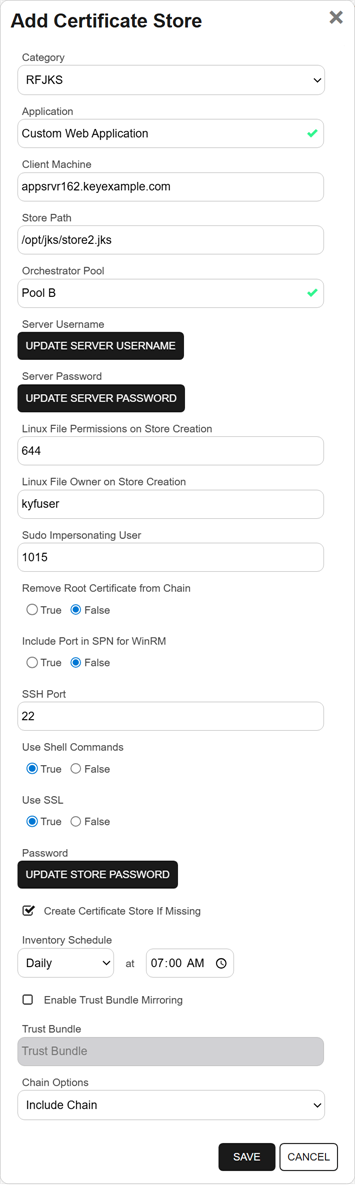
Figure 307: Add a Remote JKS Certificate Store
- In the Application field, enter an application into which to place the store for organization from your previously defined list in the search select dropdown. To narrow the list of results in a search select dropdown, begin typing in the input field. Matching results will appear as you type, and you can scroll to locate a record. This field is optional. If no application to which you have permissions exists, no applications will be available in the search select field (see Add or Modify a Certificate Store Application). Leave blank if you do not wish the certificate store to be associated with a specific store application.
-
The remaining fields on the dialog will vary depending on the configuration of your custom certificate store type. Common fields include:
-
Client Machine
Typically the fully qualified domain name or IP address of the target server or device on which the certificate store is located.
Important: When an orchestrator uses PowerShell remoting (WinRM), the Client Machine field must use the actual host name The unique identifier that serves as name of a computer. It is sometimes presented as a fully qualified domain name (for example servername.keyexample.com) and sometimes just as a short name (for example servername). of the target server rather than a DNS The Domain Name System is a service that translates names into IP addresses. alias (A or CNAME record).
PowerShell remoting relies on Kerberos authentication, which requires the target machine to have a service principal name (SPN) in the HTTP/ format assigned to the machine account. This SPN is present by default as part of the HOST/ SPN, provided the HTTP/ SPN has not been manually assigned elsewhere. Using a DNS alias introduces additional SPN configuration requirements and increases the risk of duplicate SPNs in the environment.
To manage the server hosting Keyfactor Command, a DNS alias is required for either the Keyfactor Command server or the IIS certificate store access. Contact Keyfactor for design assistance.
Note: This field cannot be modified on an edit. -
Store Path
The path to the certificate store, sometimes including the store file name, on the target server or device.
-
For Java KeyStores, for example, this would be a file system path and file name (for example, /opt/app/store.jks or C:\Apps\store.jks). Paths and filenames entered for Linux/UNIX machines are case sensitive.
-
For CA bundles on F5 devices, this is the bundle into which you want to install the certificate (for example, /Common/ca-bundle). The Store Path name is case sensitive for some targets and devices, so, for example, if the partition name on the F5 is Common it must be entered in the Store Path field as Common rather than common.
-
For IIS bound certificate stores, this is the name of the Windows certificate store.
My: Local Computer Personal store
Web Hosting: Local Computer Web Hosting store
Check the details of the documentation for your custom-built extension to determine the data to enter here.
Note: This field cannot be modified on an edit. -
-
Orchestrator Pool
The name of the orchestrator pool that will handle jobs for this store. To narrow the list of results in a search select dropdown, begin typing in the input field. Matching results will appear as you type, and you can scroll to locate a record.
-
Server Username
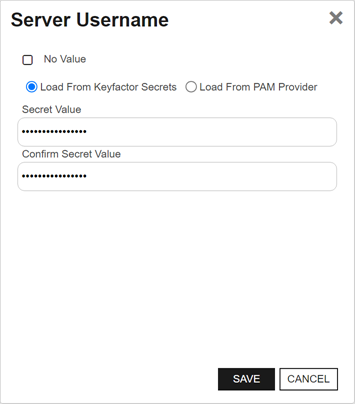
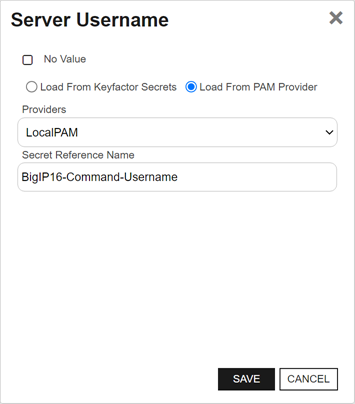
The source from which to load a user valid on the target server or device with sufficient permissions to read the store location and open the files and the name of that user, if applicable. In the Server Username dialog, the options are
Load From Keyfactor Secrets or Load From PAM Provider. The No Value option is typically not supported for server authentication.-
For F5, this as a user with Administrator permissions. Although a user with Resource Administrator permissions is sufficient when using the F5 methods that use the SOAP API
An API is a set of functions to allow creation of applications. Keyfactor offers the Keyfactor API, which allows third-party software to integrate with the advanced certificate enrollment and management features of Keyfactor Command., the F5 methods that use the REST API require full Administrator permissions. -
For AWS using IAM authentication, this is the API access key for your web service.
This field only appears if your custom certificate store type indicates that it Needs Server.
-
-
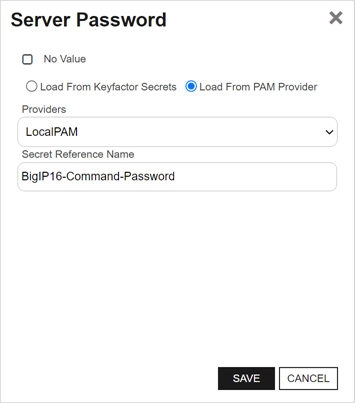
Server Password
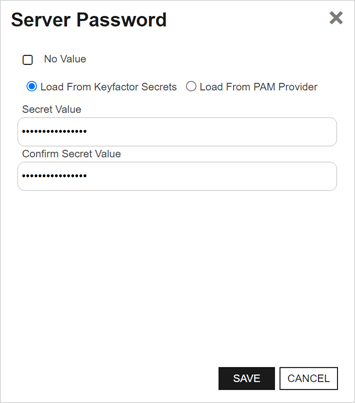
The source from which to load a valid password for the user used to access the server and the password for that user, if applicable. In the Server Password dialog, the options are
Load From Keyfactor Secrets or Load From PAM Provider. The No Value option is typically not supported for server authentication.This field only appears if your custom certificate store type indicates that it Needs Server.
-
Use SSL
Use SSL to communicate to the remote target or device.
-
If the remote target is an F5 device and you’re using the F5 extension, the device must trust the CA that issued the certificate used to protect the Keyfactor Command server or you must set the Ignore Server SSL Warnings application setting to True (see Application Settings: Agents Tab).
-
If the remote target is a Windows server and you’re using the Remote File or IIS extension, WinRM on the target must be configured to support HTTPS and have been configured with an SSL certificate (see Configure Windows Targets for Remote Management).
This field only appears if your custom certificate store type has been configured with the Use SSL custom field. Your field name may vary depending on the configuration of your custom certificate store type.
-
-
Create Certificate Store If Missing
If this option is selected, a new certificate store will be created on the target with the specified configuration. This option only appears if your custom certificate store type has been configured with Create for Supported Job Types.
-
Store Password.
The source from which to load a valid password for the certificate store itself rather than the server as a whole. In the Store Password dialog, the options are
No Value, Load From Keyfactor Secrets, and Load From PAM Provider. -
Type
For Java KeyStores using the Keyfactor Java Agent, select the Type from the dropdown. The available types are:
-
Standard Java keystore.
-
PKCS #12
PKCS #12 type files (for example, .p12 or .pfx), which are discoverable with the Keyfactor Java Agent using compatibility mode introduced in Java version 1.8.
-
Windows-My
Windows local machine personal certificate store. This option is only supported with a custom extension based on the AnyAgent framework. The Keyfactor Java Agent does not include functionality to manage this type of store.
Important: The Keyfactor Java Agent has been deprecated and may be removed from a future release. -
-
Enable Trust Bundle Mirroring
Turn on the option to populate the certificate store with root CA certificates from a trust bundle (see Trust Bundles).
If the certificate store does not exist, also turn on Create Certificate Store If Missing.
When mirroring is turned on, a management job is created for each certificate in the trust bundle to initially deliver it to the store. In addition, the trust bundle mirroring task runs every 10 minutes, compares the store to the trust bundle, and creates additional management jobs to apply any changes so the store matches the bundle.
Note: When mirroring is turned on, the trust bundle is the source of truth for the certificate store. Certificates added directly to the store (and which are not in the trust bundle) are removed during the next update. -
Trust Bundle
The name of the trust bundle to mirror to the certificate store. To narrow the list of results in a search select dropdown, begin typing in the input field. Matching results will appear as you type, and you can scroll to locate a record.
-
Chain Options
Specifies how the certificate chain is included when installing a certificate in the store.
- Include Chain (default): Installs the end-entity certificate along with its full chain, including intermediate and root certificates.
- No Chain: Installs only the end-entity certificate.
- Include Chain, No Roots: Installs the end-entity certificate and intermediate certificates, but excludes root certificates.
Chain Options is unavailable when Enable Trust Bundle Mirroring is turned on for a certificate store.
The dialog may present additional fields depending on the configuration of the Custom Fields for the certificate store type. Some additional fields that you may find for common Keyfactor custom-built extensions include:
- For F5 certificate stores, in the Ignore SSL Warning field, either accept the default of false to require that the F5 device have a valid SSL certificate with appropriate SAN The subject alternative name (SAN) is an extension to the X.509 specification that allows you to specify additional values when enrolling for a digital certificate. A variety of SAN formats are supported, with DNS name being the most common., if Use SSL is set to true, or set to true to ignore any warnings about an invalid SSL certificate when communicating with the F5 device.
-
For F5 certificate stores, in the Primary Node field, enter the fully qualified domain name of the F5 device that acts as the primary node in a highly available F5 implementation. If you're using a single F5 device, this will often be the same value you entered in the Client Machine field.
Tip: Configuration of the primary node is necessary to allow management jobs that update certificates on the F5 device to wait until the primary node is available before making their update. Inventory jobs are carried out against any available node. - For F5 certificate stores, in the Primary Node Check Retry Wait Seconds field, either accept the default value of 120 seconds or enter a new value. This value represents the number of seconds the orchestrator will wait after a pending management job cannot be completed because the primary node cannot be contacted before trying to contact the primary node again to retry the job.
- For F5 certificate stores, in the Primary Node Check Retry Maximum field, either accept the default value of 3 retry attempts or enter a new value. This value represents the number of times the orchestrator will retry a pending management job that is failing because the primary node cannot be contacted before declaring the job failed.
- For F5 certificate stores, in the Use Token Authentication field, either accept the default of false, to use basic authentication for all communications with the F5 device, or true, to use basic authentication for the initial connection to the F5 device to acquire an authentication token which will be used for all subsequent API requests.
-
For F5 certificate stores, in the Version of F5 dropdown, select the version of F5 this server is running. The F5 REST API is supported on version 13 and up.
Tip: Select v15 for version 15 and above. -
For IIS bound and Windows certificate stores, in the WinRm Protocol field, select HTTP to communicate between the orchestrator and the target over a non-secured WinRM channel or HTTPS to communicate over a secured channel WinRM channel. Using HTTPS for WinRM requires that the target has been configured to support HTTPS and has been configured with an SSL certificate for WinRM. For example:
-
For IIS bound and Windows certificate stores, in the WinRm Port field, accept the default of port 5986 for HTTPS, enter port 5985 for the default HTTP WinRM port, or enter an alternate port if your WinRM configuration is using an alternate port.
-
For IIS bound and Windows certificate stores, in the SPN with Port field, accept the default of False unless you’re aware that the -IncludePortwithSPN switch is required for remote PowerShell connections in your environment.
-
For Java KeyStores, PEM stores, and PKCS #12 stores on Linux targets when creating a new certificate store (see the Create Certificate Store If Missing option) using the Remote File extension, in the Linux File Permissions on Store Creation field, set the file permissions that should be granted to the new certificate store given in numeric format (for example, 644). The default is 600.
-
For Java KeyStores, PEM stores, and PKCS #12 stores on Linux targets when creating a new certificate store (see the Create Certificate Store If Missing option) using the Remote File extension, in the Linux File Owner on Store Creation field, set the file ownership that should be granted to the new certificate store given as a Linux username. The default is the user configured to authenticate to the server (see the Server Username option).
- For PEM stores, in the Separate Private Key File Location field, enter the full path to the private key Private keys are used in cryptography (symmetric and asymmetric) to encrypt or sign content. In asymmetric cryptography, they are used together in a key pair with a public key. The private or secret key is retained by the key's creator, making it highly secure. on the machine, including the file name. Paths and filenames entered for Linux/UNIX machines are case sensitive.
- For PEM stores using the Remote File extension, in the Trust Store field, a value of True indicates the target store is a trust store and as such should only contain public keys. If a store is marked as a trust store and a job is run that attempts to add a private key for a certificate to the store, an error will occur indicating a problem. A value of False indicates the store can contain a single certificate with private key and chain. The default is False.
- For PEM stores using the Remote File extension, in the Store Includes Chain field, a value of True causes the full chain for the certificate to be delivered to the store. A value of False indicates that only the certificate and private key should be delivered to the store. The certificates are always placed in the store in the order of: End Entity, Issuing CA, Root CA. The default is False. The field is ignored if Trust Store is True.
- For PEM stores using the Remote File extension, in the Is RSA Private Key field, a value of True indicates the private key for the certificate store is a PKCS #1 RSA A widely used public-key cryptosystem, RSA is commonly used for encryption and digital signatures. It is based on the mathematical difficulty of factoring large integers. formatted key (it will be headed with a line that reads “BEGIN RSA PRIVATE KEY”). A value of False indicates the private key for the certificate store is either an encrypted or non-encrypted PKCS #8 formatted key (it will be headed with a line that reads either “BEGIN PRIVATE KEY” or “BEGIN ENCRYPTED PRIVATE KEY”). If set to True, the Store Password must be set to No Value. The default is False. The field is ignored if Trust Store is True.
-
-
In the Inventory Schedule fields, select an inventory schedule for the store, if desired. The choices are:
-
Select Off to disable the inventory job.
-
If you select Immediate, the inventory will run within a few minutes of saving the record and will run only once. After this, the inventory schedule will be cleared.
-
If you select Interval, you can select a scan frequency of anywhere from every 1 minute to every 12 hours.
-
If you select Daily, you can set the time of day when the inventory should begin every day.
-
If you select Weekly, you can select the day, or days, of the week at a specified time.
-
If you select Monthly, you can select a day of the month (1st through 27th) at a specified time.
-
If you select Exactly Once, you can select a date and time at which to run the inventory job. After the job has run, the inventory schedule will be cleared.
If you are using certificate store applications to manage your stores (see Certificate Store Applications) and their schedules, you do not need to set an inventory schedule here.
Tip: If you plan to use the certificate owner functionality, you may wish to configure a default certificate owner on one or more enrollment Certificate enrollment refers to the process by which a user requests a digital certificate. The user must submit the request to a certificate authority (CA). patterns or at the system-wide settings policy level (see Configure System-Wide Settings and Enrollment Patterns - Enrollment Pattern: Policies Tab) before doing any inventory jobs to assure that certificate owner information is associated with certificates imported into Keyfactor Command. Certificates already in Keyfactor Command are not updated on subsequent inventory jobs. -
- Click Save to save the new or edited certificate store location.
Delete a Certificate Store
Permissions for certificate stores can be set at the system-wide level or certificate store application level. See Application Permissions for more information.
To delete a certificate store:
- On the Certificate Stores tab, select one or more rows in the certificate store grid and choose Delete from the toolbar or right-click menu. The right-click menu supports operations on only one store at a time.
- On the Confirm Operation alert, click OK to confirm or Cancel to cancel the operation.
View a Certificate Store
Users without modify permissions to certificate stores will see a View option instead of an Edit option on the Certificate Stores page to allow them to see a read-only view of the certificate store configuration details.
Permissions for certificate stores can be set at the system-wide level or certificate store application level. See Application Permissions for more information.
To view the details of a certificate store, on the Certificate Stores tab, select a row in the certificate store grid and choose View from the toolbar or right-click menu.
The fields are the same as those described for adding or editing a certificate store (see Add or Modify a Certificate Store), but none of the fields are editable when using the View option.
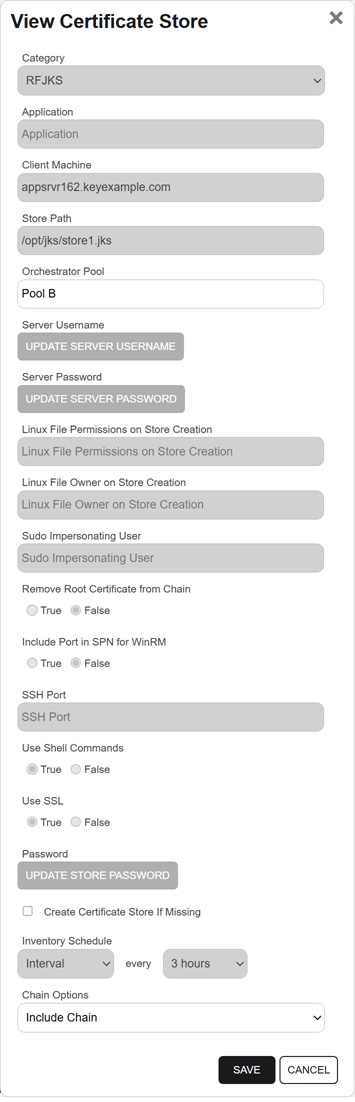
Figure 312: View Details for a Certificate Store
Certificate Store ODKG
The on-device key generation (ODKG) option (formerly re-enrollment) is available for select built-in and custom-built extensions provided by Keyfactor on GitHub or can be included in your fully custom extension. Examples of built-in and Keyfactor custom-built extensions that support ODKG include:
-
Akamai Certificate Provisioning System (CPS) on GitHub for use with the Universal Orchestrator.
-
Bosch IP Camera on GitHub for use with the Universal Orchestrator.
-
F5 BigIQ on GitHub for use with the Universal Orchestrator.
-
Windows Certificate on GitHub for use with the Universal Orchestrator.
-
PEM and Java certificate stores managed by the Keyfactor Java Agent.
Important: The Keyfactor Java Agent has been deprecated and may be removed from a future release. -
Any custom certificate store types created with the AnyAgent Framework to support this functionality.
Permissions for certificate stores can be set at the system-wide level or certificate store application level. See Application Permissions for more information.
Either the user scheduling the ODKG job or the user configured to provide authentication to the CA (see HTTPS CAs - Authentication Method Tab or DCOM CAs - Authentication Method Tab ) must also have enrollment permissions configured on the CA and template A certificate template defines the policies and rules that a CA uses when a request for a certificate is received..
To execute ODKG:
- On the Certificate Stores page, select the Certificate Stores tab (the default when you first visit the page).
- On the Certificate Stores tab, select the row in the certificate store grid and choose ODKG from the toolbar or right-click menu.
- The ODKG page will open. Follow the instructions for ODKG - On Device Key Generation.
The ODKG job will be scheduled to run immediately. Visit the Orchestrator Jobs page to check on the progress of the job (see Orchestrator Job Status).
Set a New Password on a Certificate Store
The option to reset the password on a certificate store updates the data for the certificate store as stored in the Keyfactor Command database but does not make any modifications to the certificate store itself. This option is available from the right-click menu only.
Permissions for certificate stores can be set at the system-wide level or certificate store application level. See Application Permissions for more information.
To reset the password for a certificate store:
- On the Certificate Stores tab, select the row in the certificate store grid and choose Set New Password from the right-click menu.
- Enter and confirm the new password and click Save.
Assign a Certificate Store to an Application
Before assigning a certificate store to an application, you need to create the application (see Add or Modify a Certificate Store Application).
Permissions for certificate stores can be set at the system-wide level or certificate store application level. See Application Permissions for more information.
To assign a certificate store to an application:
- On the Certificate Stores tab, select one or more rows in the certificate store grid and choose Assign Application from the toolbar or right-click menu. The right-click menu supports operations on only one store at a time.
- Select a certificate store application in the Application Name field and click Save.
View Inventory for a Certificate Store
Once at least one inventory job has been completed for a given certificate store, you can view and manage the certificates imported from the store.
Additional functionality can be obtained with these permissions:
Certificate Change Owner:
Certificate Stores > Change Owner (at the system-wide or container level)ORCertificates > Collections > Change Owner (at the system-wide level only)Certificate Revoke:
Certificate Stores > Revoke (at the system-wide or container level)ORCertificates > Collections > Revoke (at the system-wide level only)Certificate Download with Private Key:
Certificate Stores > Private Key > Read (at the system-wide or container level)ORCertificates > Collections > Private Key > Read (at the system-wide level only)Certificate Edit Metadata:
Certificate Stores > Modify (at the system-wide or container level)ORCertificates > Collections > Metadata Modify (at the system-wide level only)Certificate Renew:
Certificates Stores > ScheduleANDCertificates > Enrollment > PfxORCertificates > Enrollment > Csr
Permissions for certificates can be set at the system-wide or resource-specific level. The appropriate level depends on how the certificates are accessed. See Certificate Collection Permissions
To view the inventoried certificates for a store:
-
On the Certificate Stores tab, select the row in the certificate store grid and choose View Inventory from the toolbar or right-click menu.
-
Select a certificate from the list to view its details, including associated metadata
Metadata provides information about a piece of data. It is used to summarize basic information about data, which can make working with the data easier. In Keyfactor Command, the certificate metadata feature allows you to create custom metadata fields that allow you to tag certificates with tracking information about certificates., in the details pane. For certificates stored with a chain, the Certificate section lets you switch between the end-entity certificate and the chain certificates.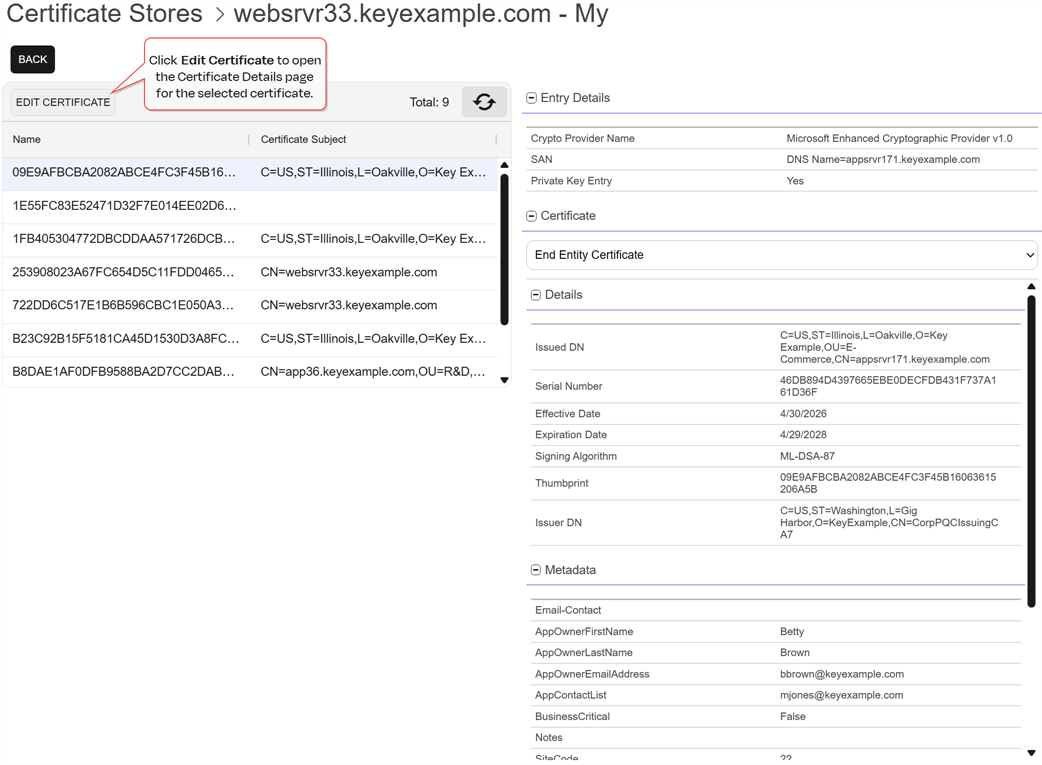
Figure 313: View Inventoried Certificates for a Certificate Store
-
From the inventory viewing toolbar, click View Certificate or Edit Certificate (depending on permissions) to open the certificate details page for the certificate as a subpage of the inventory viewing page.
-
Use the breadcrumbs at the top of the page or the Back button to return to either the inventory viewing page or the certificate stores grid.
-
The certificate details shown here contain the same data as when accessed from Certificate Search or collections (see Certificate Details).
-
Available options on the certificate details page depend on the permissions granted at the certificate store level or through the associated application. Depending on those permissions, one or more of the following options may be available:
- Revoke: Revoke the certificate.
- Download: Download the certificate. If the private key is stored in Keyfactor Command, an option to include the private key may be available.
- Renew: Renew the certificate and deliver it to the certificate store.
- Change Owner: Change the security role assigned as the certificate owner. You can assign ownership only to a security role of which you are a member (see Change Owner).
- Metadata:Edit metadata fields on the Metadata tab.
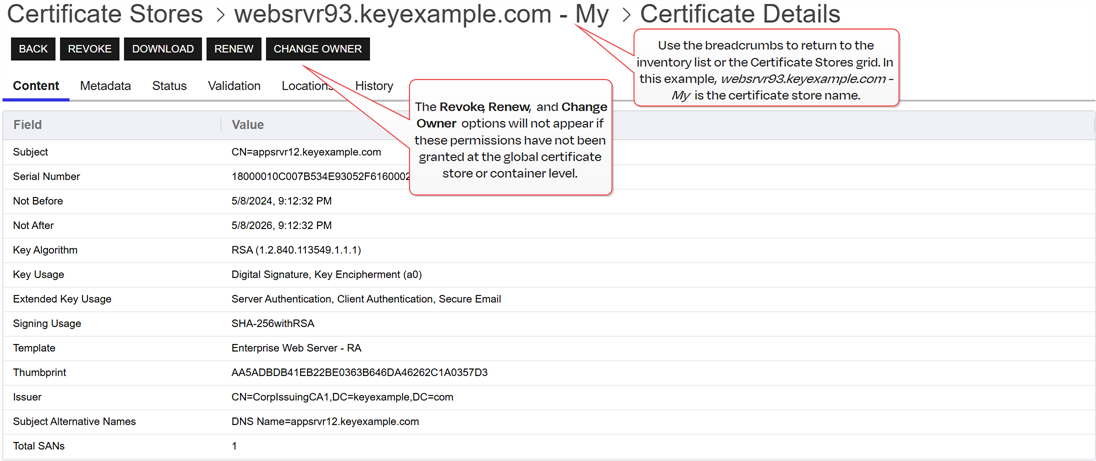
Figure 314: View Certificate Details for a Certificate in a Certificate Store
-
Schedule Inventory for a Certificate Store
Scheduling inventory for a certificate store allows Keyfactor Command to inspect the certificates inside a given store and add them to the Keyfactor Command database.
Permissions for certificate stores can be set at the system-wide level or certificate store application level. See Application Permissions for more information.
To schedule inventory:
- On the Certificate Stores tab, select one or more rows in the certificate store grid and choose Schedule Inventory from the toolbar or right-click menu. The right-click menu supports operations on only one store at a time.
-
In the Certificate Store Inventory Schedule dialog, select a schedule for the stores. The choices are:
-
Select Off to disable the inventory job.
-
If you select Immediate, the inventory will run within a few minutes of saving the record and will run only once. After this, the inventory schedule will be cleared.
-
If you select Interval, you can select a scan frequency of anywhere from every 1 minute to every 12 hours.
-
If you select Daily, you can set the time of day when the inventory should begin every day.
-
If you select Weekly, you can select the day, or days, of the week at a specified time.
-
If you select Monthly, you can select a day of the month (1st through 27th) at a specified time.
-
If you select Exactly Once, you can select a date and time at which to run the inventory job. After the job has run, the inventory schedule will be cleared.
You have the option to not schedule inventory on a store-by-store basis and instead create applications and set inventory schedules that will apply to all the stores added to each application. See Add or Modify a Certificate Store Application for information on creating applications.
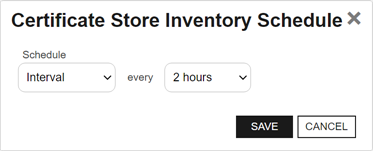
Figure 315: Schedule Inventory for a Certificate Store Location
-
Query Certificates for a Certificate Store
The Query Certificate Store option allows you to open a new browser tab with an instance of the Management Portal open to the certificate search page pre-populated with search criteria to locate the certificates found in that certificate store.
Permissions for certificate stores can be set at the system-wide level or certificate store application level. See Application Permissions for more information.
To use the query certificate store option, on the Certificate Stores tab, select a row in the certificate store grid and choose Query Certificate Store from the toolbar or right-click menu.