
LDAP
Use LDAP to authenticate users and map directory groups to Analytics Hub roles. The built-in connector supports Microsoft Active Directory and performs a bind using a DN A distinguished name (DN) uniquely identifies an entry in an LDAP/X.500 directory by specifying a sequence of relative distinguished names (attribute=value pairs) from the entry up to the directory root. It’s written as a comma-separated string—for example: cn=Alice,ou=People,dc=keyexample,dc=com—with the specific attributes defined by the directory’s schema. constructed from your configuration and the username entered at sign-in. On successful bind, the system reads user attributes (for example, display name and group membership) and grants access based on your authorized group to role mappings.
Admin Area → Access Control → LDAP
How it Works
The basic LDAP login flow works as follows:
- The user enters a username and password on the Analytics Hub portal sign-in page.
- The system builds a Distinguished Name (DN) using your LDAP settings and the supplied username, then attempts a bind.
- If the bind succeeds, the system queries the user’s memberOf (group) attributes.
-
Returned groups are matched against your Authorized Groups list to assign roles in the Analytics Hub portal.
-
If the user is not in any authorized group, access is denied.
-
If the user matches multiple groups, the user receives the union of mapped roles.
-
A common name (CN) is the component of a distinguished name (DN) that represents the primary name of the object. The value varies depending on the type of object. For a user object, this would be the user's name (e.g. CN=John Smith). For SSL certificates, the CN is typically the fully qualified domain name (FQDN) of the host where the SSL certificate will reside (e.g. servername.keyexample.com or www.keyexample.com).=Users, a typical user DN would be:
cn=John Smith,cn=Users,dc=keyexample,dc=com
Your environment may use a different structure; configure the DN pattern to match your directory.
Configure LDAP
To configure LDAP:
-
Browse to Admin Area → Access Control → LDAP and complete the fields as per the table, below.
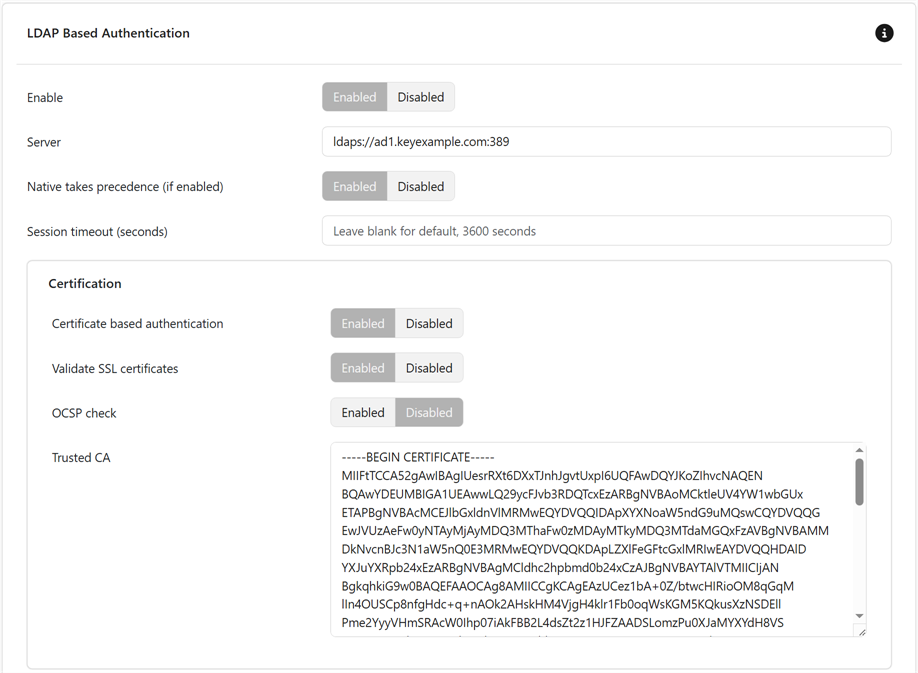
Figure 68: Configure LDAP
- At the bottom of the form click Commit to save.
Table 5: LDAP Settings
| Section | Field | Description | Default |
|---|---|---|---|
| General | Enable |
Turn LDAP authentication on or off. When enabled, the system uses the LDAP settings on this page for sign-in. (Server certificate checks are controlled by Validate SSL certificates and Trusted CA, not by this toggle.) |
Disabled |
| General | Server |
LDAP directory endpoint as a URI (scheme + host + optional port). Examples ldaps://ad1.keyexample.com:636 (LDAPS)
ldap://ad1.keyexample.com:389 (use with StartTLS, if configured)
Tip: Use a hostname that matches the server certificate; avoid raw IPs when using TLS.
|
|
| General | Native takes precedence (if enabled) |
Controls the order of authentication when both Native (local) and LDAP are enabled.
Note: Enabling this setting is useful for break-glass local admin access during LDAP outages.
|
Enabled |
| General | Session timeout (seconds) | Number of seconds that must elapse before the application logs out the user automatically. | 3600 |
| Certification | Certificate based authentication |
Whether to authenticate to LDAP using a client certificate (mutual TLS).
|
Enabled |
| Certification | Validate SSL certificates |
Whether to validate the SSL certificate of the LDAP server.
|
Enabled |
| Certification | OCSP check | When enabled, verifies the revocation status of the LDAP server’s certificate using the Online Certificate Status Protocol (OCSP). Requires outbound access to the CA’s OCSP responder; if unreachable, the outcome (fail-open or fail-closed) follows your system’s policy. | Disabled |
| Certification | Trusted CA |
Paste the certificate authority (CA) certificate(s) used to verify the LDAP server’s TLS certificate when using LDAPS or StartTLS.
|
|
| Attributes | Base search DN |
Distinguished Name that serves as the root of all LDAP searches (users and groups). Example ou=Corp,dc=example,dc=com or simply dc=example,dc=com
If left blank, the system attempts to discover the default naming context from the directory (RootDSE) and use that as the base.
Tip: Narrowing this to the OU where your users/groups live improves performance.
|
|
| Attributes | Manager DN |
Distinguished Name (DN) of the LDAP service account the system uses to bind to the directory and perform user/group lookups. Also called Bind DN.
Examples
|
|
| Attributes | Manager password |
Password for the LDAP Manager DN (Bind DN) account used to connect to the directory and perform user/group lookups. Required when anonymous bind is not allowed (most environments). Important: Keyfactor highly recommends that you use strong passwords for any accounts, certificates, or files related to CipherInsights and associated products, especially when these have elevated or administrative access or contain sensitive information. A strong password has at least 12 characters (more is better) and multiple character classes (lowercase letters, uppercase letters, numeral, and symbols). Ideally, each password would be randomly generated. Avoid password re-use.
|
|
| Attributes | User attribute |
Name of the attribute on the user object that the system matches against the login value during lookup. This is the field used in your user search (e.g., it’s the left side of (<attribute>=$1) in the filter). Enter a single attribute name—not a DN or full filter.
|
cn |
| Attributes | User name attribute |
LDAP attribute on the user object that holds the account’s login identifier (the “username” you want shown in the UI and used in audit logs). Enter just the attribute name. Common Choices
Tip: Pick the same attribute users type at sign-in (aligns with your User search filter). It should be unique within your directory scope and consistently populated. This is not the friendly/full name—use Display name for that.
|
|
| Attributes | User search filter |
LDAP filter used to locate the user entry during login. The filter is evaluated under the Base search DN and should match exactly one user. Examples
Tip: Include an objectClass to keep searches fast (e.g., user, person, inetOrgPerson). Make sure the attribute you match is the one users actually type at login. If users can type either name or name@keyexample.com, use an OR in the filter (see the AD example above).
|
|
| Attributes | Group attribute |
Name of the LDAP attribute used to determine a user’s group membership. What it points to depends on how you retrieve membership:
Common Examples
Note: Enter a single attribute name (not a DN or filter). Make sure your Group search filter matches the attribute style you use (DN vs. username).
|
|
| Attributes | Membership on user |
Controls where the system reads a user’s group memberships from.
Tip:
If sign-in succeeds but no roles are assigned, either enable this setting (if your directory exposes memberOf) or leave it disabled and verify that your Group search filter returns the expected groups.
|
Enabled |
| Attributes | Group search filter |
LDAP filter used to find group objects that contain the user when the Membership on user option is disabled. The filter is evaluated under the Base search DN. Use the attributes your directory stores on groups (e.g., member, uniqueMember, or memberUid). Examples
Note: This filter typically matches direct group membership only. Nested/indirect membership requires directory-specific features and may not be evaluated by a simple filter. For performance, include objectClass in the filter and scope searches to the OU where groups live.
|
|
| Attributes | Connection timeout | Number of milliseconds before timing out an attempted connection to the LDAP server. | 6000 |
| Attributes | Display name |
Name of the attribute on the user object that holds the user’s friendly name as it should appear in the UI. Enter a single attribute name (no DN). Common Choices
Examples
Tip: Use ldapsearch (or your directory browser) to confirm which attribute is populated for your users before choosing.
|
|
| Role to Group Mapping | Administrator groups | Comma-separated list of groups to associate with the Administrator role (see Roles). | |
| Role to Group Mapping | Operator groups | Comma-separated list of groups to associate with the Operator role (see Roles). | |
| Role to Group Mapping | Unrestricted groups | Comma-separated list of groups to associate with the Unrestricted role (see Roles). | |
| Role to Group Mapping | User groups | Comma-separated list of groups to associate with the User role (see Roles). |
Was this page helpful? Provide Feedback