
After the AnyCAGateway REST is installed and a CA A certificate authority (CA) is an entity that issues digital certificates. Within Keyfactor Command, a CA may be a Microsoft CA or a Keyfactor gateway to a cloud-based or remote CA. plugin is configured, use the AnyCAGateway REST portal to manage the gateway configuration. From the portal, you can add certificate authorities (CAs), create certificate profiles, map profiles to products, add domain validation records, configure claims, and manage identity providers as needed.
Working with the AnyCAGateway REST Portal
The AnyCAGateway REST portal helps you manage your gateway with the following functions:
-
Certificate Authorities—Manage AnyCAGateway REST certificate authorities (CAs), including scanning, template
A certificate template defines the policies and rules that a CA uses when a request for a certificate is received. mapping, and third-party CA login. CA configuration relies on a configured CA plugin (see Configure AnyCAGateway REST Plugins). -
Certificate Profiles—Manage certificate profile settings, such as name and key types, which map to product IDs of your third-party CA. Certificate profiles are imported into Keyfactor Command as templates.
-
Domain Validation—Manage domain validation configurations used to verify domain control during certificate issuance. Domain validation settings rely on configured domain validation plugins (see Configure AnyCAGateway REST Plugins).
-
Claims—Manage certificate-based or OAuth claims used to authenticate users to the AnyCAGateway REST and define associated permissions.
-
Identity Providers—Manage identity providers (IDPs) used to authenticate to the AnyCAGateway REST.
Access the portal using the URL appropriate for your installation:
-
Windows under IIS:
https://<FQDN>/<VirtualDirectory>The fully qualified domain name (FQDN) and virtual directory are determined by your installation configuration. See Install AnyCAGateway REST on Windows under IIS. The default virtual directory is AnyGatewayREST.
-
Windows as a service:
https://<FQDN>:<PORT>The fully qualified domain name (FQDN) and HTTPS port are determined by your installation configuration. See Install of AnyCAGateway REST as Windows Service.
For client certificate authentication, a certificate is selected during portal login. The certificate must be associated with the claim used to access the portal (see Claims).
The client authentication certificate does not need to be stored on the gateway server. The certificate must be available in the browser used to access the AnyCAGateway REST portal. For example, when using Chrome, the certificate must be installed in the user personal certificate store. This includes the client authentication certificate used by the SuperAdmin user.
For OAuth authentication, the user is redirected to the configured identity provider for authentication and then returned to the AnyCAGateway REST portal.
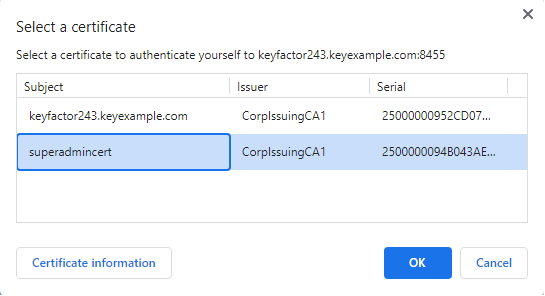
You only need to specify the identity provider for identity providers that have not been configured as the default identity provider during install via the AnyCAGatewayInstall.ps1 script parameter A parameter or argument is a value that is passed into a function in an application. DefaultIdentityProviderAuthScheme. It can also be updated in the Appsettings.json File post-installation.
The portal opens to the Certificate Authorities page which shows a grid of the list of CAs configured through the gateway. The browser tab name will show AnyCA Gateway as a shortened name of the AnyCAGateway REST.
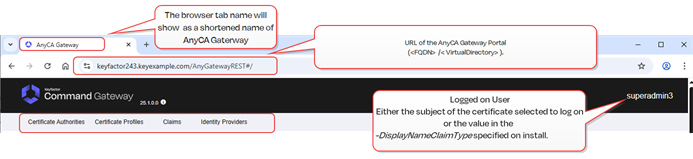
Figure 797: AnyCAGateway REST Portal
 for more information about that field.
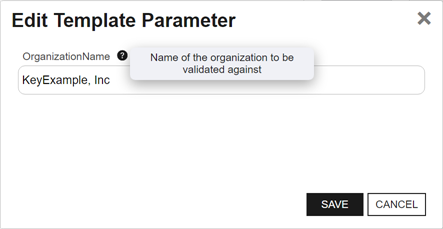
Figure 798: Tool Tip
Was this page helpful? Provide Feedback