
During installation, three claims are created to provide initial access to the AnyCAGateway REST portal. The client authentication certificate or OAuth credentials specified for the SuperAdmin parameter A parameter or argument is a value that is passed into a function in an application. in the installation command are used to generate admin, user, and operator claims for the portal (see -SuperAdminValue). To accommodate different users, you can create additional claims using separate authentication certificates or OAuth credentials.
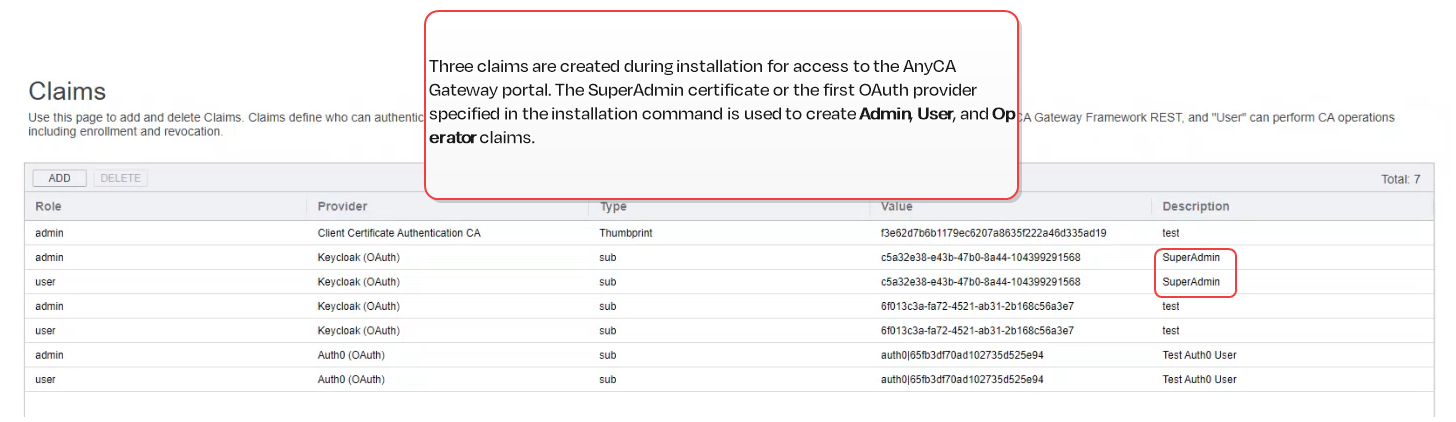
Figure 808: Claims Tab with OAuth Authentication
A certificate authority (CA) is an entity that issues digital certificates. Within Keyfactor Command, a CA may be a Microsoft CA or a Keyfactor gateway to a cloud-based or remote CA. record must be created as a claim in the gateway and granted the User role. This must be completed before configuring the gateway as a CA in Keyfactor Command (see Working with the AnyCAGateway REST and Keyfactor Command). This same claim is used for enrollment Certificate enrollment refers to the process by which a user requests a digital certificate. The user must submit the request to a certificate authority (CA). and revocation requests made to the gateway through Keyfactor Command.Roles and Permissions
The AnyCAGateway REST uses role-based access control to manage access to gateway configuration and certificate operations. Three roles are available.
-
Admin Role
Provides full administrative access to the AnyCAGateway REST portal.
This role is for users who need to perform all gateway configuration tasks, including:
-
Configure certificate authorities (add, edit, or remove CAs)
-
Manage certificate profiles
-
Manage domain validation records
-
Manage claims
-
Manage identity providers
API access: This role grants access to all gateway configuration endpoints and identity provider endpoints.
-
-
User Role
Does not provide access to the AnyCAGateway REST portal.
This role is for users or services that need to:
-
Enroll for certificates
-
Revoke certificates
-
Synchronize certificates
-
Perform other certificate operations through the gateway
API access: This role grants access to CA operation endpoints, including enrollment, revocation, and synchronization. It does not grant access to gateway configuration endpoints.
Tip: The service account configured in Keyfactor Command to connect to the gateway needs this role. -
-
Operator Role
Provides limited administrative access to the AnyCAGateway REST portal.
This role is for users who need to:
-
View or modify certificate authorities
-
View or modify certificate profiles
-
View or modify domain validation records
Users with the Operator role do not have access to:
-
Claims
-
Identity providers
This role is intended for day-to-day operational management without full administrative privileges.
API access: This role grants access to gateway configuration endpoints except those for managing claims and identity providers.
-
Claims
View a Claim
To view an existing claim:
- In the AnyCAGateway REST portal, select the Claims tab.
- Double-click an existing claim to open the Claim Details.
- Click Close.
Create a New Claim
To create a new claim:
- In the AnyCAGateway REST portal, select the Claims tab.
- Select Add from the toolbar.
- Select the Role for the claim from the drop down (Admin, User, or Operator). See Roles and Permissions.
-
Select the Provider for the claim.
The Provider dropdown lists the identity providers that are currently configured in the AnyCA Gateway.
Forexample:
- Client Certificate Authentication CA (Client Cert Auth) is the identity provider created by the AnyCA Gateway for client certificate authentication claims.
- An Auth0 option appears if an Auth0 identity provider has been configured.
- Keycloak (OAuth) is an example of an installed Generic OAuth identity provider.
The name shown in the dropdown corresponds to the configured identity provider name.

- Enter a Description for the new claim. This might be the user, service account, or group name.
- Select how you want to identify the claim by choosing the claim Type. If you’re using client certificate authentication, you’ll be offered the choices of Thumbprint or Serial Number from the dropdown. If you’re using OAuth token authentication, this will be a text field in which you might enter sub or aud.
- Enter the security Value of the certificate or OAuth identity you want to use for this claim based on your selection for Type.
- Click Save.
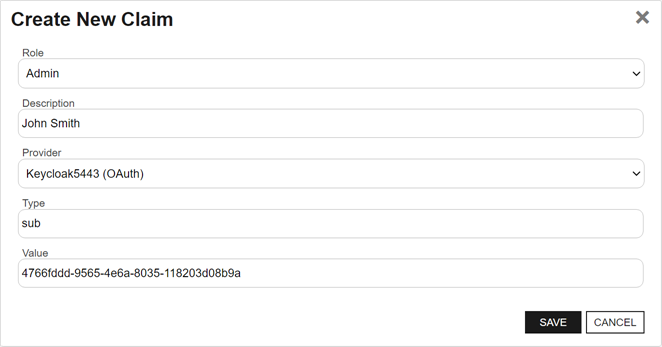
Figure 809: Add an OAuth Claim
Delete a Claim
- In the AnyCAGateway REST portal, select the Claims tab.
-
Highlight an existing claim and select Delete from the menu bar or the right click menu.
Note: The SuperAdmin claim is required and cannot be deleted. - Click OK.
Was this page helpful? Provide Feedback