
Reports → Definitions, select a report to Edit, or click Add for a new report
From the Report Definitions workspace, you can add, edit, delete or run user-defined reports. Keyfactor Command reports allows you to configure reports to display important information using pre-defined widgets and user-populated parameters.
The Report Definition workspace consists of three parts:
-
The Report Layout panel which displays the selected widgets in a scrollable layout.
-
The Configure Report Definition panel, which contains the report name, description, and applicable parameters. Parameter
 A parameter or argument is a value that is passed into a function in an application. names and descriptions are customizable.
 -
The action button toolbar to Save, Add Widget or Run Report and the navigation buttons Undo All and Back(to return to the report definitions list grid).
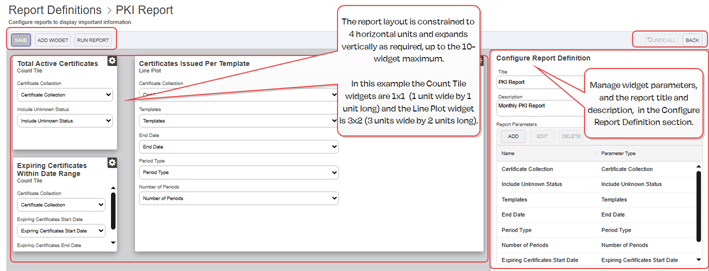
Figure 85: Individual Report Definition Example
Searching Report Definitions
This page supports the standard query format described in Using Search in the Management Portal and includes its own set of query parsers specific to this operation. Use the following parsers to filter and refine results for this page.
-
Title
The user-defined title of the report definition.
-
Id
The Keyfactor Command assigned ID of the report.
Add a Report Definition
When you first open the Report Definitions workspace, or when you Add a new report definition, the report definition panels will be blank. If you edit an existing report the page will populate with the existing widget layout and parameters (see Editing a Report).
To add a report:
-
On the Report Definitions workspace, click Add Widget from the toolbar at the top of the page. The Add Widget dialog will pop-up. Choose from the available report widgets (see Available Widgets) shown on three tabs.
Note: The maximum number of widgets per report is ten (10). If you exceed that number you will receive an error message. That limit does not include Text widgets, which are unlimited.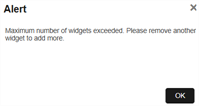
Figure 86: Max 10 Reports Message
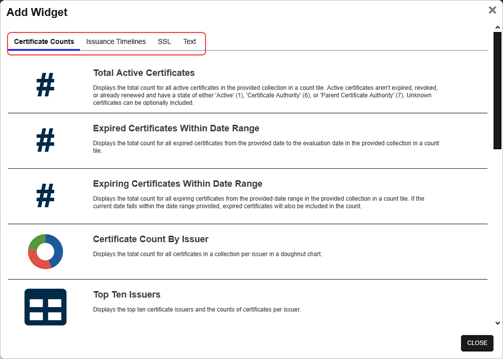
Figure 87: Adding a Report Widget
- Select at widget by highlighting, and clicking it, on the Add Widget dialog.
- The widget will be added to the report layout panel and the default parameters associated with that widget will be added to the Configure Report Definition panel. When a widget is added, it is linked to report parameters. If any report parameters already exist of the same name and type as the added widget’s parameters, the parameters will not be added again, but will be shared (linked) to all widgets which use it.Note: If custom report parameters have been added to a report prior to adding a widget, the parameter dropdown on the widget will show all the available parameters (of the type used by the widget). In this case, select the parameter to apply to this widget in the report. See Customize Report Parameters.
- Enter a Title and Description (both required) for the report in the Configure Report Definition panel. The Title must be unique, and can be changed after it is saved.
- At that point you may continue to add more widgets by clicking the Add Widget button, or you can save the report by clicking the Save button.
Note: To undo your changes, click the Undo All or the Back buttons. You will receive a confirmation message to undo unsaved changes.
- Click the Back button to return to the Reports Definitions page. If you chose to save the new report, you will receive a confirmation message and the new report will be added to the Reports Definitions grid.
Editing a Report
-
Select a row on the report definitions page to edit the report.
-
The report definition workspace will display with the widgets organized on the main panel and the tile, description, and parameters shown on the Configure Report Definition panel.
Editing options:
-
Add a Widget - you may add more widgets to a report.
-
Click the Add Widget button from the toolbar.
-
Select the widget you wish to add (see Available Widgets). The widget will be added to the end of the main panel and any new parameters will be added to the Configure Report Definition panel. If custom report parameters have been added to a report prior to adding a widget, the parameter dropdown on the widget will show all the available parameters (of the type used by the widget). In this case, select the parameter to apply to this widget in the report. See Customize Report Parameters.
-
Save when you are done adding widgets.
-
-
Remove a Widget - you may remove one or more widgets from a report.
-
Identify the widget you wish to remove and hover over the setting icon
 on the top right of the widget. Highlight Remove from the dropdown and left-click. You will receive a confirmation message to confirm. Click OK. The widget will be removed from its position on the main panel. The other widgets may reposition on the panel to fill in the newly empty space.
 -
If you remove a widget, you must also remove its unique parameters from the Configure Report Definition panel. If you try to save the report without doing this you will receive an error message indicating which parameters need to be removed.
-
-
Lock, Unlock or Move Widgets- the position of a widget on the report layout may be moved, locked or unlocked. Widgets will automatically move to adjust to the available space on the report layout based on size as widgets are added or removed. You may lock widgets into specific locations to avoid this.
-
Identify the widget you wish to lock into position and hover over the setting icon
on the top right of the widget. Highlight Lock Position from the dropdown and left-click. The dropdown wording will change to Unlock Position to indicate the widget is locked. -
Once a widget is locked it can be unlocked by identifying the widget you wish to unlock and hovering over the setting icon
on the top right of the widget. Highlight Unlock Position from the dropdown and left-click. The dropdown wording will change to Lock Position to indicate the widget is unlocked. -
To move a widget to a different location on the report layout, left-click on the widget and drag it to the desired location. You may then, optionally, lock it into position.
-
- Undo changes - At any point during editing, you can undo any unsaved changes by clicking the Undo All or the Back button from the toolbar. You will receive a confirmation message before the changes are lost.
- Go Back - Return to the Report Definitions page by clicking the Back button from the toolbar. If you have unsaved changes you will receive a confirmation message before the changes are lost.
Run Report
The certificate search function allows you to query the Keyfactor Command database for certificates from any available source based on any criteria of the certificates and save the results as a collection that will be available in other places in the Management Portal (for example expiration alerts and certain reports). parameter, they will all use the collection selected when the report is run. This behavior applies to all parameter types. If you need widgets of the same type to use different values, you can Customize Report Parameters.To run a report:
- From the Report Definitions page, select a report from the list of reports and click the Run Report button on the tool bar, or select Run Report from the Report Definition workspace toolbar.
- The run report page will open. It has two sections:
- The Report Parameters section, which you will populate for this run instance. The parameters shown will depend on the widgets chosen for the report.
- The Report Layout. The widgets associated with the report will be shown. When filling out the Run Report page, the layout section is a preview of the report to assist the user in identifying which report parameters are mapped to any given widget. Once the report is generated, these widget previews will be replaced by the generated results (doughnut charts, bar graphs, grids, etc).
- Enter the appropriate parameters.
- Select Run Report from the action buttons at the top of the page.
- Report tiles will build with the data as specified by the selected parameters and display on the Run Report page below the parameters.
- Click any report tile to open a new browser window with the certificate search page pre-populated with a query which matches the report parameters supplied (see Drilldown and Filtering for more information about each widget). The built report will continue to be displayed on the original window.
- You may Edit the report from the Run Report page (see Editing a Report) and re-run it if desired.
- Use the Back button to return to the Report Definitions grid page.
Preparing to Run a Report - Example
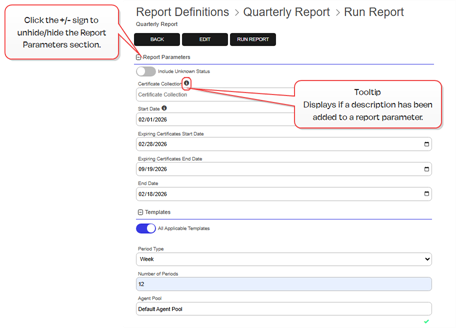
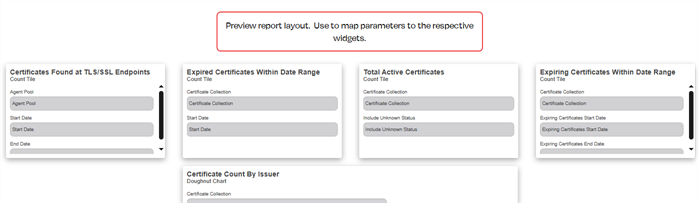
Figure 88: Run Report - Parameters
A Finished Report- Example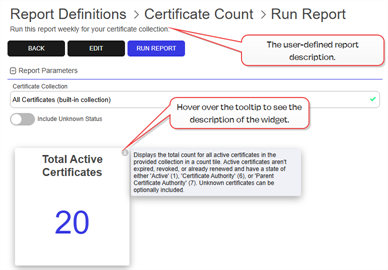
Figure 89: A Finished Report Example
Customize Report Parameters
While you are deciding which widgets to include in which reports, know that the description and name of the parameters used by the widgets can be customized to meet your specific user needs. The following criteria apply to working with report parameters:
-
Report parameters may be added prior to adding widgets. This is useful in cases where custom parameter names or descriptions are desired, or if the you want to use the same widget on the report, but run it for different criteria. The report must always be in a state where every widget and every parameter are mapped when saved. You can add parameters to an empty report, but you must add the corresponding widgets to save the report.
-
Report parameter names must be unique regardless of type. You will receive an error message if you try to add a duplicate report parameter name.
-
When a widget is added, it is linked to report parameters. If any report parameters already exist of the same name and type as the added widget’s parameters, the parameters will not be added again, but will be shared (linked) to all widgets which use it. When a widget is added, if there are no matching report parameters that can be linked, a report parameters is added to the report.
-
The default parameters do not have a description. A description on a default parameter, or a custom parameter, may be added or changed to help the report user understand how to populate the parameter when running a report. If any information is added in the Description field, it will show in the tooltip on the field on the Run Report page, and on the report parameters grid when you hover over the Name, to assist users to understand the purpose of the parameter in the report.
-
All the report parameter types must remain the same as expected by each widget. Although it appears the type is editable, if you change it you will get an error message when trying to save the report. The widgets expect the parameters on the Configure Report Definition to match the data type required for each widget. In the same regard, widgets will not allow additional parameters.
-
If you delete a widget you must delete any of it’s unique parameters (or you will get an error message upon save).
-
If you delete a required parameter for an existing widget you will get an error message upon saving a report indicating which parameter is missing from the expected parameters.
-
When filling out the Run Report page, the layout section is a preview of the report to assist the user in identifying which report parameters are mapped to any given widget.
Table 14: Widget Parameter Properties
Parameter Properties on the Run Report page Certificate Collection A search select dropdown of available certificate collections. Include Unknown Status Include Unknown Status field is not editable on the report definition screen. It will display as a toggle option when running the report. End Date The End Date must be today, or earlier and it cannot be before the start date. On the report run page, it will display a calendar icon at the right which users can use to select a date, or users can type a date in the date field.
Start Date Start Date must be today, or earlier. On the report run page, it will display a calendar icon at the right which users can use to select a date, or users can type a date in the date field. Templates Displays a toggle All Applicable Templates.
If toggled off, a search select and grid are displayed where a user can search for templates to query.
If templates from different configuration tenants are returned that have the same display name, the configuration tenant is appended to the end of the template name to differentiate between them.
Number of Periods Maximum value is 60 for days, 52 for weeks, and 36 for months Period Type Available options of Days, Weeks or Months. Expiring Certificates Start Date Cannot be after the expiring certificates end date. On the report run page, it will display a calendar icon at the right which users can use to select a date, or users can type a date in the date field. Expiring Certificates End Date Cannot be before the expiring certificates start date. On the report run page, it will display a calendar icon at the right which users can use to select a date, or users can type a date in the date field. Agent Pool A dropdown that will list the available agent pools, selecting an agent pool will add the Agent Pool Id (Guid) to use to run the report. Add a Report Parameter
-
From the Report Definitions page, click the Add button from the Report Parameters section toolbar of the Configure Report Definition panel. The Add Report Parameter dialog will open.
-
Enter the Name (required) of the custom parameter and any Description (optional). Select the Parameter Type from the dropdown.
Tip: If any information is added in the Description field, it will show in the tooltip on the field on the Run Report page, and on the report parameters grid when you hover over the Name, to assist users to understand the purpose of the parameter in the report.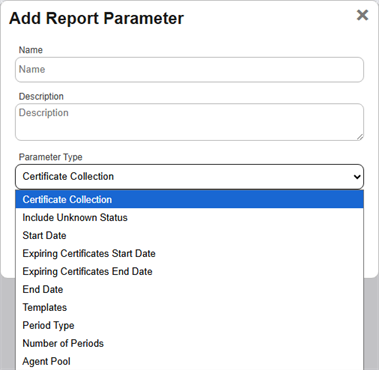
Figure 90: Add Report Parameter
-
Click Save. The parameter will be added to the end of the Report Parameters section of the Configure Report Definition panel. It will be immediately be available for choosing on any new or existing widget of the current report.
Note: When you manually add a new parameter, you will receive an error message at the top of the panel until you map it to a widget on the report.
Figure 91: Report Parameter Error Warning
Edit a Report Parameter
-
From the Report Definitions page, select/highlight an existing parameter and click the Edit button from the Report Parameters section toolbar. The Edit Report Parameter dialog will open.
-
Change the parameter fields you wish to change, being careful that the Parameter Type required by the widgets on the report is maintained.
-
Click Save. The parameter will be modified and will be immediately be reflected on any existing widget of the current report.
Delete a Report Parameter
-
From the Report Definitions page, select/highlight an existing parameter and click the Delete button from the Report Parameters section toolbar.
-
The parameter will be immediately deleted and removed from any widgets that contain it. If you delete a required parameter for an existing widget you will get an error message upon saving a report.
-