
Only workflow A workflow is a series of steps necessary to complete a process. In Keyfactor Command, it refers to the workflow builder, which allows you to automate event-driven tasks such as when a certificate is requested, revoked or found in a certificate store. instances that are in a Waiting for Approval state and that the current user has permissions to submit signals for (for example, approve or deny) appear on the Assigned to Me tab of the My Workflows page. Once the user submits a signal to a workflow instance on this page, it is removed from the page.
Workflow → My Workflows → Assigned to Me Tab
Searching Workflows Assigned to Me
This page supports the standard query format described in Using Search in the Management Portal and includes its own set of query parsers specific to this operation. Use the following parsers to filter and refine results for this page.
-
Complete or partial matches with the Keyfactor Command reference GUID of the workflow definition.
-
Id
Complete or partial matches with the Keyfactor Command reference GUID of the workflow instance.
-
Complete or partial matches with the name of the user who initiated the workflow instance. For implementations authenticated using Active Directory, this will be in NetBIOS format (DOMAIN\username). For implementations authenticated using OAuth, this will be in the format defined by the Name Claim Type.
-
The date and time on which an initiated instance was last updated. The instance is updated each time a step in the workflow is completed, when signals are received for a step that accepts signals (for example, a requires approval step), or when an instance is stopped or restarted.
-
The date and time when an instance was initiated.
-
Status
Status matches or doesn’t match the referenced value. Supported statuses are:
-
Unknown
-
Running
-
Suspended
-
Failed
-
Complete
-
Rejected
-
CanceledforRestart
-
-
Title
Complete or partial matches with the description for the action taking place in the workflow instance step. The values in the title will vary and often include the user initiating the request and the CN
A common name (CN) is the component of a distinguished name (DN) that represents the primary name of the object. The value varies depending on the type of object. For a user object, this would be the user's name (for example CN=John Smith). For SSL certificates, the CN is typically the fully qualified domain name (FQDN) of the host where the SSL certificate will reside (for example servername.keyexample.com or www.keyexample.com). of the certificate or certificate request involved. -
WorkflowType
The type of workflow (for example, enrollment
Certificate enrollment refers to the process by which a user requests a digital certificate. The user must submit the request to a certificate authority (CA)., revocation).
Review a Workflow
To review a workflow instance and submit a signal for it:
- On the Assigned to Me tab of the My Workflows page, double-click an instance or select the instance and choose Review from the toolbar or right-click menu.
-
On the Workflow Signal Review page, review the information in the instance before submitting a signal for the request. Information on the review page includes:
Instance Section
Name Description Id A GUID indicating the Keyfactor Command reference ID for the instance.
Title A description for the action taking place in the step. For example:
"KEYEXAMPLE\jsmith is enrolling for a certificate with CN=appsrvr12.keyexample.com."Or:
"KEYEXAMPLE\mjones is revoking certificate with CN=appsrvr14.keyexample.com."Status The current status message of the workflow instance.
For a workflow suspended and awaiting approval, the status message might be:
Current Step The display name defined for the workflow instance step at which the instance has paused. For a suspended workflow, this will be the step that is awaiting user input to continue the workflow.
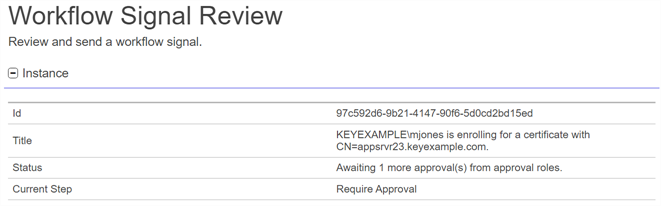
Figure 258: Workflow Instance Review
Current Data Section
The data included in this section will vary depending on the request type
Certificate Entered Collection and Certificate Left Collection
For a certificate that entered or left a certificate collection
The certificate search function allows you to query the Keyfactor Command database for certificates from any available source based on any criteria of the certificates and save the results as a collection that will be available in other places in the Management Portal (for example expiration alerts and certain reports)., this section can include:Name Description (Custom)
Optional user-generated custom fields returning response data from PowerShell scripts or REST requests. These will be sorted alphabetically in among the other fields on the page.
Certificate Id
The Keyfactor Command reference ID for the certificate added to or removed from the certificate collection.
Tip: Certificate Id and Keyfactor Id both refer to the same value—the Keyfactor Command–assigned reference ID for a certificate. You may see either name in different parts of the Management Portal or Keyfactor API because Certificate Id was the original term, and Keyfactor Id is its newer replacement. The updated name helps avoid confusion with a different value—the certificate’s identifier on the issuing CA—which is now called the CA Record ID.Certificate Entered Store and Certificate Left Store
For a certificate that entered or left a certificate store, this section can include:
Name Description (Custom)
Optional user-generated custom fields returning response data from PowerShell scripts or REST requests. These will be sorted alphabetically in among the other fields on the page.
Certificate Id
The Keyfactor Command reference ID for the certificate added to or removed from the certificate collection.
Tip: Certificate Id and Keyfactor Id both refer to the same value—the Keyfactor Command–assigned reference ID for a certificate. You may see either name in different parts of the Management Portal or Keyfactor API because Certificate Id was the original term, and Keyfactor Id is its newer replacement. The updated name helps avoid confusion with a different value—the certificate’s identifier on the issuing CA—which is now called the CA Record ID.Certificate Store Id
The Keyfactor Command reference GUID of the certificate store to which the certificate was added or removed.
Container Id The optional Keyfactor Command reference ID of the certificate store application with which the certificate store is associated. Enrollment
Name Description (Custom)
Optional user-generated custom fields returning response data from PowerShell scripts or REST requests. These will be sorted alphabetically in among the other fields on the page.
Additional Attributes
Values for any custom enrollment fields set on the certificate template to supply custom request attributes to the CA during the enrollment process. Alternative Key Length The alternative key size for the certificate. Alternative Key Type The alternative key encryption algorithm for the certificate. CA Certificate Request Id The ID assigned to the certificate request by the CA.
Note: This field is populated only if the certificate request fails at the CA level or requires manager approval at the CA level.CA Certificate Request Id A string containing the ID assigned to the certificate request by the CA.
Note: This field is populated only if the certificate request fails at the CA level or requires manager approval at the CA level.CA Certificate Request Status An integer indicating the status for the certificate as returned by the CA.
Note: This field is populated only if the certificate request fails at the CA level or requires manager approval at the CA level.CA Certificate Request Status An integer indicating the status for the certificate as returned by the CA.
Note: This field is populated only if the certificate request fails at the CA level or requires manager approval at the CA level.Certificate Authority The certificate authority that will be used to enroll against in hostname\logical name format. Certificate Chain Content A string containing the certificates in the certificate chain, if the Include Chain option was selected for the request. Certificate To Be Renewed
Data for the certificate that this certificate replaces on a renewal including:
-
Certificate: The original certificate in Base64-encoded format.
-
CertificateId: The Keyfactor Command reference ID of the original certificate.
The unparsed version of the certificate signing request generated for the certificate request.
CSR: Parsed The parsed version of the certificate signing request generated for the certificate request. The CSR may include:
-
Key Length
The desired key size for the certificate.
-
Key Type
The desired key encryption for the certificate.
-
C
The country (two characters) of the certificate.
-
ST
The state or province of the certificate.
-
L
The city or locality of the certificate.
-
OU
The organizational unit of the certificate.
-
O
The organization of the certificate.
-
E
The email address of the certificate.
-
CN
The common name of the certificate.
-
DNS Name
A SAN value containing a DNS name.
-
IP Address
A SAN value containing an IPv4 or IPv6 address.
-
RFC 822 Name
A SAN value containing an email address.
-
Other name:Principal
A SAN value containing a user principal name (UPN).
Curve The elliptic curve for the certificate. Custom Name
A custom friendly name for the certificate, if entered at enrollment.
Enrollment Pattern Id The enrollment pattern ID used when requesting the certificate. Enrollment Start Time The date and time at which the enrollment request was initiated, in Coordinated Universal Time (UTC). Format The desired output format for the certificate. A value of STORE indicates that the certificate is intended to be delivered into one or more certificate stores.
From PFX Enrollment A flag indicating whether the request was initiated from PFX enrollment. Include Chain
A flag indicating whether to include the certificate chain in the enrollment response (True) or not (False).
Key Length The key size for the certificate. Key Retention
A flag indicating whether the private key for the certificate resulting from the enrollment will be retained in c (True) or not (False).
Key Type The key type of the certificate. Management Job Time
The schedule for the management job to add the certificate to any certificate stores.
Metadata
Values for the metadata fields that will be associated with the certificate once it is in Keyfactor Command. Owner Role Id The Keyfactor Command reference ID of the security role assigned as the certificate owner. Requester Email The email address of the user making the enrollment request. SANs
The subject alternate names defined for the certificate. Possible types that can be entered within Keyfactor Command are DNS Name, IPv4 Address, IPv6 Address, User Principal Name, and Email. Within each type is a list of entries for that type shown with a key name of the entry number and the actual value. For example, if you had two DNS SANs, the DNS Name section would look something like:
Entry 1: myfirstsan.keyexample.com
Entry 2: mysecondsan.keyexample.com
Stores The certificate stores to which the certificate should be distributed, if applicable.
Subject The distinguished name of the certificate.
Template Name The template that was used when requesting the certificate.
Expiration
For a certificate expiration alert that uses workflow, this section can include:
Name Description (Custom)
Optional user-generated custom fields returning response data from PowerShell scripts or REST requests. These will be sorted alphabetically in among the other fields on the page.
Alert Id
The Keyfactor Command reference ID of the expiration alert.
Certificate Id
The Keyfactor Command reference ID for the certificate.
Tip: Certificate Id and Keyfactor Id both refer to the same value—the Keyfactor Command–assigned reference ID for a certificate. You may see either name in different parts of the Management Portal or Keyfactor API because Certificate Id was the original term, and Keyfactor Id is its newer replacement. The updated name helps avoid confusion with a different value—the certificate’s identifier on the issuing CA—which is now called the CA Record ID.Key Rotation
For an SSH
The SSH (secure shell) protocol provides for secure connections between computers. It provides several options for authentication, including public key, and protects the communications with strong encryption. key rotation alert that uses workflow, this section can include:Name Description (Custom)
Optional user-generated custom fields returning response data from PowerShell scripts or REST requests. These will be sorted alphabetically in among the other fields on the page.
Alert Id
The Keyfactor Command reference ID of the key rotation alert.
Serial
The certificate serial number.
Username User name of the SSH user owning the key. Revocation
For a revocation, this section may include:
Name Description (Custom)
Optional user-generated custom fields returning response data from PowerShell scripts or REST requests. These will be sorted alphabetically in among the other fields on the page.
Certificate Authority The certificate authority that issued the certificate.
Certificate Id
The Keyfactor Command reference ID for the certificate being revoked.
Tip: Certificate Id and Keyfactor Id both refer to the same value—the Keyfactor Command–assigned reference ID for a certificate. You may see either name in different parts of the Management Portal or Keyfactor API because Certificate Id was the original term, and Keyfactor Id is its newer replacement. The updated name helps avoid confusion with a different value—the certificate’s identifier on the issuing CA—which is now called the CA Record ID.Comment
A freeform reason or comment to explain why the certificate is being revoked.
Delegate A flag indicating whether delegation was turned on for the certificate authority that issued the certificate at the time revocation was requested (True) or not (False). For more information, see Delegation Section.
Effective Date
The date and time when the certificate will be revoked.
Initiating User Name
The name of the user who initiated the workflow in DOMAIN\\username format. Operation Start
The time at which the revocation workflow was initiated.
RevokeCode The specific reason that the certificate is being revoked. Possible values are:
- -1: Remove from Hold
- 0: Unspecified
-
1: Key Compromised
-
2: CA Compromised
-
3: Affiliation Changed
-
4: Superseded
-
5: Cessation of Operation
-
6: Certificate Hold
-
7: Remove from CRL. Only valid in the case that a cert is already on a CRL in a manner that it can be removed, such as Certificate Hold.
Serial Number
The serial number of the certificate being revoked.
Thumbprint The thumbprint of the certificate being revoked.
Revocation Monitoring
For a revocation monitoring alert that uses workflow, this section can include:
Name Description (Custom)
Optional user-generated custom fields returning response data from PowerShell scripts or REST requests. These will be sorted alphabetically in among the other fields on the page.
Alert Id
The Keyfactor Command reference ID of the revocation monitoring alert.
Status The current state of the revocation monitoring endpoint. For example:
ExpiredSubject A description of the current state of the revocation monitoring endpoint. For example:
CRL Distribution Point at Location 'http://www.keyexample.com/CorpIssuing1.crl' has ExpiredURL
The URL for the CRL or OCSP location.
Signal Input Section
In the Signal Input section of the page, you can submit one or more signals for the step. For the built-in require approval workflow step type, this is where you send an approval or denial for the request along with a comment about the approval or denial.
A custom workflow step requiring signal input may have more than one signal type to select from in the dropdown, may have input fields to submit data with the signal, and will likely have buttons with labels other than Deny or Approve.
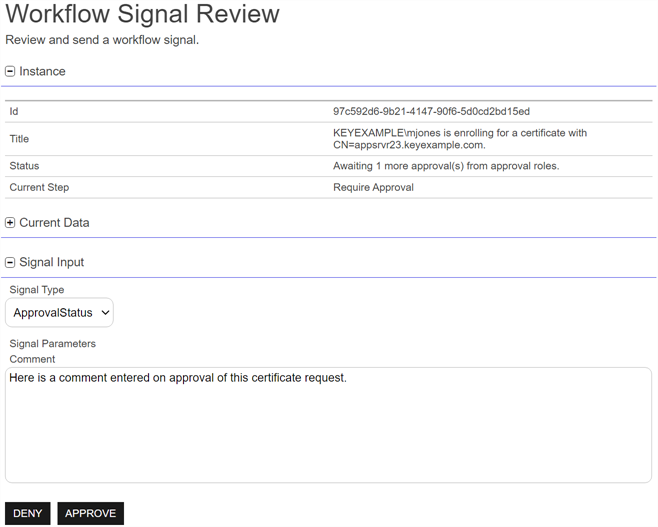
Figure 259: Approve or Deny a Workflow Instance
-
-
At the bottom of the Workflow Signal Review page in the Signal Input section, select an option in the Signal Type dropdown, enter any required signal data, and click an appropriate signal button to submit the signal. For the built-in require approval workflow step type, select ApprovalStatus in the dropdown, enter an optional Comment (the maximum comment length is 500 characters), and click either Approve to add your approval to the workflow or Deny to deny the workflow instance.
Tip: If you reference the approve/deny comments using the $(approvalsignalcmnts) token, the included comments will vary depending on where you use the token. If you use the token in an email message within a require approval step, only comments from that require approval step will be included. If you use the token in a separate email step within the same workflow, all comments from any require approval steps within the workflow will be included.Important: Comments entered when approving or denying a built-in require approval workflow step can be included in emails delivered either as part of the require approval step or in subsequent steps within the workflow, but they are not retained for future reference. To retain them for future reference, use a workflow step that copies the comments to a metadata Metadata provides information about a piece of data. It is used to summarize basic information about data, which can make working with the data easier. In Keyfactor Command, the certificate metadata feature allows you to create custom metadata fields that allow you to tag certificates with tracking information about certificates. field (see Use Custom PowerShell). - On the Confirm Operation alert, click OK to confirm or Cancel to cancel the operation.
An audit log entry is created when you provide input to a workflow instance (see Audit Log).