
On the Logons tab of the Server Manager page you can view all the Linux user accounts associated with authorized_keys files containing valid SSH The SSH (secure shell) protocol provides for secure connections between computers. It provides several options for authentication, including public key, and protects the communications with strong encryption. public keys. The logons shown here include both those discovered on SSH servers during the initial discovery phase using the orchestrator Keyfactor orchestrators perform a variety of functions, including managing certificate stores and SSH key stores. and those created in Keyfactor Command and published to the SSH servers using the orchestrator.
SSH → Server Manager → Logons Tab
On this tab you can create new logons, see the number of keys associated with each logon, and create mappings between Keyfactor Command users and the logons to allow the orchestrator to publish new SSH keys for those users to the SSH servers (see SSH).
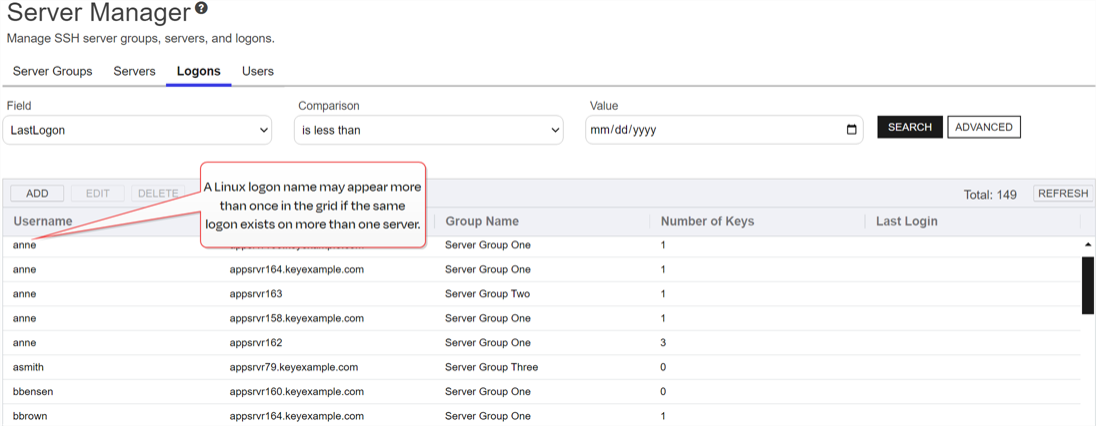
Figure 400: Linux Logons Grid
Searching SSH Logons
This page supports the standard query format described in Using Search in the Management Portal and includes its own set of query parsers specific to this operation. Use the following parsers to filter and refine results for this page.
-
Username
Complete or partial matches with the Linux logon name of the user account on the SSH server.
-
LastLogon
The date on which the logon was last used to login to the given host name
The unique identifier that serves as name of a computer. It is sometimes presented as a fully qualified domain name (for example servername.keyexample.com) and sometimes just as a short name (for example servername).. -
Hostname
Complete or partial matches with the host name of the SSH server on which the logon resides.
-
UnmanagedKeyId
The Keyfactor Command reference ID of one or more unmanaged keys associated with the logon.
Add or Edit Access for an SSH Logon
Before adding a new logon, be sure that you have switched the server to which you will add your logon (or its server group) to inventory and publish policy mode (see Server Manager) so that the new logon will be published to the server. If the server is in inventory only mode and you add a new logon for it in Keyfactor Command, the logon will appear in Keyfactor Command only and will not be published out to the server.
To add a new logon or edit access for an existing one:
-
On the Logons tab, click Add or Edit.
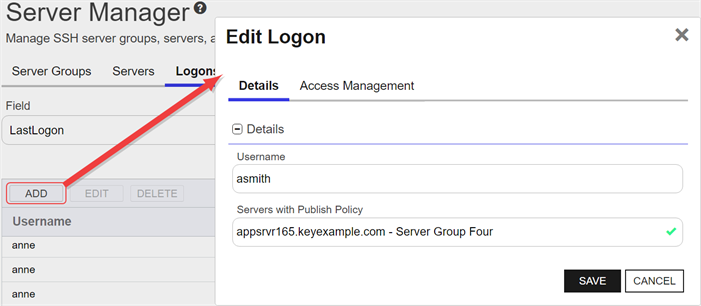
Figure 401: Add a Linux Logon—Basic Tab
-
In the Add Logon dialog on the Details tab, enter a Linux Username for the user.
Tip: If SSSD support is enabled for the Keyfactor Bash Orchestrator The Bash Orchestrator, one of Keyfactor's suite of orchestrators, is used to discover and manage SSH keys across an enterprise. and you are adding a domain user, enter the user in username@domain format. For example:
bbrown@keyexample.comDepending on your SSSD configuration (such as the case-sensitivity setting), the username may need to match the expected case, for example:
BBROWN@keyexample.comBe aware that SSSD may normalize or modify the effective login name based on its configuration. Keyfactor Command does not account for these transformations.
For guidance on how to enter the username based on your SSSD case-sensitivity settings, see SSH-SSSD Case Sensitivity Flag.
Note: This field cannot be modified on an edit. -
In the Servers with Publish Policy dropdown on the Details tab, select an available SSH server on which to create the logon. Only servers that are configured in inventory and publish policy mode (see Server Manager) will appear in this dropdown. This field is required.
Note: This field cannot be modified on an edit. -
On the Access Management tab in the Users & Groups with Login Access dropdown, select a user or service account to associate the logon with. Only accounts that have keys stored in Keyfactor Command or that have been designated as server group owners will appear in the dropdown. If desired, you may enter an Active Directory group name in this field. This will cause the keys stored in Keyfactor Command for any Active Directory users that are members of this group to be mapped to the selected Linux logon and published to the server on which the Linux logon exists. Any Active Directory users that are members of this group but who do not have keys stored in Keyfactor Command will not be mapped to the selected Linux logon. Click Add. The Access Management tab is optional.
Tip: For keys created through the My SSH Key portal (see My SSH Key Operations), a Keyfactor user is an Active Directory user account. For keys created through the Service Account Keys page (see Service Account Key Operations), a Keyfactor user is a user-generated service account name of the form servicename@hostname.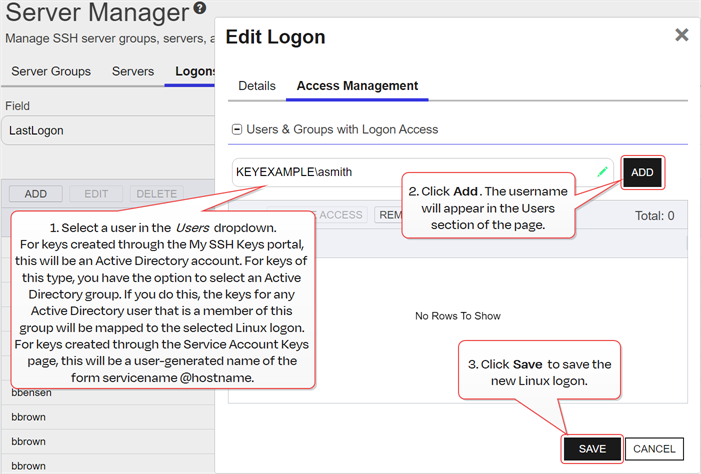
Figure 402: Add a Linux Logon—Access Management Tab
- Click Save to save the new logon.
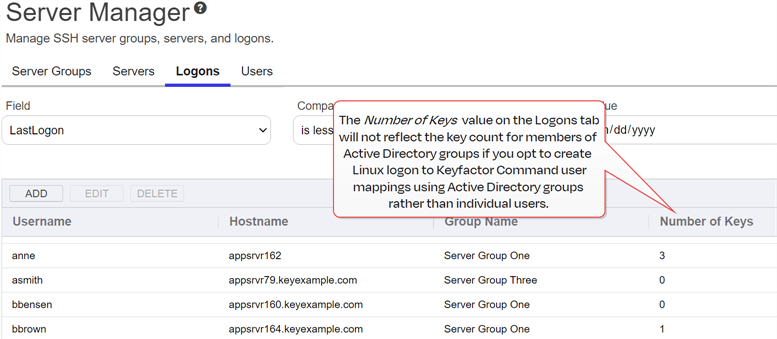
Figure 403: Creating Linux Logon to Keyfactor User Mappings Using Active Directory Groups Key Value
Delete an SSH Logon
To delete a logon, select the logon and choose Delete from the toolbar or right-click menu.
 ) next to the page title to open the Keyfactor Software & Documentation Portal to this section. You will receive a prompt indicating:
You can also find Help in the Navigator The Navigator is the Keyfactor Command left-hand (newer versions) or top (older versions) navigation menu. Certificate collections and reports can be configured to be added to the menu using user-defined Show in Navigator settings.. From here you can choose to open either the Keyfactor Software & Documentation Portal at the home page or the Keyfactor API Endpoint Utility.
Keyfactor provides two sets of documentation: the On-Premises Documentation Suite and the Managed Services Documentation Suite. Which documentation set is accessed is determined by the Application Settings: On-Prem Documentation setting (see Application Settings: Console Tab).