
Configure Browsers for Integrated Windows Authentication
Integrated Windows Authentication (IWA) allows browsers to authenticate users automatically using their logged-in Windows credentials via Kerberos or NTLM.
Modern browsers on Windows support IWA, but behavior varies slightly by browser.
Browser Support Overview
Microsoft Edge (Chromium-based) and Google Chrome support integrated Windows authentication automatically when:
-
The client system is domain joined.
-
The user is logged in with domain credentials.
-
The Keyfactor SCEP server has a correctly registered SPN.
-
The server is recognized as part of the intranet (via DNS, Group Policy, or security zone configuration).
No additional browser configuration is typically required in standard domain environments.
If authentication fails and users are prompted for credentials, verify Kerberos/SPN configuration and intranet classification.
Mozilla Firefox does not use Windows authentication settings by default. Additional configuration is required to enable Kerberos authentication.
Enabling integrated authentication in Firefox is outside the scope of this guide. Refer to Mozilla documentation for configuring:
-
network.negotiate-auth.trusted-uris
-
network.automatic-ntlm-auth.trusted-uris
Kerberos vs. NTLM Behavior
When Kerberos is configured correctly:
-
Authentication occurs automatically.
-
The user is not prompted for credentials.
If Kerberos fails:
-
With NTLM enabled, the browser prompts for credentials and allows continuation.
-
In Kerberos-only environments, authentication may fail without fallback.
For best results, ensure:
-
The Keyfactor SCEP server SPN is properly registered.
-
DNS resolves the server to its fully qualified domain name (FQDN).
-
Time synchronization is correct between client and server.
-
The site is treated as part of the Local intranet (not Internet or Trusted Sites).
The server must be recognized as part of the Local Intranet zone, either through:
Automatic detection
Windows automatically treats a site as intranet if it is accessed using a short hostname (e.g., http://scep) or if it resolves to an internal network address and meets default intranet detection criteria.
Group Policy configuration
An administrator can define the Local Intranet zone membership centrally using Group Policy (e.g., by configuring the Site to Zone Assignment List policy).
Explicit security zone configuration
The server’s fully qualified domain name (FQDN) can be explicitly added to the Local Intranet zone through Windows Internet Options.
 Show Internet Options configuration steps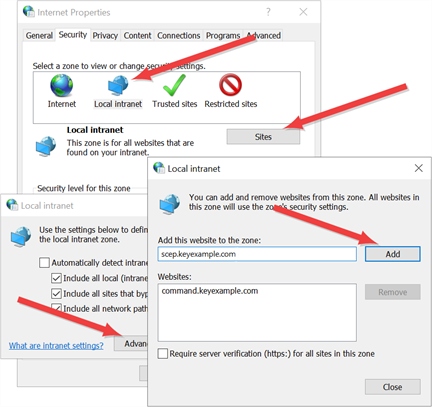
In managed environments, configuring this through Group Policy is recommended rather than manual browser settings.
Was this page helpful? Provide Feedback