
File Management
Use File Management to view and manage artifacts related to the Analytics Hub—such as reports, backups, system state reports (SSRs), and update packages—in one place. From here you can upload new files, download existing ones, and remove items you no longer need.
Admin Area → System Management → File Management
Supported actions on this page are:
-
Upload
Add a file to the Hub (e.g., an update package, a backup to restore, or a support bundle). The file appears in the grid after upload completes.
-
Download (row action)
Retrieve the selected file to your workstation—for off-box retention, sharing with Support, or migration between environments.
-
Delete
Permanently remove selected files from the appliance to reclaim space.
Important: This step is irreversible unless you have saved an off-box copy (see Download). Ensure the file isn’t needed for restore, reporting, or support before deleting. -
Search
Filter the grid by filename to quickly find specific artifacts. Pair with column sorting to locate the newest/oldest files.
Actions may appear as toolbar buttons, links in grid rows, or inside the More actions ( ) menu. If you don’t see an action as a button or in the grid, open More actions () and look for it there. Availability of actions depends on your selection, item status, and permissions.
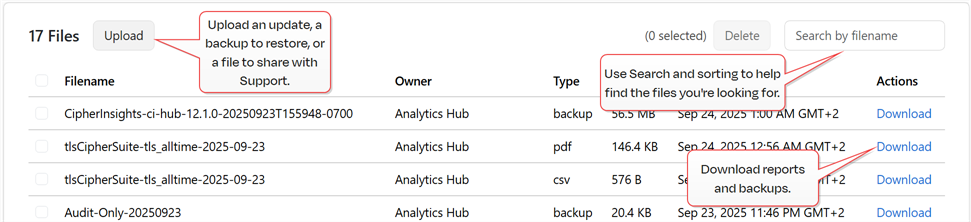
Figure 95: File Management
Filter the grid using the search, then choose how many items to display in the Rows per page dropdown (e.g., 10, 25, 50). Use the Next/Previous controls to view additional records. Most fields are sortable.
Was this page helpful? Provide Feedback