
The command-line Database Upgrade Tool can be used ahead of the Keyfactor Command software installation to bring the database up to the current version. This can be used to test database upgrades and resolve any issues before going forward with a full Keyfactor Command upgrade. If you have previously encountered upgrade issues or want to test the database upgrade step without risking downtime, this may be a good option for you. Run the database upgrade tool on a duplicate copy of the database without interrupting operations to confirm that the database upgrade will succeed. You can then upgrade the production database as part of the normal upgrade flow (without the database upgrade tool).
System Requirements
The Database Upgrade Tool can be used on any server with access to the SQL server hosting the Keyfactor Command database. It does not need to be run on the Keyfactor Command server.
The Database Upgrade Tool has the following requirements:
-
Windows Server 2019, 2022, or 2025.
-
Microsoft .NET Runtime version 10.0 (x64). Version 10.0 is available for download from Microsoft:
You need only the .NET Runtime (x64), not the ASP.NET Core Runtime or ASP.NET Core Hosting Bundle. At the above link, this would be the Download x64 option under the Run console apps heading.
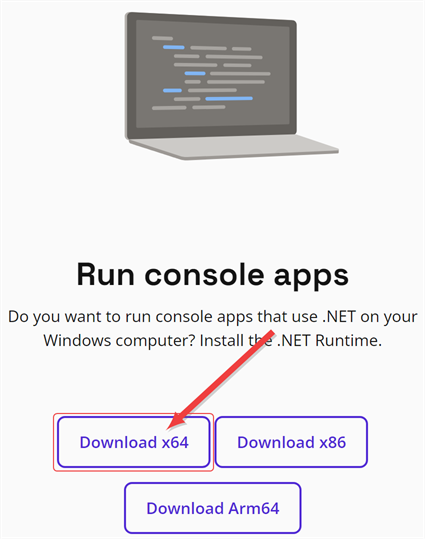
Figure 628: Select the Download x64 Option Under Run Console Apps
Tip: You can use the following PowerShell command to check the .NET core versions installed on a server (if any):dotnet --list-runtimesOutput from this command will look something like this if you have the correct version of the .NET
Microsoft.NETCore.App 10.0.3 [C:\Program Files\dotnet\shared\Microsoft.NETCore.App]
Using the Database Upgrade Tool
The Database Upgrade Tool does not need to be installed.
To use the Database Upgrade Tool:
- Copy the zip file to the server on which it will be used and unzip it to a temporary working directory.
- In the temporary working directory, locate the Database Upgrade Tool\Configuration\appsettings.json file and open this file for editing using a text editor.
-
Edit the SqlDirect connection strings appropriately for your environment and upgrade plan.
Important: Although the database upgrade tool can be used directly on the production database, this will upgrade the production database and create a mismatch between the database and the installed version of Keyfactor Command until you install the upgraded software, interrupting access. Keyfactor recommends running the database upgrade tool against a duplicate copy of the database to assure no interruption of the production environment.CopyWindows Integrated Authentication Example{
"NLogConfigFile": "Configuration/NLog_DatabaseUpgradeTool.config",
"ConnectionStrings": {
"SqlDirect": "Data Source=<SQL_MACHINE_FQDN>;Initial Catalog=<SQL_DB_NAME>;Integrated Security=True;Persist Security Info=True",
},
"DBCommandTimeout": 360,
"SqlRetryConfiguration": {
"NumberOfTries": "5",
"DeltaTime": "00:00:00.5",
"MaxTimeInterval": "00:02:00"
}
}CopySQL Authentication Example{
"NLogConfigFile": "Configuration/NLog_DatabaseUpgradeTool.config",
"ConnectionStrings": {
"SqlDirect": "Data Source=<SQL_MACHINE_FQDN>;Initial Catalog=<SQL_DB_NAME>;User ID=<SQL_USER_NAME>;Password=<SQL_PASSWORD>;Integrated Security=False;Persist Security Info=True",
},
"DBCommandTimeout": 360,
"SqlRetryConfiguration": {
"NumberOfTries": "5",
"DeltaTime": "00:00:00.5",
"MaxTimeInterval": "00:02:00"
}
}CopyWindows Integrated Authentication Example for SQL Named instance{
"NLogConfigFile": "Configuration/NLog_DatabaseUpgradeTool.config",
"ConnectionStrings": {
"SqlDirect": "Data Source=<SQL_MACHINE_FQDN>\\<INSTANCE_NAME>;Initial Catalog=<SQL_DB_NAME>;Integrated Security=True;Persist Security Info=True",
},
"DBCommandTimeout": 360,
"SqlRetryConfiguration": {
"NumberOfTries": "5",
"DeltaTime": "00:00:00.5",
"MaxTimeInterval": "00:02:00"
}
}Note: If your database is hosted on a SQL Server Always On Availability Group, update the connection string as follows:Set the Data Source to the availability group listener name, not the FQDN of the primary replica.
Include MultiSubnetFailover=True.
Include MultipleActiveResultSets=True.
CopyWindows Integrated Authentication Example for Availability Group Listener{
"NLogConfigFile": "Configuration/NLog_DatabaseUpgradeTool.config",
"ConnectionStrings": {
"SqlDirect": "Data Source=<AG_LISTENER_NAME>;Initial Catalog=<SQL_DB_NAME>;Integrated Security=True;Persist Security Info=True;MultiSubnetFailover=True;MultipleActiveResultSets=True",
},
"DBCommandTimeout": 360,
"SqlRetryConfiguration": {
"NumberOfTries": "5",
"DeltaTime": "00:00:00.5",
"MaxTimeInterval": "00:02:00"
}
} - If you’re upgrading a database in active use by Keyfactor Command, stop the services for IIS and Keyfactor Command
- Open a command prompt and change to the temporary working directory where you copied the Database Upgrade Tool.
-
Execute the DatabaseUpgradeTool.exe with one of the following parameters:
-
update
Run the database upgrade.
-
check
Verifies the database version and determines whether an upgrade is required:
- If the database does not exist,
- If the database is empty (contains no tables), it is initialized and the schema is installed.
- If the database contains data that does not match the expected schema, the
- If the database version is earlier than the tool version, the
- If the versions match, the
- If the database does not exist,
If no parameter
 A parameter or argument is a value that is passed into a function in an application. is specified, the tool runs the upgrade (equivalent to update).
 -
-
It will take a few moment for output to appear and then you will begin to see output as the upgrade tool processes through the upgrade modules that are needed for your database.
Note: The Database Upgrade Tool stops at the first error. All upgrade scripts are designed to be safely re-run, so rerunning the tool does not cause issues.The modules shown vary based on the starting version of the database, but the output will resemble the following:
Copy2026-03-20 08:31:00.3492 Keyfactor.Command.DatabaseUpgradeTool.Wizard [Info] - Starting Configuration Wizard Console - Upgrade Only.
2026-03-20 08:31:00.3877 Keyfactor.Command.DatabaseUpgradeTool.Wizard [Warn] - No valid DbCommandTimeout provided, defaulting to 1800 seconds.
2026-03-20 08:31:00.7188 Keyfactor.Command.DatabaseUpgradeTool.Wizard [Info] - Running module Existing workflow key cannot have Container option. 0 of 637 complete
2026-03-20 08:31:00.7527 Keyfactor.Command.DatabaseUpgradeTool.Wizard [Info] - Running module Populate initial schema. 1 of 637 complete
2026-03-20 08:31:05.4545 Keyfactor.Command.DatabaseUpgradeTool.Wizard [Info] - Running module Populate static data. 2 of 637 complete
2026-03-20 08:31:05.6732 Keyfactor.Command.DatabaseUpgradeTool.Wizard [Info] - Running module Create audit signing key. 3 of 637 complete
2026-03-20 08:31:05.7922 Keyfactor.Command.DatabaseUpgradeTool.Wizard [Info] - Running module Dropping unused stored procedures. 4 of 637 complete
2026-03-20 08:31:05.8182 Keyfactor.Command.DatabaseUpgradeTool.Wizard [Info] - Running module Remove ThumbprintHash from platform. 5 of 637 complete
2026-03-20 08:31:05.8950 Keyfactor.Command.DatabaseUpgradeTool.Wizard [Info] - Running module Remove anything related to CT Logging. 6 of 637 complete
Section removed for brevity.
2026-03-20 08:31:20.4814 Keyfactor.Command.DatabaseUpgradeTool.Wizard [Info] - Running module Add Agent Type for AgentPool modification.. 632 of 637 complete
2026-03-20 08:31:20.5003 Keyfactor.Command.DatabaseUpgradeTool.Wizard [Info] - Running module Adds an IsEphemeral field to the Templates table to indicate Ephemeral Templates.. 633 of 637 complete
2026-03-20 08:31:20.5003 Keyfactor.Command.DatabaseUpgradeTool.Wizard [Info] - Running module Update CertStoreJobsBulkInsertData table type.. 634 of 637 complete
2026-03-20 08:31:20.5130 Keyfactor.Command.DatabaseUpgradeTool.Wizard [Info] - Running module Add scheduled task for handling timeouts of v2 orchestrator pool jobs that have timed out while being assigned or in-progress.. 635 of 637 complete
2026-03-20 08:31:20.5130 Keyfactor.Command.DatabaseUpgradeTool.Wizard [Info] - Running module Refresh all SQL modules (procedures, views, etc.). 636 of 637 complete
2026-03-20 08:31:20.6412 Keyfactor.Command.DatabaseUpgradeTool.Wizard [Info] - Upgrade completed successfully. -
Confirm that the upgrade completed successfully.
Note: If any issues are encountered, correct them in both the duplicate and production databases to ensure a smooth upgrade. The database upgrade tool can be run repeatedly against the same database—each individual upgrade script is re-runnable—so once an issue is fixed, simply run the tool again. - If you upgraded the production database, install the upgraded Keyfactor Command software
Table 131: Appsetting.json File Parameters
| Setting | Description | ||||
|---|---|---|---|---|---|
|
NLogConfigFile
|
The relative path and filename of the configuration file for NLog configuration. The default is: Configuration/NLog_DatabaseUpgradeTool.config
|
||||
|
ConnectionStrings
|
SQL connection strings
|
||||
|
DBCommandTimeout
|
The maximum time (in seconds) the upgrade will wait for a SQL command to finish executing before it's canceled and a timeout error is raised. If DBCommandTimeout is not set or contains an invalid value, the upgrade defaults to 1800 seconds (30 minutes). This is a client-side setting and applies to query execution, stored procedures, and bulk operations, not to opening the connection. Any timeout specified in the connection string does not apply and is overridden by this setting. |
||||
|
SqlRetryConfiguration
|
SQL retry settings (seeChanging SQL Retry Settings for more information). |
Was this page helpful? Provide Feedback