
The AnyCAGateway REST integrates with Keyfactor Command as an HTTPS CA A certificate authority (CA) is an entity that issues digital certificates. Within Keyfactor Command, a CA may be a Microsoft CA or a Keyfactor gateway to a cloud-based or remote CA.. To support this, certificate profiles are created in the gateway and combined with an end-entity profile to form a certificate template A certificate template defines the policies and rules that a CA uses when a request for a certificate is received. in Keyfactor Command. All AnyCAGateway REST profiles use the fixed end-entity prefix AnyCA_, which is not configurable.
When templates are imported into Keyfactor Command, the short name uses the format AnyCA_<certificate profile name>, and the display name uses AnyCA (<certificate profile name>). You can also configure additional settings, including name and key types, in the Keyfactor Command Management Portal.
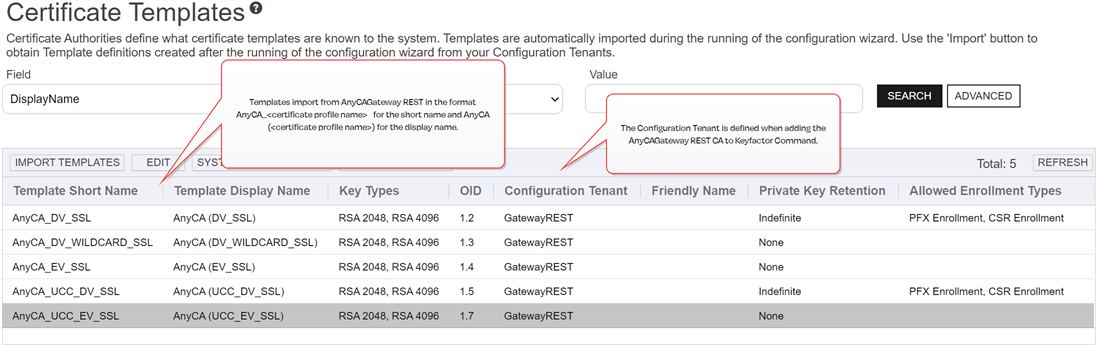
Figure 804: Keyfactor Command Management Portal - Certificate Templates
Add or Edit a Certificate Profile

Figure 805: Certificate Profiles Grid
To add a certificate profile:
- In the AnyCAGateway REST portal, select the Certificate Profiles tab.
- Click Add on the menu bar to add a new profile, or highlight an existing profile and select Edit from the menu bar or the right click menu.
- Enter a Name for the Certificate Profile. This name, combined with the fixed end-entity prefix of AnyCA_, will define the template in Keyfactor Command. The name cannot be changed once saved.
- Select the Key Algorithms that the profile will support using the check boxes and the drop downs for RSA A widely used public-key cryptosystem, RSA is commonly used for encryption and digital signatures. It is based on the mathematical difficulty of factoring large integers. and ECDSA ECDSA (Elliptic Curve Digital Signature Algorithm) is used for digital signatures in public-key cryptography. It offers strong security with smaller key sizes compared to RSA, making it ideal for resource-constrained environments..
- Click Save.Important: If you are in the process of installing AnyCA Gateway, return to the Certificate Authorities page in the AnyCA Gateway portal. Open the CA to the Templates tab and add the templates to the CA per the instructions on the Templates tab (see The Templates Tab).
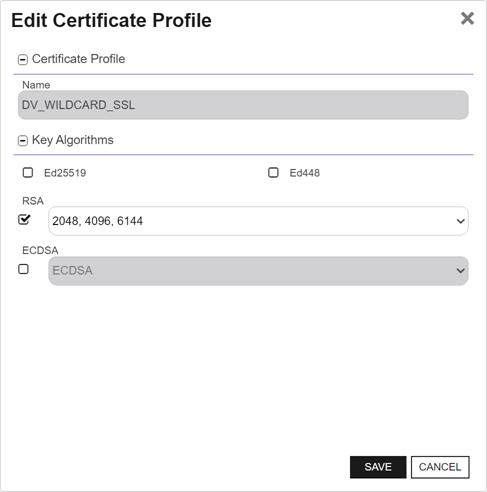
Figure 806: Certificate Profile Add/Edit
Delete a Certificate Profile
- In the AnyCAGateway REST portal, select the Certificate Profiles tab.
- Highlight an existing certificate profile and select Delete from the menu bar or the right click menu.
- Click OK.
Was this page helpful? Provide Feedback