
This section provides in-depth explanations and examples for using conditions in workflow A workflow is a series of steps necessary to complete a process. In the context of Keyfactor Command, it refers to the workflow builder, which allows you automate event-driven tasks when a certificate is requested or revoked. definitions (see Workflow Step Execution Conditions).
Metadata provides information about a piece of data. It is used to summarize basic information about data, which can make working with the data easier. In the context of Keyfactor Command, the certificate metadata feature allows you to create custom metadata fields that allow you to tag certificates with tracking information about certificates. at processing time.  at the top right of the field. To use a token in a field, begin typing at the location where you want the token to appear, starting with $(. Once you have typed $(, a second ) will appear automatically along with a dropdown of available tokens to choose from. You may continue typing to narrow the values in the dropdown (e.g. type $(req to see only tokens that begin “req”).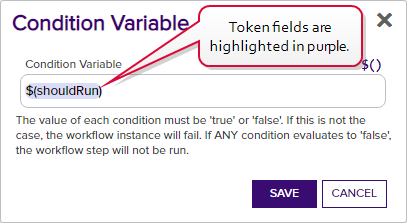
Figure 171: Tokens are Highlighted
To add a new condition, click Add and in the Condition Variable field enter either a static value of True or False or a token that will have a value of True or False at the time the step is run. More than one condition may be added. If multiple conditions are used in the same step, all conditions must have a value of True at the time the step is evaluated to be run in order for the step to run. If any single condition evaluates to False, the step will not run.
Example: Set Variable Data and Require Approval with a Condition
The following example takes the common name A common name (CN) is the component of a distinguished name (DN) that represents the primary name of the object. The value varies depending on the type of object. For a user object, this would be the user's name (e.g. CN=John Smith). For SSL certificates, the CN is typically the fully qualified domain name (FQDN) of the host where the SSL certificate will reside (e.g. servername.keyexample.com or www.keyexample.com). entered during an enrollment Certificate enrollment refers to the process by which a user requests a digital certificate. The user must submit the request to a certificate authority (CA). and evaluates it to determine whether the domain name on it matches “keyexample.com” or not. If the domain is “keyexample.com”, the enrollment is allowed to proceed without requiring approval. If the domain does not match “keyexample.com”, the request requires approval. This example uses both a PowerShell Set Variable Data step and a Require Approval step.
To do this, first create the PowerShell step. Here we use a Set Variable Data step (see Set Variable Data) since no functions need to be called outside the confines of Keyfactor Command, though you could use a Custom PowerShell Script step instead. Add a Script Parameter A parameter or argument is a value that is passed into a function in an application. to pull the request CN A common name (CN) is the component of a distinguished name (DN) that represents the primary name of the object. The value varies depending on the type of object. For a user object, this would be the user's name (e.g. CN=John Smith). For SSL certificates, the CN is typically the fully qualified domain name (FQDN) of the host where the SSL certificate will reside (e.g. servername.keyexample.com or www.keyexample.com). into the script.
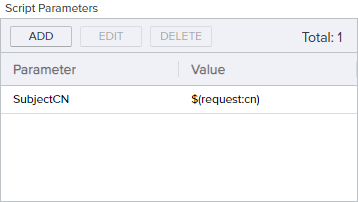
In the Insert PowerShell Script field, enter a script similar to the following:
# Declare your parameter at the beginning
param(
   [string]$SubjectCN
)

# Initialize a variable for the response
$shouldRun = @()

# Check to see if the requested CN ends with keyexample.com and require approval in the next step if it does not
$Suffix = "keyexample.com"

if ($SubjectCN.EndsWith($Suffix))
{
   $shouldRun = "False"
}else {
   $shouldRun = "True"
}

# Return the true/false value to the workflow as a hashtable
$result = @{ "shouldRun" = $shouldRun; }
return $result
Next, create the require approval request step (see Require Approval) with $(shouldRun) as a condition like so:
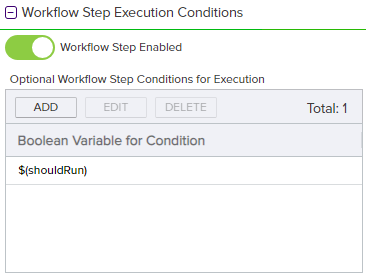
Figure 173: Conditions Example: Add Conditions for Require Approval Step
This condition on the require approval step will cause the approvals configured in the step to be required only if the CN submitted in the request does not end with “keyexample.com”, so a request for “CN=mycert.keyother.com” will require approval but a request for “CN=mycert.keyexample.com” will not.