
If you plan to use the Keyfactor AnyCA Gateway REST with Keyfactor Command, once the AnyCAGateway REST configuration steps are complete, you must add the AnyCAGateway REST as a CA A certificate authority (CA) is an entity that issues digital certificates. Within Keyfactor Command, a CA may be a Microsoft CA or a Keyfactor gateway to a cloud-based or remote CA. and import and configure templates and create enrollment Certificate enrollment refers to the process by which a user requests a digital certificate. The user must submit the request to a certificate authority (CA). patterns in the Keyfactor CommandManagement Portal.
Add the AnyCAGateway REST as a CA in Keyfactor Command
- In the Keyfactor Command Management Portal, browse to Locations > Certificate Authorities.
- On the Certificate Authorities page, select the Certificate Authorities tab, and click Add.
- At the top of the dialog, choose HTTPS in the Select CA Communication Protocol dropdown.
- Complete the Certificate Authorities dialog following the guidance below and click Save and Test to save the CA. For more information about certificate authorities, see Add or Modify an HTTPS CA.
Certificate Authority Basic Tab
-
Logical Name: The logical name
The logical name of a certificate authority (CA) is the human-readable name assigned to the CA when it is created. This name is used to uniquely identify the CA within its management system and in Keyfactor Command configuration settings.
For some CA types, such as Microsoft CAs, the logical name is combined with the CA host name to form a fully qualified identifier (for example, ca1.keyexample.com\Corp Issuing CA One) that may be used in command-line tools and configuration references. The exact format and usage of the logical name can vary by CA type., exactly as entered in AnyCAGateway REST portal (see The Basic Tab). The logical name is unique for each CA. -
Host URL: The fully qualified domain name of the server on which the gateway is installed and the value defined by in -VirtualDirectory (IIS installs)or the port number defined in -ServerPort (Kestrel installs). For example:
https://keyfactor243.keyexample.com/AnyGatewayREST/ejbcaTip: If the CA URL does not include a context path, Keyfactor Command defaults to /ejbca but does not add it to the displayed value.When using AnyCAGateway REST, the gateway path is defined with the VirtualDirectory parameter
A parameter or argument is a value that is passed into a function in an application. (for IIS installs) or uses the default (for example, /AnyGatewayREST). This parameter does not include the EJBCA context path. You must append /ejbca when defining the CA URL Keyfactor Command (for example, /AnyGatewayREST/ejbca). -
Configuration Tenant: Any name you want to use to identify the configuration tenant
A logical grouping of certificate authorities (CAs) within Keyfactor Command. The configuration tenant provides a common boundary for managing and organizing CAs in environments where the concept of an Active Directory forest may not apply.
For Microsoft CAs, a configuration tenant typically corresponds to an Active Directory forest. For EJBCA, a configuration tenant typically corresponds to a single EJBCA server installation. Configuration tenants cannot be mixed; Microsoft and EJBCA CAs must be managed in separate configuration tenants. for this CA. -
Create new End Entity when renewing or reissuing certificates: This option must be turned on.
-
Configure the Scan synchronization sections as desired. This is the synchronization of certificates between Keyfactor Command and AnyCAGateway REST.
Certificate Authority Advanced Tab
-
In the Enrollment section, turn on Use for Enrollment to allow Keyfactor Command to use the gateway for enrollment.
Certificate Authority Authentication Methods Tab
-
Select the authentication method you configured for the AnyCAGateway REST in the Auth Method dropdown. The authentication method you select here must match the authentication method that the gateway has been configured with—you cannot configure the gateway with OAuth and then use a client authentication certificate to access it from Keyfactor Command, for example.
-
If you selected OAuth, enter the following information:
-
Client Id
The client you created in your OAuth identity provider to authenticate to the gateway and then added as a claim in the AnyCAGateway REST portal. See Claims.
-
Token URL
Set this to the URL of the token endpoint
An endpoint is a URL that enables the API to gain access to resources on a server. for your OAuth identity provider. -
Client Secret
The secret of the client you created in your OAuth identity provider to authenticate to the gateway. The secret may be stored as a Keyfactor secret or using PAM
PAM (Privileged Access Management): Controls privileged access by vaulting credentials, enforcing least-privilege/just-in-time access, rotating secrets, and auditing sessions. Across Keyfactor products, PAM protects diverse sensitive operations and secrets—for example certificate stores and CA credentials—via built-in or third-party providers; external integrations are delivered as custom PAM extensions (several published on Keyfactor’s public GitHub).. For more information, see Add or Modify an HTTPS CA. -
Scope
One or more scopes that should be included in token requests delivered to your OAuth identity provider.
Important: If you configure the DisableBearerTokenScopeRequirement option to False (no), you must either configure the client you’re using to connect from Keyfactor Command to the gateway to always include the scope keyfactor-anyca-gateway in the token or you must configure the keyfactor-anyca-gateway scope on the authentication methods tab when configuring the CA record in Keyfactor Command. Your OAuth identity provider needs to be configured to recognize keyfactor-anyca-gateway as a scope. -
Audience
Specify an audience value to be included in token requests delivered to your OAuth identity provider.
-
-
If you selected Client Certificate, click Select Authentication Certificate. Upload—in PKCS #12
A PFX file (personal information exchange format), also known as a PKCS #12 archive, is a single, password-protected certificate archive that contains both the public and matching private key and, optionally, the certificate chain. It is a common format for Windows servers. format—either the superadmin certificate or the certificate you created in the AnyCAGateway REST portal as a user account for the Keyfactor Command user (see Claims) and enter the password.Tip: Using a dedicated user certificate is preferable to using the superadmin certificate, as Keyfactor Command only needs user access to the AnyCAGateway REST.
Import Templates
Once the AnyCAGateway REST CA has been added to Keyfactor Command, you must import the gateway certificate profiles into Keyfactor Command as certificates templates.
- On the Templates page, click Import, and select the configuration tenant from the drop down, defined when you added the CA.
- Once the templates have been imported, configure each one to work with Keyfactor Command as required (see Edit).
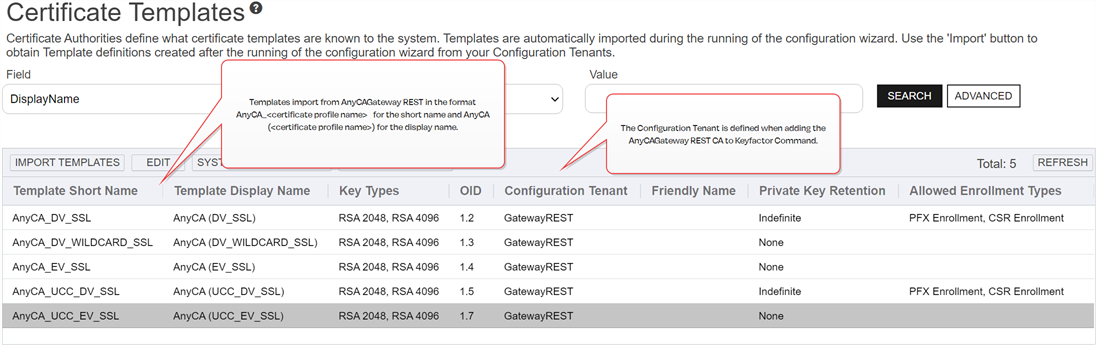
Figure 813: Keyfactor Command Management Portal - Certificate Templates Grid
Add Enrollment Patterns
Once the certificate profiles have been imported into Keyfactor Command as templates, you must create enrollment patterns to use to enroll with the CA.
- In the Keyfactor Command Management Portal, browse to Locations > Enrollment Patterns.
- On the enrollment patterns grid, click Add to open the dialog to create an enrollment patterns for any templates you will use for enrollment (see Add or Modify an Enrollment Pattern).
- Turn off Use AD Template Permissions and select at least one security role in Associated Roles.
- Select at least one of the Allowed Enrollment Types to support enrollment.
- Save.