
SMTP Short for simple mail transfer protocol, SMTP is a protocol for sending email messages between servers. settings to enable Keyfactor Command to deliver reports and alerts via email are generally specified during initial Keyfactor Command installation and configuration, but can be modify through the Management Portal if needed.
System Settings → SMTP Configuration
To make a change to these settings:
- On the SMTP Configuration page, modify the configuration as needed.
-
In the General section of the page, configure:
-
Host: The FQDN of your SMTP server.
-
Port: The SMTP port that your SMTP server receives messages on. Common ports are:
-
25 — Traditional SMTP (server-to-server relay). Often allowed only from trusted hosts; may be STARTTLS-capable. This is the default.
-
587 — Message submission (MSA). The modern, recommended port for apps/services. Uses AUTH and usually STARTTLS.
-
465 — SMTPS (implicit TLS
TLS (Transport Layer Security) and its predecessor SSL (Secure Sockets Layer) are protocols for establishing authenticated and encrypted links between networked computers.). TLS from the first byte; some providers still prefer this.
-
-
Sender Name: The display name used as the sender of the messages coming from Keyfactor Command. This does not typically need to be a valid value in your mail server.
-
Sender Account: Specifies the account used to send email.
-
If Anonymous is selected for Relay Authentication, you may enter any value (your mail server must allow anonymous connections).
-
If Basic Authentication or OAuth Client Credentials is selected, you must enter a valid account recognized by your mail server.
-
-
Use SSL:
In the Relay Authentication dropdown, select the appropriate authentication method for your environment:
-
Anonymous: No login. The server must allow unauthenticated relay (often IP-restricted).
-
Basic Authentication: Username and password (SMTP AUTH). Use with TLS/STARTTLS. Older and widely supported.
-
OAuth Client Credentials: Token-based (OAuth 2.0). No stored password.
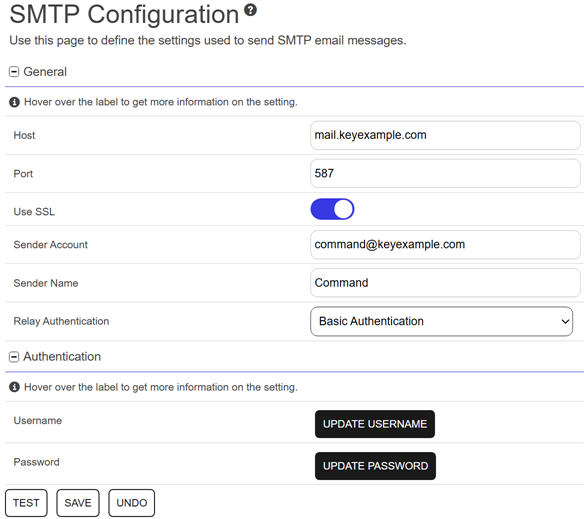
Figure 477: SMTP Configuration
-
-
In the Authentication section of the page if you selected Basic Authentication or OAuth Client Credentials, configure authentication information.
Basic Authentication:
-
Set/Update Username: In the Username dialog, choose
Load from Keyfactor Secrets or Load From PAM Provider, and follow the respective instructions. -
Set/Update Password: In the Password dialog, choose
Load from Keyfactor Secrets or Load From PAM Provider, and follow the respective instructions.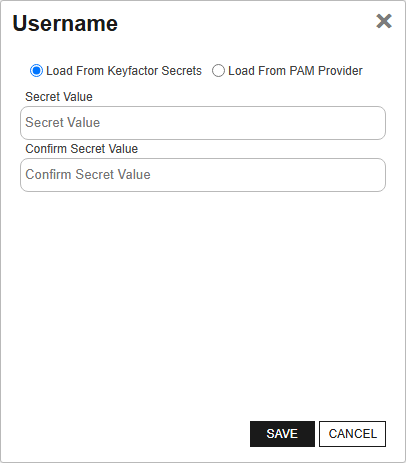

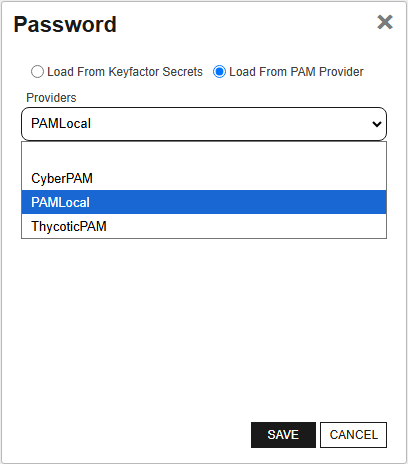
Figure 478: SMTP Username
OAuth Client Credentials:
-
Set/Update Client ID: The ID of the service account you registered in your OAuth provider for Keyfactor Command’s outbound email authentication. In the Client ID dialog, choose
Load from Keyfactor Secrets or Load From PAM Provider, and follow the respective instructions. -
Set/Update Client Secret: The secret of the service account you registered in your OAuth provider for Keyfactor Command’s outbound email authentication. In the Client Secret dialog, choose
Load from Keyfactor Secrets or Load From PAM Provider, and follow the respective instructions. -
Token Endpoint: The token endpoint
An endpoint is a URL that enables the API to gain access to resources on a server. URL for the identity provider. -
Scope: One or more scopes that should be included in token requests delivered to the identity provider when making a token request. Multiple scopes should be separated by spaces.
-
Audience: An audience value to be included in token requests delivered to the identity provider when making a token request.
-
Request Headers: Click Add to add one ore more custom OIDC request headers for the identity provider given as name/value pairs.
Parameters configured in this value are added to the headers when Keyfactor Command sends an OIDC request to the OAuth server for the following request types:
-
Discovery Document
-
JSON Web Key Set
-
Token
-
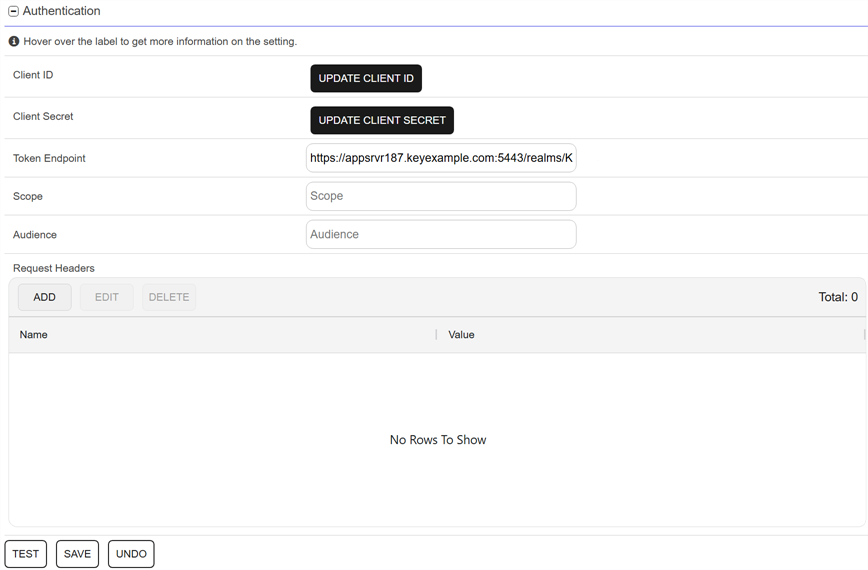
Figure 479: OAuth Client Credentials
-
-
You can test the settings either before or after saving them. Click the Test button, enter a valid email address (a mailbox you can access) in the Send a Test SMTP Message dialog and click Save. Verify that the test email is delivered. You will receive an error message if the test failed.
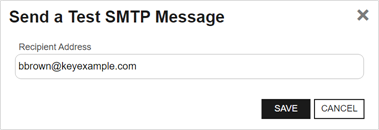
Figure 480: Send an SMTP Test Message
- Click Save to save any changes you have made.
To cancel any changes you’ve made without saving, click the Undo button.
 ) next to the
 You can also find Help in the Navigator The Navigator is the Keyfactor Command left-hand (newer versions) or top (older versions) navigation menu. Certificate collections and reports can be configured to be added to the menu using user-defined Show in Navigator settings.. From here you can choose to open either the Keyfactor Software & Documentation Portal at the home page or the Keyfactor API Endpoint Utility.
Keyfactor provides two sets of documentation: the On-Premises Documentation Suite and the Managed Services Documentation Suite. Which documentation set is accessed is determined by the Application Settings: On-Prem Documentation setting (see Application Settings: Console Tab).
Was this page helpful? Provide Feedback