
The Certificates by Key Strength report includes a bar graph showing the number of active certificates by key strength (e.g., sha-1, sha-256) for the selected CA A certificate authority (CA) is an entity that issues digital certificates. Within Keyfactor Command, a CA may be a Microsoft CA or a Keyfactor gateway to a cloud-based or remote CA.(s), a bar graph showing the number of active certificates by key size The key size or key length is the number of bits in a key used by a cryptographic algorithm. for the selected CA(s), and a pie chart for each selected CA showing the active certificates by key size (e.g., 1024 bit, 2048 bit).
Reports → Report Manager or Reports → Certificates by Key Strength (if it has been added to the Navigator)
A certificate with a single, primary post-quantum key. are not currently supported in
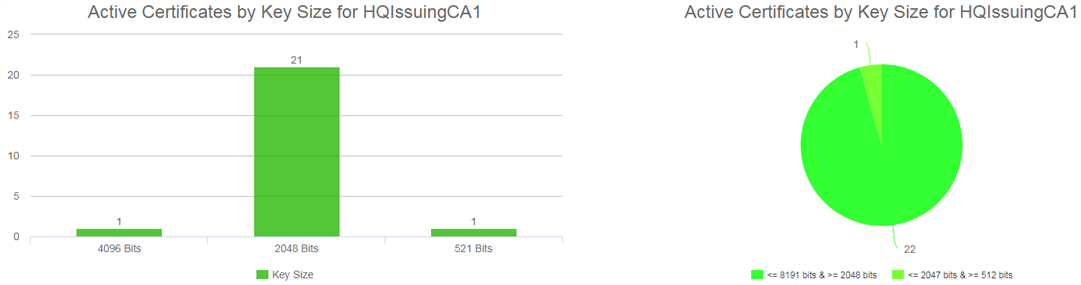
Figure 88: Certificates by Key Strength
The export options for the Certificates by Key Strength report are Excel and PDF.
This report takes as an input parameter A parameter or argument is a value that is passed into a function in an application. the CA(s) on which to report and includes the option to report on certificates that have no associated CA. Typically, these would be certificates found via SSL TLS (Transport Layer Security) and its predecessor SSL (Secure Sockets Layer) are protocols for establishing authenticated and encrypted links between networked computers. scanning or inventory on certificate stores.
Was this page helpful? Provide Feedback