
The Keyfactor Command product is licensed by component, meaning your license may not include all the features described in this guide. If you choose to add additional components to your license in the future, these features can typically be configured without needing to reinstall the product. You can view the details of your current license and replace it with a new one, if desired, in the Licensing section of the product. License files, which have the extension .cmslicense, are signed to prevent tampering.
System Settings → Licensing
License Tab
The currently installed license appears on the License tab. The license shows you the features that are enabled for your Keyfactor Command implementation.
For information on monitoring for license expiration, see License Expiration Monitoring and Rotation.
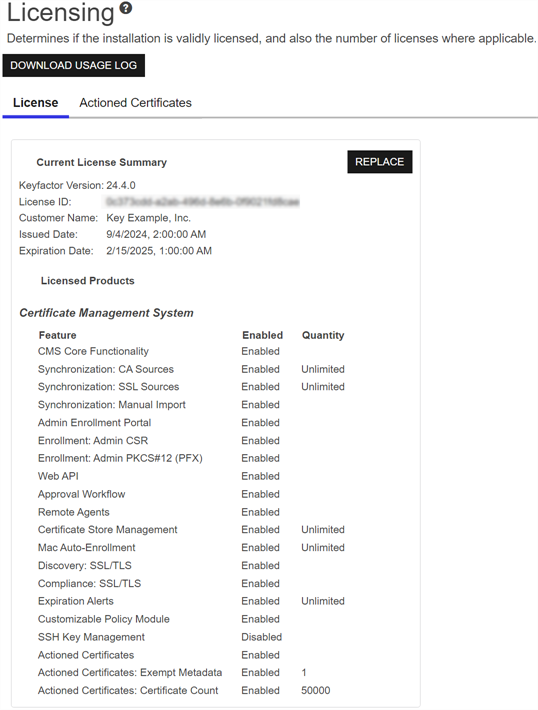
Figure 488: Keyfactor Command License
If you purchase a new license from Keyfactor that enables additional features or extends the expiration date, you can upload it on the Licensing page. To do this:
- On the License tab of the Licensing page, click Replace. The Confirm Operation dialog box will open.
-
Click OK to open the dialog to upload a new license.
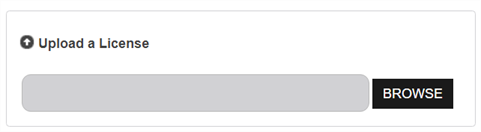
Figure 489: Upload a New Keyfactor Command License
- Click the Browse button and browse to the location on the file system where the new license file provided by Keyfactor is stored.
-
The new license will appear next to the existing license. Compare them to confirm that you wish to install the new license and then click the Save to button to complete the license change.

Figure 490: Save a New Keyfactor Command License
- On the Keyfactor Command server, restart the IIS services (iisreset) and refresh the browser.
 A certificate authority (CA) is an entity that issues digital certificates. Within Keyfactor Command, a CA may be a Microsoft CA or a Keyfactor gateway to a cloud-based or remote CA. Policy Module, be aware that the license needs to be installed separately for the policy module (see License Expiration Monitoring and Rotation).
Actioned Certificates Tab
If your Keyfactor Command license enables the Actioned Certificates feature and your Actioned Certificates license type is not Site-License, on the Actioned Certificates tab you can view the counts of actioned certificates in the Keyfactor Command database as of the most recent count. By default, the count is done every day at 2:00 am UTC. A certificate is determined to be actioned if it falls into one or more of these categories:
-
Requested via Enrollment: The certificate was requested through Keyfactor Command (see CSR Enrollment and PFX Enrollment). Revoked and expired certificates are not included in this count.
-
Revoked in the Past Week: The certificate was revoked within the previous week—either within Keyfactor Command or outside Keyfactor Command (see Revoke). Expired certificates are not included in this count.
-
Has Non-Excluded Metadata: The certificate has one or more values populated in a metadata
Metadata provides information about a piece of data. It is used to summarize basic information about data, which can make working with the data easier. In Keyfactor Command, the certificate metadata feature allows you to create custom metadata fields that allow you to tag certificates with tracking information about certificates. field that is not marked as excluded from actioned certificates (see Metadata Field Operations). Revoked and expired certificates are not included in this count. -
The certificate is found in one or more certificate stores managed with Keyfactor Command (see Certificate Stores). Revoked and expired certificates are not included in this count.
-
Private Key Stored in Keyfactor Command: The certificate has a private key
Private keys are used in cryptography (symmetric and asymmetric) to encrypt or sign content. In asymmetric cryptography, they are used together in a key pair with a public key. The private or secret key is retained by the key's creator, making it highly secure. stored in Keyfactor Command. In addition to certificates enrolled through Keyfactor Command, this can be true for certificates imported into Keyfactor Command with their private keys (see Add Certificate). Revoked and expired certificates are not included in this count. -
In Collection Workflow or Expiration Alert: The certificate is in a certificate collection
The certificate search function allows you to query the Keyfactor Command database for certificates from any available source based on any criteria of the certificates and save the results as a collection that will be available in other places in the Management Portal (for example expiration alerts and certain reports). referenced by an expiration alert, certificate entered collection, or certificate left collection workflow A workflow is a series of steps necessary to complete a process. In Keyfactor Command, it refers to the workflow builder, which allows you to automate event-driven tasks such as when a certificate is requested, revoked or found in a certificate store. (see Workflow Definitions). Revoked and expired certificates are not included in this count.Note: Certificates in a collection linked to a disabled or unpublished workflow aren’t counted in the In Collection Workflow or Expiration Alert category, but may still qualify under other actioned certificate criteria.
Certificates may fall into more than one of these categories, but are only counted once for the purposes of the total actioned certificate count. If the total actioned certificate count exceeds the licensed actioned certificate count, a warning alert will be generated (see System Alerts). Keyfactor Command functionality will not be interrupted.
If your Actioned Certificates license type is Site-License, the certificate count is not limited and you will see N/A for the count values on the actioned certificates tab.
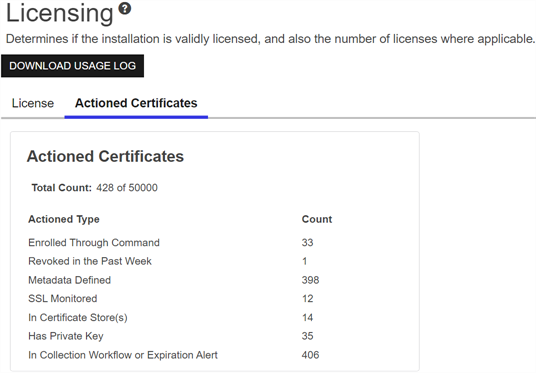
Figure 491: Keyfactor Command License
Download Usage Log
If your Keyfactor Command license is of the type Actioned Certificates, at the top of the licensing page, you can click the Download Usage Log button to download the your signed XML license, including information about your Keyfactor Command instance, license features, and the actioned certificate counts.
 ) next to the
 You can also find Help in the Navigator The Navigator is the Keyfactor Command left-hand (newer versions) or top (older versions) navigation menu. Certificate collections and reports can be configured to be added to the menu using user-defined Show in Navigator settings.. From here you can choose to open either the Keyfactor Software & Documentation Portal at the home page or the Keyfactor API Endpoint Utility.
Keyfactor provides two sets of documentation: the On-Premises Documentation Suite and the Managed Services Documentation Suite. Which documentation set is accessed is determined by the Application Settings: On-Prem Documentation setting (see Application Settings: Console Tab).