
Certificate store applications are used to group related certificate stores for organizational purposes, bulk management, and access control.
The Certificate Store Applications tab provides actions for managing these applications, including creating and editing applications, scheduling inventory for an application, and deleting applications.
Locations → Certificate Stores → Applications Tab
 Searching Certificate Store Applications
This page supports the standard query format described in Using Search in the Management Portal and includes its own set of query parsers specific to this operation. Use the following parsers to filter and refine results for this page.
-
HasSchedule
Whether the certificate store application has a schedule defined (True or False).
-
Name
Complete or partial matches with the name of the certificate store application.
Add or Modify a Certificate Store Application
To add or edit a certificate store application:
-
On the Certificate Stores page, select the Applications tab.
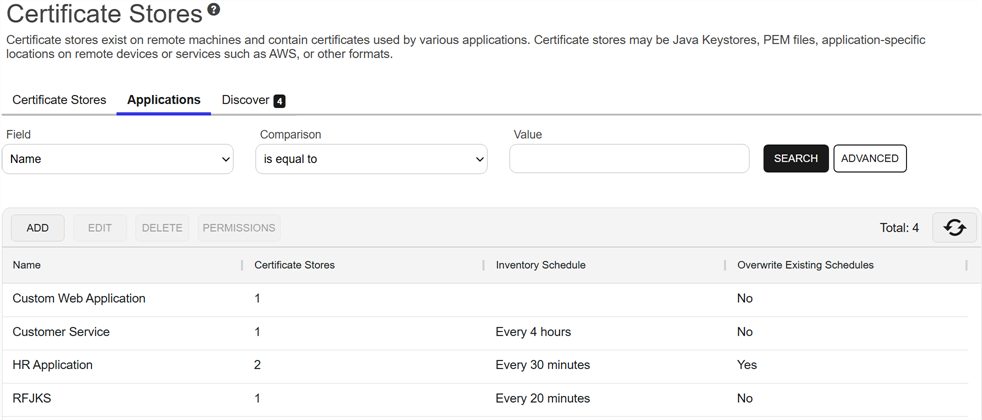
Figure 318: Certificate Store Applications
- On the Applications tab, click Add to create a new application, or click Edit from either the toolbar or right-click menu to modify an existing one.
-
In the New Application dialog, enter a Name for the application.
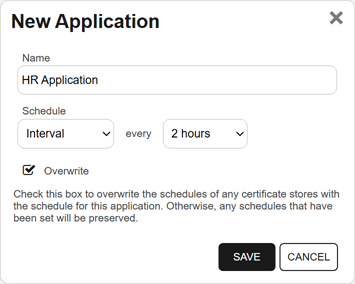
Figure 319: Define a Certificate Store Application
-
In the Schedule fields, select an inventory frequency to apply as a default to certificate stores added to the application. The choices are:
-
Select Off to disable the inventory job.
-
If you select Immediate, the inventory will run within a few minutes of saving the record and will run only once. After this, the inventory schedule will be cleared.
-
If you select Interval, you can select a scan frequency of anywhere from every 1 minute to every 12 hours.
-
If you select Daily, you can set the time of day when the inventory should begin every day.
-
If you select Weekly, you can select the day, or days, of the week at a specified time.
-
If you select Monthly, you can select a day of the month (1st through 27th) at a specified time.
-
If you select Exactly Once, you can select a date and time at which to run the inventory job. After the job has run, the inventory schedule will be cleared.
-
- If desired, check the Overwrite Existing Schedules box. This option will apply the schedule from the application to any stores in the application, including those that already have a schedule, whenever the application schedule is updated.
- Click Save to save the application.
Delete an Application
Deleting an application that contains certificate stores does not delete the associated certificate stores. The certificate stores will remain and be disassociated from the application.
To delete a certificate store application:
- On the Certificate Stores page, select the Applications tab.
- On the Applications tab, highlight the row in the certificate store applications grid of the application to delete and click Delete at the top of the grid or right-click the application in the grid and choose Delete from the right-click menu. Only one application may be deleted at a time.
- On the Confirm Operation alert, click OK to confirm or Cancel to cancel the operation.
Application Permissions
The option to view or modify application permissions from the Certificate Store Applications tab has been deprecated and may be removed in a future release. Keyfactor recommends managing permissions from the Security Roles and Claims page, where additional system-wide settings are available.
Was this page helpful? Provide Feedback