
SSL TLS (Transport Layer Security) and its predecessor SSL (Secure Sockets Layer) are protocols for establishing authenticated and encrypted links between networked computers. pools define the set of orchestrators used to perform SSL network discovery and monitoring scans. Each SSL pool contains one or more approved orchestrators that support SSL discovery and monitoring capabilities.
Assigning an SSL pool to a network allows scanning work to be distributed across multiple orchestrators in the pool. This improves scalability and performance, particularly for larger or more complex networks.
By default, all approved orchestrators with SSL capabilities are assigned to the Default Agent Pool. You can create additional SSL pools to control how discovery and monitoring workloads are distributed. When an orchestrator Keyfactor orchestrators perform a variety of functions, including managing certificate stores and SSH key stores. is assigned to a custom SSL pool, it is removed from the default pool. If a custom pool is deleted, its orchestrators are returned to the default pool.
From this page, you can create, edit, and delete SSL pools.
Locations→ SSL Discovery → SSL Pools Definition Tab
Add or Modify an SSL Pool
-
On the SSL Pools Definition tab, choose Add from the toolbar to create a new SSL pool, or select an existing pool and choose Edit from the toolbar or right-click menu.
Note: The available edit options include edit the name of the pool or select/de-select the discover/monitor options. -
In the SSL Pool Definition dialog, enter a unique value in the Name field.
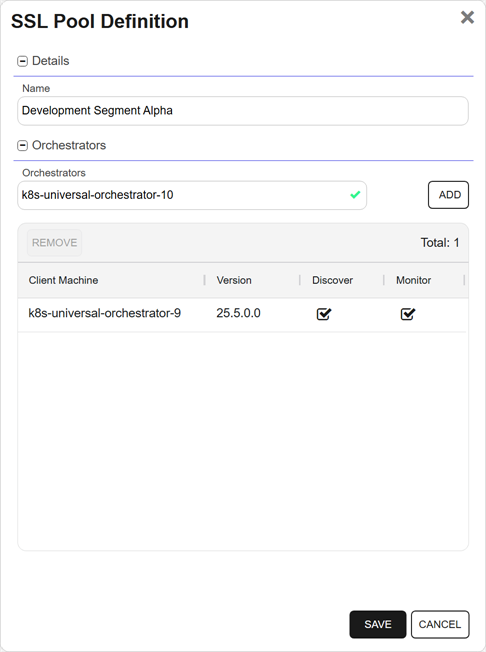
Figure 343: Add an SSL Pool
-
In the Orchestrators search select dropdown, select from eligible orchestrators—those orchestrators that support monitor and discovery capabilities—to include in the SSL pool and click Add. To narrow the list of results in a search select dropdown, begin typing in the input field. Matching results will appear as you type, and you can scroll to locate a record.
Tip: Orchestrators are added with discover and monitor responsibilities. You can de-select one of these options, if needed. -
Select a row and click Remove to remove an orchestrator from the SSL pool. The orchestrator will be returned to the Default Agent Pool.
Note: You are not able to remove orchestrators from the Default Agent Pool. Orchestrators are automatically removed if assigned to a custom pool. - Click Save to save the SSL pool.
Delete an SSL Pool
You may delete one SSL pool at a time.
- On the SSL Network Discovery page, select the SSL Pools Definition tab and select the row you wish to delete.
- Choose Delete from the toolbar or right click menu.
-
On the Confirm Operation alert, click OK to confirm or Cancel to cancel the operation.