
Expiration alerts send email notifications to certificate owners, users, and/or administrators when a certificate is nearing or at expiration. Alerts are based on certificate collections and can be customized to include detailed certificate information and instructions for end users (for example, how to enroll for a replacement certificate). Before configuring expiration alerts, you must create a certificate collection The certificate search function allows you to query the Keyfactor Command database for certificates from any available source based on any criteria of the certificates and save the results as a collection that will be available in other places in the Management Portal (for example expiration alerts and certain reports). to define the scope of the alert (see Certificate Search and Collections).
Alerts → Expiration
A workflow is a series of steps necessary to complete a process. In Keyfactor Command, it refers to the workflow builder, which allows you to automate event-driven tasks such as when a certificate is requested, revoked or found in a certificate store. system. The workflow system offers more options for injecting actions in the process. To configure an alert to use the workflow system for alerting, turn on Use Workflows and create a workflow for the alert (see details below).
When the alerts are run using workflow, there are two Keyfactor Command service jobs that perform this function. The first, running as scheduled for the alerts (see Add or Modify an Expiration Alert), gathers any expiring certificates that meet the alert criteria. The second, running every 10 minutes, takes the collected expiring certificates and generates workflow instances for each.
Add or Modify an Expiration Alert
- On the Expiration Alerts page, click Add from the top menu to create a new alert, or Edit from either the toolbar or right click menu, to modify an existing one.
-
In the Certificate Expiration Alert Settings dialog, select your Certificate Collection in the first dropdown.
-
In the Timeframe fields, select the warning expiration period by defining a number for either days, weeks, or months for the alert. For example, if you select three weeks, the expiration alerts will be sent automatically three weeks ahead of certificate expiration.
Note: When the alert is stored in the database, weeks are converted to 7 days and months are converted to 30 days.Alerts report on certificates that enter the configured expiration period (X days/weeks/months before expiration) between the last run and the current run. When an alert is first configured, the configuration time is treated as the last run time.
When the alert runs, each run reports only on certificates that fall into the next new time window that has not already been reported. This window is based on the prior reference time and the current execution time.
Example: On June 30 at 5:00 PM you create a new alert with a 30-day Timeframe and schedule it to run daily at 5:00 AM.On the first run (July 1 at 5:00 AM), the alert reports certificates that entered the 30-day expiration period between June 30 at 5:00 PM (configuration time) and July 1 at 5:00 AM.
On the next run (July 2 at 5:00 AM), the alert reports certificates that entered the 30-day expiration period between July 1 at 5:00 AM and July 2 at 5:00 AM (one day of expirations).
If alerts do not run for a period of time (for example, due to an outage), the next run uses the last successful run time and reports on all certificates that fall within the missed window. For example, an outage causing the alert not to run on July 3 would mean that the run on July 4 includes certificates that entered the 30-day expiration period between July 2 at 5:00 AM and July 4 at 5:00 AM.
- In the Monitoring Execution Schedule field, select either Off or Daily. If you select Daily, choose the time of day to run the alert. Each expiration alert is scheduled per alert, so not all alerts are on the same schedule.
- In the Display Name field, enter a name for the alert. This name appears in the list of expiration alerts in the Management Portal.
-
Choose how alerts are delivered. Turn on or off Use Workflows, depending on how you want alerts delivered.
-
If Use Workflows is turned on (workflow-based alerting):
-
Select an option in the Workflow Definitions dropdown. You can either choose an existing workflow or select Add New Workflow.
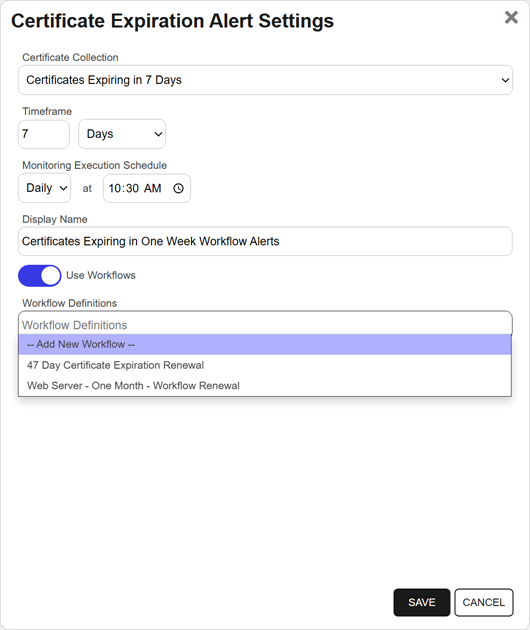
Figure 170: Create an Expiration Alert with Workflow Option
-
Save the alert.
If you select Add New Workflow, saving the alert creates a new workflow with the same name as the expiration alert. The workflow workspace opens automatically so you can add steps.
-
Add one or more workflow steps, such as:
-
Send Email to notify recipients of the expiration event (see Workflow Step Configuration).
-
Optional steps for additional functionality, such as:
-
Write to Windows Event Log for event logging (see the example 47 Day Certificate Renewal and Email Notification).
-
Certificate renewal (see Renewal and Email Notification on Approaching Certificate Expiration).
-
-
-
-
If Use Workflows is turned off (legacy alerting):
Continue with the following steps to configure legacy alert settings.
-
In the Subject field, enter a subject line for the email message that will be delivered when the alert is triggered. You can use substitutable special text in the subject line. Substitutable special text uses a variable in the alert definition that is replaced by data from the certificate or certificate metadata
Metadata provides information about a piece of data. It is used to summarize basic information about data, which can make working with the data easier. In Keyfactor Command, the certificate metadata feature allows you to create custom metadata fields that allow you to tag certificates with tracking information about certificates. at processing time. For example, you can enter {cn A common name (CN) is the component of a distinguished name (DN) that represents the primary name of the object. The value varies depending on the type of object. For a user object, this would be the user's name (for example CN=John Smith). For SSL certificates, the CN is typically the fully qualified domain name (FQDN) of the host where the SSL certificate will reside (for example servername.keyexample.com or www.keyexample.com).} in the alert definition and each alert generated at processing time will contain the specific common name A common name (CN) is the component of a distinguished name (DN) that represents the primary name of the object. The value varies depending on the type of object. For a user object, this would be the user's name (for example CN=John Smith). For SSL certificates, the CN is typically the fully qualified domain name (FQDN) of the host where the SSL certificate will reside (for example servername.keyexample.com or www.keyexample.com). of the given certificate instead of the variable {cn}.To add substitutable special text to the subject line; place your cursor where you would like the text to appear on the subject line, select the appropriate variable from the Insert special text dropdown, and click Insert. Alternately, type the special text variable enclosed in curly braces (for example, {cn}).
-
In the Message box, enter the body of the email message that will be delivered when the alert is triggered. You can use the Insert special text dropdown below the message window to add substitutable special text to the message. The metadata that appears in the dropdown will depend on the custom metadata you have defined (see Certificate Metadata). Place your cursor where you would like the text to appear, select the appropriate variable from the dropdown, and click Insert. Alternately, you can type the special text variable enclosed in curly braces directly.
CopyDN: {dn}
CN: {cn}
Thumbprint: {thumbprint}
Serial Number: {serial}With this HTML code:
Copy<table>
<tr><td>DN:</td><td>{dn}</td></tr>
<tr><td>CN:</td><td>{cn}</td></tr>
<tr><td>Thumbprint:</td><td>{thumbprint}</td></tr>
<tr><td>Serial Number:</td><td>{serial}</td></tr>
</table>Note: When using HTML to format an email sent from Keyfactor Command, use inline styles and avoid linked stylesheets or embedded <style> rules. Many email clients do not fully support external or embedded CSS.Line breaks are not inserted automatically when HTML formatting is used. Define line breaks explicitly using tags such as <br>, <br/>, or <p></p>.
Recommended:
<p style="font-size:14px; color:#333; margin:0 0 12px;">Hello</p>Not Recommended:
<link rel="stylesheet" href="https://cdn.keyexample.com/styles.css">or
<style>p { color:#333; }</style>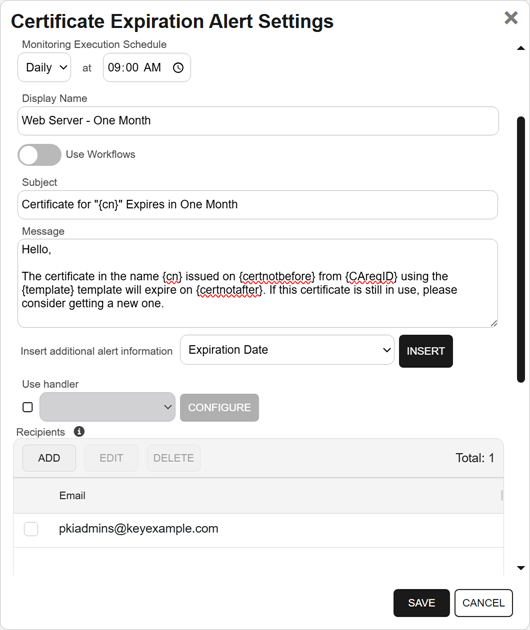
Figure 171: Create an Expiration Alert with Legacy Option
-
In the Use handler box, if you would like the alert to trigger an event handler at processing time, select the appropriate handler in the dropdown, and click the Configure button to configure the event handler. See Adding Logging Handlers to Alerts for information on using event logging handlers
Tip: With workflows, the equivalent functionality to the handlers can be achieved using either Set Variable Data or Use Custom PowerShell steps. See the examples for Write to Windows Event Log with Expiration Workflow -
In the Recipients table, click Add to create a new recipient entry. You can add multiple recipients to each
-
You can enter specific email addresses (for example, user@keyexample.com) or use substitutable special text variables (for example, {certemail}) that are replaced with actual email addresses when the
-
To include multiple recipients on the same email, where all recipients of the email will be able to see who the other recipients are, add them in a single row, separated by commas or semicolons (for example, user1@keyexample.com, user2@keyexample.com).
-
To send to multiple recipients in separate emails, where all recipients will receive separate email messages appearing as though there were no other recipients, add them on separate rows.
To use substitutable special text, click the Use a variable from the certificate checkbox to select a built-in variable and choose a value from the dropdown. Each selected variable is added to the alert on its own row and sends a separate email to the respective recipient. You cannot add variables to a line that contains email addresses.
Edit or delete a recipient by selecting it and using the action buttons on the toolbar.
Tip: Keyfactor Command sends SMS (text) messages by leveraging the email to text gateways that many major mobile carriers provide. Check with your carrier for specific instructions. Keyfactor has tested that AT&T can be addressed using 10-digit-number@txt.att.net (for example, 4155551212@txt.att.net) and Verizon can be addressed using 10-digit-number@vtext.com (for example, 2125551212@vtext.com). T-Mobile can be addressed using 10-digit-number@tmomail.net (for example, 2065551212@tmomail.net), but functionality can be spotty. Reliability of alerting via this method depends on the reliability of the carrier’s gateways.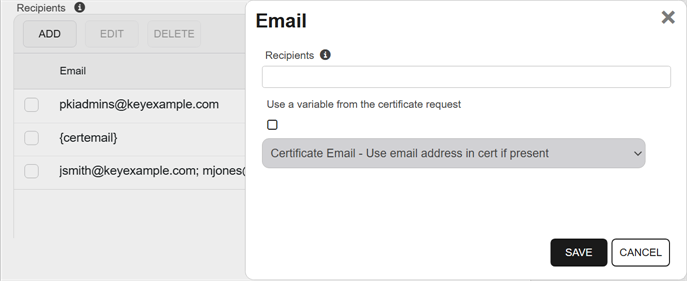
Figure 172: Expiration Alerts Recipients
-
- Save the alert.
-
-
Configure a Workflow for an Expiration Alert
For alerts that use workflow, you can open the associated workflow for the alert using the Configure Workflow option.
- On the Expiration Alerts page, highlight a row in the alerts grid and click Configure Workflow from the toolbar or right-click menu.
- You will be redirected to the workflow workspace for the workflow associated with the selected alert. If a workflow does not exist for the selected alert, one will be created and pre-populated with the Name, Type, and Expiration Alert (key) of the selected alert. Edit the workflow as needed (see Add, Copy, or Modify a Workflow Definition).
Delete an Expiration Alert
You may delete one expiration alert at a time.
- On the Expiration Alerts page, highlight the row in the Expiration Alerts grid, and click Delete from the toolbar or right-click menu.
Copy an Expiration Alert
You may use the copy operation to create multiple similar alerts—for example, several alerts for the same certificate collection but with different warning timeframes.
- On the Expiration Alerts page, highlight the row in the expiration alerts grid, and click Copy from the toolbar or right click menu.
- The Certificate Expiration Alert Settings dialog will pop-up with the details from the selected alert. The display name field will have - Copy tagged to the end of it to indicate it is a new alert. You may modify the alert as needed and click Save to add the new alert, or Cancel to cancel the operation.
Test Expiration Alerts
Once the alerts are configured, you may run a test of all, or selected, alerts to see if they are configured correctly.
- On the Expiration Alerts page, select an expiration alert in the grid, and click Test from the toolbar or the right-click menu.
-
In the Expiration Alert Test dialog, select a Start Date and End Date for the test period. This period represents the number of days, weeks, or months before the certificate expiration date, as configured in the alert. For example, if your alert is configured to notify one week before expiration and you wanted to simulate an automated run of the alerts today, you would select a date range of yesterday through today and the results would be certificates expiring one week from today.
Example: An outage occurred and alerts that normally run daily at 5:00 PM did not run for two days. You want to test to see what to expect once the system is up and running again.- The alert has a 30 day expiration period.
- The test is run on August 3rd.
- The alert last ran on July 31. This means the alert has a Previous Evaluation Date of July 31.
When running your test, set the Start Date to July 31st and set the End Date to August 3rd, to simulate the results when the alerts are run today.
The test results will include certificates expiring between August 30th and September 2nd (30 days after the window of July 31st to August 3rd).
-
In the Expiration Alert Test: Select Targets dialog, select one or more certificates for testing. For alerts that do not use workflow, turn on the Send Emails option if you would like to deliver email messages as part of the test. Alerts that do use workflow will generate workflow instances for each selected certificate.
Note: You may see fewer certificates than you have certificates expiring in the selected time window for the certificate collection if you turned on one of the options to ignore duplicate certificates on the certificate collection (see Save Search Criteria as a Collection).Tip: If no certificates appear in the grid for testing, this indicates no certificates were found matching the criteria of the alert and test period selected for testing. - Click the Start Tests button to begin generating alerts. Depending on the number of users to process, this may take a few seconds.
-
In the Expiration Alert Test: Results dialog, you can review the generated expiration alerts to confirm that the substitutable special text is being replaced as expected and the recipients are as expected. Scroll the First, Previous, Next, and Last buttons at the bottom of the dialog. The number of alerts generated will display between the navigation buttons.
Note: The display results will vary depending on whether the alert uses workflow to deliver the alerts or the legacy alerting system.
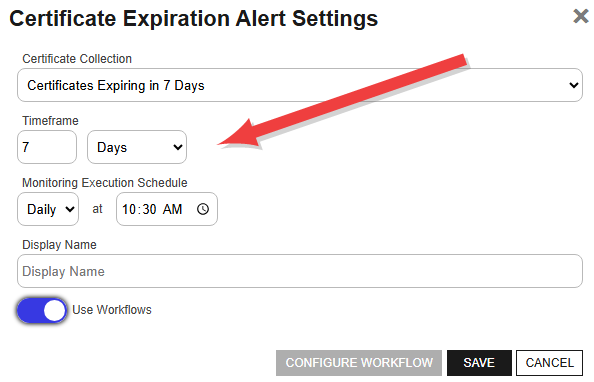
Figure 173: Expiration Alert Timeframe
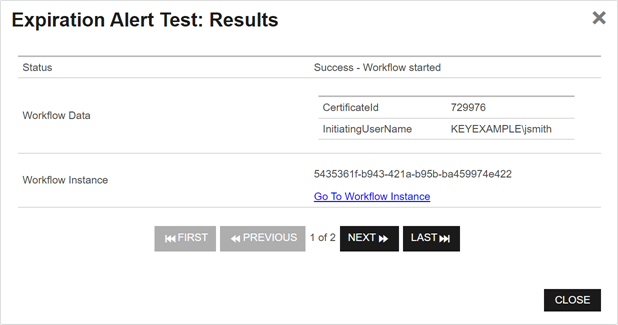
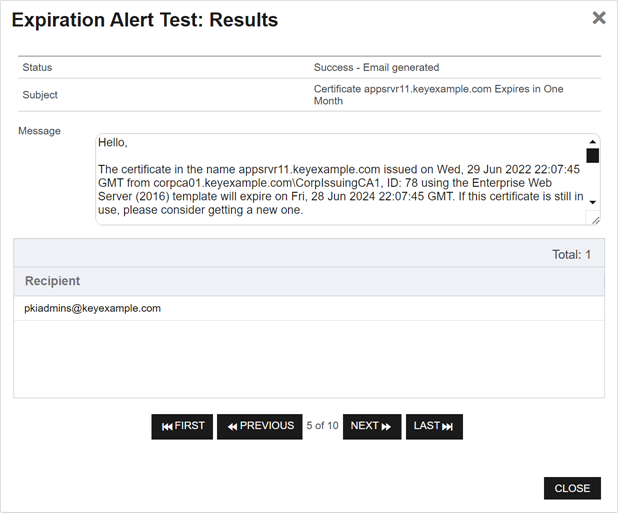
Figure 174: Expiration Alert Test Results With and Without Workflow
Refer to the following table for a complete list of the substitutable special text that can be used to customize alert messages.
Table 18: Substitutable Special Text for Expiration Alerts
|
Variable |
Name |
Description |
|---|---|---|
|
{certemail} |
Email Address in Certificate |
Email address contained in the certificate, if present |
|
{cn} |
Common Name |
Common name contained in the certificate |
|
{dn} |
Distinguished Name |
Distinguished name contained in the certificate |
|
{certnotbefore} |
Issue Date |
Validity date of the certificate |
|
{certnotafter} |
Expiration Date |
Expiration date of the certificate |
|
{issuerDN} |
Issuer DN |
Distinguished name of the certificate’s issuer |
|
{locations:certstore} |
Certificate Store Locations |
The server and path location to one or more certificate stores where the certificate resides, if any, for certificates found in certificate stores. For example: server1.keyexample.com – /opt/test/mystore.jks
|
|
{principal:mail} |
Principal’s Email |
Email address retrieved from Active Directory of the user whose UPN is contained in the SAN field of the certificate, if present Note: This substitutable special text token appears in the dropdown only in environments that use Active Directory as the identity provider.
|
|
{principal:givenname} |
Principal’s First Name |
First name retrieved from Active Directory of the user whose UPN is contained in the SAN field of the certificate, if present Note: This substitutable special text token appears in the dropdown only in environments that use Active Directory as the identity provider.
|
|
{principal:sn} |
Principal’s Last Name |
Last name retrieved from Active Directory of the user whose UPN is contained in the SAN field of the certificate, if present Note: This substitutable special text token appears in the dropdown only in environments that use Active Directory as the identity provider.
|
|
{principal:displayname} |
Principal’s Display Name |
Display name retrieved from Active Directory of the user whose UPN is contained in the SAN field of the certificate, if present Note: This substitutable special text token appears in the dropdown only in environments that use Active Directory as the identity provider.
|
|
{requester} |
Requester |
The user account that requested the certificate from the CA, in the form DOMAIN\username for Active Directory users. |
|
{requester:mail} |
Requester’s Email |
Email address retrieved from Active Directory of the user account that requested the certificate from the CA, if present Note: This substitutable special text token appears in the dropdown only in environments that use Active Directory as the identity provider.
|
|
{requester:givenname} |
Requester’s First Name |
First name retrieved from Active Directory of the user account that requested the certificate from the CA, if present Note: This substitutable special text token appears in the dropdown only in environments that use Active Directory as the identity provider.
|
|
{requester:sn} |
Requester’s Last Name |
Last name retrieved from Active Directory of the user account that requested the certificate from the CA, if present Note: This substitutable special text token appears in the dropdown only in environments that use Active Directory as the identity provider.
|
|
{requester:displayname} |
Requester’s Display Name |
Display name retrieved from Active Directory of the user account that requested the certificate from the CA, if present Note: This substitutable special text token appears in the dropdown only in environments that use Active Directory as the identity provider.
|
|
{careqid} |
Issuing CA / Request ID |
A string containing the Issuing CA name and the certificate’s Request ID from the CA |
|
{serial} |
Serial Number |
The serial number of the certificate |
|
{locations:ssl} |
SSL Locations |
One or more server locations where the certificate resides, if any, for certificates synchronized using SSL synchronization |
|
{san} |
Subject Alternative Name |
One or more Subject alternative names contained in the certificate |
|
{template} |
Template Name |
Name of the certificate template used to create the certificate |
|
{templateshortname} |
Template Short Name |
Short name (often the name with no spaces) of the certificate template used to create the certificate |
|
{thumbprint} |
Thumbprint |
The thumbprint (hash) of the certificate |
|
{metadata: Email-Contact} |
Email-Contact |
Example of a custom metadata field |
 ) next to the
 You can also find Help in the Navigator The Navigator is the Keyfactor Command left-hand (newer versions) or top (older versions) navigation menu. Certificate collections and reports can be configured to be added to the menu using user-defined Show in Navigator settings.. From here you can choose to open either the Keyfactor Software & Documentation Portal at the home page or the Keyfactor API Endpoint Utility.
Keyfactor provides two sets of documentation: the On-Premises Documentation Suite and the Managed Services Documentation Suite. Which documentation set is accessed is determined by the Application Settings: On-Prem Documentation setting (see Application Settings: Console Tab).