
Use the Certificate Collection The certificate search function allows you to query the Keyfactor Command database for certificates from any available source based on any criteria of the certificates and save the results as a collection that will be available in other places in the Management Portal (for example expiration alerts and certain reports). Management page to view, organize, and manage certificate collections. From this page, you can control collection visibility, access certificates within a collection, and perform collection-level actions.
Certificates→ Collection Manager
From the Certificate Collection Management page, you can:
-
View and locate collections
-
View a list of certificate collections
-
Search for specific collections
-
View certificates within a collection
-
-
Control visibility
-
Show or hide collections in the Navigator
The Navigator is the Keyfactor Command left-hand (newer versions) or top (older versions) navigation menu. Certificate collections and reports can be configured to be added to the menu using user-defined Show in Navigator settings. -
Change the order of collections in the Navigator
-
Show or remove collections from the Legacy Dashboard
Important: The legacy dashboard will be removed in a future release.
-
-
Monitor collection status
-
View when the collection was last processed by the Keyfactor service
-
View the estimated number of certificates in the collection
-
-
Manage collections
-
Delete a certificate collection
-
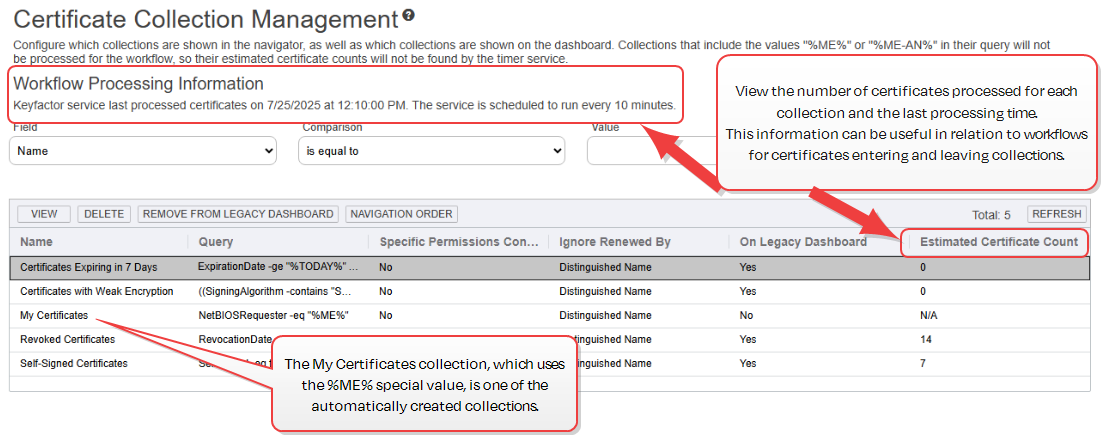
Figure 77: Certificate Collection Management
Searching Certificate Collections
This page supports the standard query format described in Using Search in the Management Portal and includes its own set of query parsers specific to this operation. Use the following parsers to filter and refine results for this page.
-
LastEstimated
The date on which the Keyfactor service last processed the certificates for the collection. By default this occurs every 10 minutes.
-
Name
Complete or partial matches with the name of the certificate collection.
-
Query
Complete or partial matches with the string that makes up the search criteria for the certificate collection. For example:
(IssuedDate -ge \"%TODAY-7%\" AND TemplateShortName -ne NULL) OR (IssuedDate -ge \"%TODAY-7%\" AND IssuerDN -contains \"keyexample\")
Certificate Collection Management Operations
The following actions are available from the grid header and right-click menu.
View a Collection
The View option displays the certificates that belong to the selected collection by navigating to certificate search, filtered using the collection’s criteria.
To view a collection:
-
Select a collection in the Certificate Collection Management grid.
-
Click View at the top of the grid, or choose View from the right-click menu.
The current page updates to show the certificates in the selected collection.
Delete a Collection
The Delete action permanently deletes the selected collection.
To delete a collection, highlight the row in the collection management grid and click Delete at the top of the grid or choose Delete from the right-click menu. When prompted, click OK to confirm.
Show on / Remove from Legacy Dashboard
To change whether or not a collection appears on the legacy dashboard in the Collections panel, highlight the row in the collection management grid and click Show on Legacy Dashboard or Remove from Legacy Dashboard (depending on that collection's current state) at the top of the grid, or choose the action from the right-click menu. You will receive a confirmation message to remind you that only 25 collections can show on the dashboard.
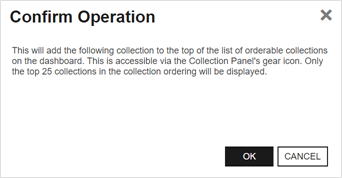
Figure 78: Show Certificate Collection
Navigation Order
Use Navigation Order to control which certificate collections appear in the Navigator and the order in which they are displayed.
Selecting Navigation Order opens the Collection Order in Navigator dialog. This dialog shows the collections currently displayed in the Navigator, pre-populated in their existing order. A maximum of 25 collections can be displayed.
The dialog includes a search select dropdown and a grid with the following columns:
-
Selection: A checkbox to allow selection of a collection to perform an action. Only one row at a time may be selected.
-
Order: An integer indicating the collection’s current position in the Navigator.
-
Collection: Displays the name of the collection.
Add a Collection
Select a certificate collection to add to the Navigator. To narrow the list of results in a search select dropdown, begin typing in the input field. Matching results will appear as you type, and you can scroll to locate a record.
Select a collection, and click Add to include it at the end of the list. If the collection is already displayed in the Navigator, an error message is shown.
Reorder Collections
Select a collection in the grid and use the available actions to change its position:
-
Move Up: Move the collection up one position.
-
Move Down: Move the collection down one position.
-
Move to Top: Move the collection to the first position.
-
Move to Bottom: Move the collection to the last position.
Remove a Collection
Select a collection and click Remove to hide it from the Navigator. Removing a collection from the Navigator does not delete it. The collection remains available for use in reports, alerts, workflows, dashboards, and in Certificate Collection Management.
Save or Discard Changes
Click Save to apply your changes and refresh the Navigator.
Click Close to exit the dialog. If there are unsaved changes, you are prompted to confirm before closing.
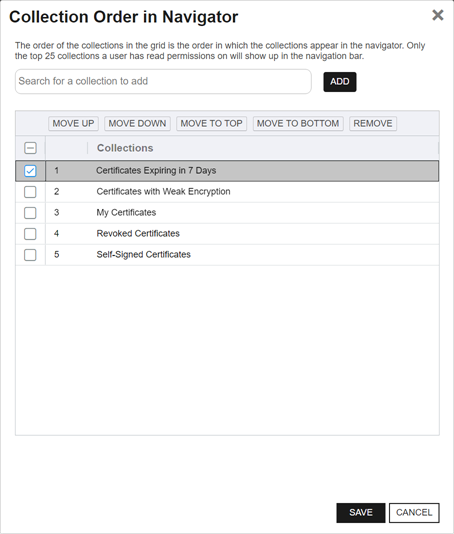
Figure 79: Order Certificate Collection
Keyfactor Command Auto-Created Collections
Several collections are created automatically when Keyfactor Command is installed.
- Certificates Expiring in 7 Days
This collection uses the special %TODAY% value in place of the current date to create a collection that can be used on any day to find the certificates that will expire within the next week. Only active certificates are included in this collection. The query for this collection is:ExpirationDate -ge "%TODAY%" AND ExpirationDate -le "%TODAY+7%" AND CertState -eq "1" - Certificates with Weak Encryption
This collection uses a variety of key type The key type identifies the type of key to create when creating a symmetric or asymmetric key. It references the signing algorithm and often key size (for example AES-256, RSA-2048, Ed25519)., key size The key size or key length is the number of bits in a key used by a cryptographic algorithm., and signing algorithm queries to produce a collection that returns active certificates that have weak encryption. The query for this collection is:((SigningAlgorithm -contains "SHA 1" OR SigningAlgorithm -contains "SHA1" OR SigningAlgorithm -contains "SHA-1") OR (SigningAlgorithm -contains "MD") OR (KeyType -eq 3 AND KeySize -lt 224) OR (KeyType -eq 1 AND KeySize -lt 2048)) AND CertState -eq "1" - My Certificates
This collection uses the special %ME% value in place of a specific user name to create a collection that any user can use to find the certificates on which they were the requester. The query for this collection is:NetBIOSRequester -eq "%ME%"Note: Certificate collections saved using the %ME% value are not supported for use in the legacy reports or on the legacy dashboard. - Revoked Certificates
This collection returns revoked certificates by querying for certificates that have a non-null revocation date. The Include Revoked box is automatically checked for this collection when run. The query for this collection is:RevocationDate -ne NULL - Self-Signed Certificates
This collection returns all certificates that are self-signed. In environments with no certificates imported from external sources (for example, SSL TLS (Transport Layer Security) and its predecessor SSL (Secure Sockets Layer) are protocols for establishing authenticated and encrypted links between networked computers. scanning), this would typically just be CA A certificate authority (CA) is an entity that issues digital certificates. Within Keyfactor Command, a CA may be a Microsoft CA or a Keyfactor gateway to a cloud-based or remote CA. certificates. The query for this collection is:SelfSigned -eq true
 ) next to the
 You can also find Help in the Navigator. From here you can choose to open either the Keyfactor Software & Documentation Portal at the home page or the Keyfactor API Endpoint Utility.
Keyfactor provides two sets of documentation: the On-Premises Documentation Suite and the Managed Services Documentation Suite. Which documentation set is accessed is determined by the Application Settings: On-Prem Documentation setting (see Application Settings: Console Tab).