
Workflow A workflow is a series of steps necessary to complete a process. In Keyfactor Command, it refers to the workflow builder, which allows you to automate event-driven tasks such as when a certificate is requested, revoked or found in a certificate store. instances represent the execution of a workflow definition for a specific action. Every certificate enrollment Certificate enrollment refers to the process by which a user requests a digital certificate. The user must submit the request to a certificate authority (CA)., renewal, or revocation request processed in Keyfactor Command creates a workflow instance, whether you are using built-in global workflows or custom workflow definitions (see Workflow Definitions).
Other actions—such as certificate collection The certificate search function allows you to query the Keyfactor Command database for certificates from any available source based on any criteria of the certificates and save the results as a collection that will be available in other places in the Management Portal (for example expiration alerts and certain reports). updates, certificate store additions or removals, and alerts—create workflow instances only when custom workflows are configured for those actions, as no built-in global workflows exist for them.
A workflow instance combines the requested action with the workflow definition in effect at the time the action occurred. If a workflow definition includes steps such as approval requirements, PowerShell scripts, or API An API is a set of functions to allow creation of applications. Keyfactor offers the Keyfactor API, which allows third-party software to integrate with the advanced certificate enrollment and management features of Keyfactor Command. calls, you may need to manage its execution from the Workflow Instances page.
Workflow → Instances
Searching Workflow Instances
This page supports the standard query format described in Using Search in the Management Portal and includes its own set of query parsers specific to this operation. Use the following parsers to filter and refine results for this page.
-
The Keyfactor Command reference GUID for the workflow definition.
-
Id
The Keyfactor Command reference GUID for the workflow instance.
-
Complete or partial matches with the name of the user who initiated the workflow instance. For implementations authenticated using Active Directory, this will be in NetBIOS format (DOMAIN\username). For implementations authenticated using OAuth, this will be in the format defined by the Name Claim Type.
-
The date and time on which an initiated instance was last updated. The instance is updated each time a step in the workflow is completed, when signals are received for a step that accepts signals (for example, a requires approval step), or when an instance is stopped or restarted.
-
The date and time when an instance was initiated.
-
Status
Status matches or doesn’t match the referenced value. Supported statuses are:
-
Unknown
-
Running
-
Suspended
-
Failed
-
Complete
-
Rejected
-
CanceledforRestart
-
-
Title
Complete or partial matches with the description for the action taking place in the workflow instance step. The values in the title will vary and often include the user initiating the request and the CN
A common name (CN) is the component of a distinguished name (DN) that represents the primary name of the object. The value varies depending on the type of object. For a user object, this would be the user's name (for example CN=John Smith). For SSL certificates, the CN is typically the fully qualified domain name (FQDN) of the host where the SSL certificate will reside (for example servername.keyexample.com or www.keyexample.com). of the certificate or certificate request involved. -
WorkflowType
The type of workflow (for example, enrollment, revocation).
View a Workflow Instance
To view a workflow instance:
- On the Workflow Instances page, double-click an instance or select the instance and choose View from the toolbar or right-click menu.
-
The Instance Review dialog includes the following information:
Instance SectionName Description Id A GUID indicating the Keyfactor Command reference ID for the instance.
Title A description for the action taking place in the step. For example:
"KEYEXAMPLE\jsmith is enrolling for a certificate with CN=appsrvr12.keyexample.com."Or:
"KEYEXAMPLE\mjones is revoking certificate with CN=appsrvr14.keyexample.com."Status The current status message of the workflow instance.
For example, for an enrollment that succeeded, the status message might be:
Issued. The private key was successfully retained.For a workflow suspended and awaiting approval, the status message might be:
Awaiting 2 more approval(s) from approval roles.For an enrollment that could not be submitted because a regular expression rule was not met, the status message might be something like:
Pre-process failed: Invalid ST provided: Value must be one of California, Washington, Texas, New York, Illinois or Ohio.For an enrollment that failed due to rejection by the CA, the status message might be:
The certificate request failed with the reason '[CA reason]'A workflow that failed at a PowerShell step might include the PowerShell error in the status message:
Step 'Run PowerShell' failed: At line:5 char:19
     +    [datetime]$Date
     +                   ~
     Missing ')' in function parameter list.
     At line:7 char:1
     + )
     + ~
     Unexpected token ')' in expression or statement.
Current Step The display name defined for the workflow instance step at which the instance has paused
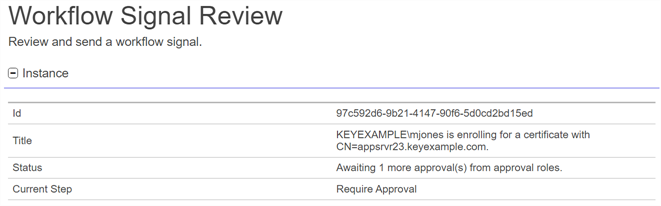
Figure 254: Workflow Instance Review
Current Data SectionThe data included in this section will vary depending on the request type and the configuration of the workflow.
Certificate Entered Collection and Certificate Left Collection
For a certificate that entered or left a certificate collection, this section can include:
Name Description (Custom)
Optional user-generated custom fields returning response data from PowerShell scripts or REST requests. These will be sorted alphabetically in among the other fields on the page.
Certificate Id
The Keyfactor Command reference ID for the certificate added to or removed from the certificate collection.
Tip: Certificate Id and Keyfactor Id both refer to the same value—the Keyfactor Command–assigned reference ID for a certificate. You may see either name in different parts of the Management Portal or Keyfactor API because Certificate Id was the original term, and Keyfactor Id is its newer replacement. The updated name helps avoid confusion with a different value—the certificate’s identifier on the issuing CA—which is now called the CA Record ID.Certificate Entered Store and Certificate Left Store
For a certificate that entered or left a certificate store, this section can include:
Name Description (Custom)
Optional user-generated custom fields returning response data from PowerShell scripts or REST requests. These will be sorted alphabetically in among the other fields on the page.
Certificate Id
The Keyfactor Command reference ID for the certificate added to or removed from the certificate collection.
Tip: Certificate Id and Keyfactor Id both refer to the same value—the Keyfactor Command–assigned reference ID for a certificate. You may see either name in different parts of the Management Portal or Keyfactor API because Certificate Id was the original term, and Keyfactor Id is its newer replacement. The updated name helps avoid confusion with a different value—the certificate’s identifier on the issuing CA—which is now called the CA Record ID.Certificate Store Id
The Keyfactor Command reference GUID of the certificate store to which the certificate was added or removed.
Container Id The optional Keyfactor Command reference ID of the certificate store application with which the certificate store is associated. Enrollment
Name Description (Custom)
Optional user-generated custom fields returning response data from PowerShell scripts or REST requests. These will be sorted alphabetically in among the other fields on the page.
Additional Attributes
Values for any custom enrollment fields set on the certificate template to supply custom request attributes to the CA during the enrollment process. Alternative Key Length The alternative key size for the certificate. Alternative Key Type The alternative key encryption algorithm for the certificate. CA Certificate Request Id The ID assigned to the certificate request by the CA.
Note: This field is populated only if the certificate request fails at the CA level or requires manager approval at the CA level.CA Certificate Request Id A string containing the ID assigned to the certificate request by the CA.
Note: This field is populated only if the certificate request fails at the CA level or requires manager approval at the CA level.CA Certificate Request Status An integer indicating the status for the certificate as returned by the CA.
Note: This field is populated only if the certificate request fails at the CA level or requires manager approval at the CA level.CA Certificate Request Status An integer indicating the status for the certificate as returned by the CA.
Note: This field is populated only if the certificate request fails at the CA level or requires manager approval at the CA level.Certificate Authority The certificate authority that will be used to enroll against in hostname\logical name format. Certificate Chain Content A string containing the certificates in the certificate chain, if the Include Chain option was selected for the request. Certificate To Be Renewed
Data for the certificate that this certificate replaces on a renewal including:
-
Certificate: The original certificate in Base64-encoded format.
-
CertificateId: The Keyfactor Command reference ID of the original certificate.
The unparsed version of the certificate signing request generated for the certificate request.
Curve The elliptic curve for the certificate. Custom Name
A custom friendly name for the certificate, if entered at enrollment.
Disposition An integer indicating the reference ID of the disposition for the certificate request.
Note: This field is only populated only after the certificate request has been submitted to the CA.Disposition Message
A message about the certificate request (for example, The private key was successfully retained.).
Note: This field is only populated only after the certificate request has been submitted to the CA.Enroll Step Executed A flag indicating whether the enrollment step of the workflow has initiated (True) or not (False). Enrollment Context A string containing the enrollment context returned to Keyfactor Command for external validation requests.
Note: This field is only populated only after the certificate request has been submitted to the CA.Enrollment Pattern Id The enrollment pattern ID used when requesting the certificate. Enrollment Start Time The date and time at which the enrollment request was initiated, in Coordinated Universal Time (UTC). Format The desired output format for the certificate. A value of STORE indicates that the certificate is intended to be delivered into one or more certificate stores.
From PFX Enrollment A flag indicating whether the request was initiated from PFX enrollment. Include Chain
A flag indicating whether to include the certificate chain in the enrollment response (True) or not (False).
Issuer Dn The distinguished name of the issuer of the certificate. Key Length The key size for the certificate. Key Retention
A flag indicating whether the private key for the certificate resulting from the enrollment will be retained in c (True) or not (False).
Key Status
A numeric value indicating the status of the private key retention for the certificate within Keyfactor Command. Possible values are:
-
0: Unknown
-
1: Saved
-
2: Expected
-
3: NoRetention
-
4: Failure
-
5: Temporary
Key Type The key type of the certificate. Keyfactor Id The Keyfactor Command reference ID for the certificate.
Tip: Certificate Id and Keyfactor Id both refer to the same value—the Keyfactor Command–assigned reference ID for a certificate. You may see either name in different parts of the Management Portal or Keyfactor API because Certificate Id was the original term, and Keyfactor Id is its newer replacement. The updated name helps avoid confusion with a different value—the certificate’s identifier on the issuing CA—which is now called the CA Record ID.Management Job Time
The schedule for the management job to add the certificate to any certificate stores.
Metadata
Values for the metadata fields that will be associated with the certificate once it is in Keyfactor Command. Owner Role Id The Keyfactor Command reference ID of the security role assigned as the certificate owner. Raw Certificate The raw certificate generated from a certificate enrollment, without BEGIN and END blocks. Requester Email The email address of the user making the enrollment request. SANs
The subject alternate names defined for the certificate. Possible types that can be entered within Keyfactor Command are DNS Name, IPv4 Address, IPv6 Address, User Principal Name, and Email. Within each type is a list of entries for that type shown with a key name of the entry number and the actual value. For example, if you had two DNS SANs, the DNS Name section would look something like:
Entry 1: myfirstsan.keyexample.com
Entry 2: mysecondsan.keyexample.com
Serial Number
The serial number of the certificate.
Stores The certificate stores to which the certificate should be distributed, if applicable.
Subject The distinguished name of the certificate.
Template Name The template that was used when requesting the certificate.
Thumbprint The thumbprint of the certificate.
Expiration
For a certificate expiration alert that uses workflow, this section can include:
Name Description (Custom)
Optional user-generated custom fields returning response data from PowerShell scripts or REST requests. These will be sorted alphabetically in among the other fields on the page.
Alert Id
The Keyfactor Command reference ID of the expiration alert.
Certificate Id
The Keyfactor Command reference ID for the certificate.
Tip: Certificate Id and Keyfactor Id both refer to the same value—the Keyfactor Command–assigned reference ID for a certificate. You may see either name in different parts of the Management Portal or Keyfactor API because Certificate Id was the original term, and Keyfactor Id is its newer replacement. The updated name helps avoid confusion with a different value—the certificate’s identifier on the issuing CA—which is now called the CA Record ID.Key Rotation
For an SSH
The SSH (secure shell) protocol provides for secure connections between computers. It provides several options for authentication, including public key, and protects the communications with strong encryption. key rotation alert that uses workflow, this section can include:Name Description (Custom)
Optional user-generated custom fields returning response data from PowerShell scripts or REST requests. These will be sorted alphabetically in among the other fields on the page.
Alert Id
The Keyfactor Command reference ID of the key rotation alert.
Serial
The certificate serial number.
Username User name of the SSH user owning the key. Revocation
For a revocation, this section may include:
Name Description (Custom)
Optional user-generated custom fields returning response data from PowerShell scripts or REST requests. These will be sorted alphabetically in among the other fields on the page.
Certificate Authority The certificate authority that issued the certificate.
Certificate Id
The Keyfactor Command reference ID for the certificate being revoked.
Tip: Certificate Id and Keyfactor Id both refer to the same value—the Keyfactor Command–assigned reference ID for a certificate. You may see either name in different parts of the Management Portal or Keyfactor API because Certificate Id was the original term, and Keyfactor Id is its newer replacement. The updated name helps avoid confusion with a different value—the certificate’s identifier on the issuing CA—which is now called the CA Record ID.Comment
A freeform reason or comment to explain why the certificate is being revoked.
Delegate A flag indicating whether delegation was turned on for the certificate authority that issued the certificate at the time revocation was requested (True) or not (False). For more information, see Delegation Section.
Effective Date
The date and time when the certificate will be revoked.
Initiating User Name
The name of the user who initiated the workflow in DOMAIN\\username format. Operation Start
The time at which the revocation workflow was initiated.
RevokeCode The specific reason that the certificate is being revoked. Possible values are:
- -1: Remove from Hold
- 0: Unspecified
-
1: Key Compromised
-
2: CA Compromised
-
3: Affiliation Changed
-
4: Superseded
-
5: Cessation of Operation
-
6: Certificate Hold
-
7: Remove from CRL. Only valid in the case that a cert is already on a CRL in a manner that it can be removed, such as Certificate Hold.
Serial Number
The serial number of the certificate being revoked.
Thumbprint The thumbprint of the certificate being revoked.
Revocation Monitoring
For a revocation monitoring alert that uses workflow, this section can include:
Name Description (Custom)
Optional user-generated custom fields returning response data from PowerShell scripts or REST requests. These will be sorted alphabetically in among the other fields on the page.
Alert Id
The Keyfactor Command reference ID of the revocation monitoring alert.
Status The current state of the revocation monitoring endpoint. For example:
ExpiredSubject A description of the current state of the revocation monitoring endpoint. For example:
CRL Distribution Point at Location 'http://www.keyexample.com/CorpIssuing1.crl' has ExpiredURL
The URL for the CRL or OCSP location.

Figure 255: View a Workflow Instance
-
- Click Close to close the viewer.
View a Workflow Instance Definition
The workflow definition as it existed at the time a particular workflow instance was generated may not necessarily match the current workflow definition. Using the Workflow Definition option on the Workflow Instances page, you can view the workflow definition for the selected instance as it was at the time the instance was initiated using the workflow workspace.
To view a workflow instance definition:
- On the Workflow Instances page, select a workflow instance and click View Definition from either the top or right-click menu.
- A read-only copy of the workflow definition at the time the instance was initiated will open in the workflow definition workspace. For information about using the workflow definition workspace, see Add, Copy, or Modify a Workflow Definition.
Stop a Workflow Instance
If a workflow instance has been initiated in error or with a workflow definition that is not configured correctly, you have the option to stop the workflow instance.
To stop a workflow instance:
- On the Workflow Instances page, select a workflow instance and click Stop from either the top or right-click menu.
- On the Confirm Operation alert, click OK to confirm or Cancel to cancel the operation.
Restart a Workflow Instance
If a workflow instance has failed or been stopped to correct an issue, you may restart it to reinitialize the request after correcting whatever issue caused the failure (for example, a PowerShell script failed or a CA A certificate authority (CA) is an entity that issues digital certificates. Within Keyfactor Command, a CA may be a Microsoft CA or a Keyfactor gateway to a cloud-based or remote CA. was not responding on enrollment). You may also choose to use restart if a workflow instance was initiated with a workflow definition that had an incorrect definition that can be corrected—for example, the definition requires approval from just one user and that user is no longer available. In this case, you can update the definition, republish it, and then restart the workflow with the latest published version.
When you restart a workflow instance, it starts over from the beginning, not from the failure point.
To restart a workflow instance:
- On the Workflow Instances page, select a workflow instance and click Restart from either the top or right-click menu.
- On the Confirm Operation alert, click OK to confirm or Cancel to cancel the operation.
After restarting a workflow instance, you can view any differences between the original instance and the newly restarted instance by looking at the audit log record (see Audit Log Operations) for the workflow instance restart. The Related Entries in the audit log record do not include the original workflow instance that failed since restarting a workflow instance generates a new workflow instance.
In a scenario like this, the user listed at the top of the audit log details will be the user who restarted the instance, not the user who originally started the request.
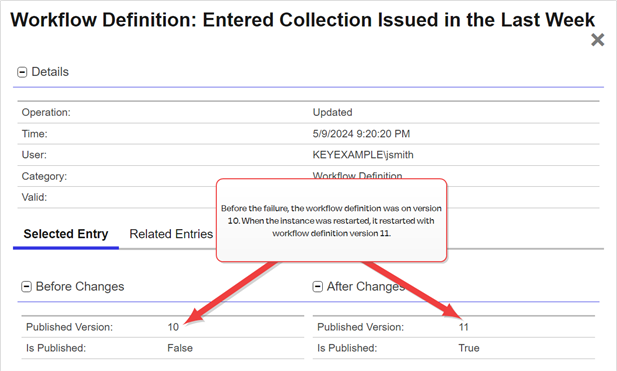
Figure 256: View an Audit Log Entry for a Restarted Workflow Instance
Delete a Workflow Instance
If a workflow instance has failed, you may wish to remove the failed instance from the grid.
To delete a workflow instance:
- On the Workflow Instances page, select a workflow instance and click Delete from either the top or right-click menu.
- On the Confirm Operation alert, click OK to confirm or Cancel to cancel the operation.
An audit log entry is created when you delete a workflow instance (see Audit Log). Instances deleted as the result of system action (for example, purging old records) are not audited.
 ) next to the
 You can also find Help in the Navigator The Navigator is the Keyfactor Command left-hand (newer versions) or top (older versions) navigation menu. Certificate collections and reports can be configured to be added to the menu using user-defined Show in Navigator settings.. From here you can choose to open either the Keyfactor Software & Documentation Portal at the home page or the Keyfactor API Endpoint Utility.
Keyfactor provides two sets of documentation: the On-Premises Documentation Suite and the Managed Services Documentation Suite. Which documentation set is accessed is determined by the Application Settings: On-Prem Documentation setting (see Application Settings: Console Tab).